 StreamLive Pro
Add captions to a LinkedIn video (SRT or burned in)
Add captions to a LinkedIn video: make an SRT in StreamLive Pro and attach it when you post on LinkedIn, or burn the captions in so they show in every feed.
There are two ways to put captions on a LinkedIn video. Attach an SRT file to the video when you post it on LinkedIn, so viewers see closed captions, or burn the captions into the picture, so they show the same everywhere. StreamLive Pro makes both: correct the text in Translate and subtitles, then download SRT — Subtitles or render MP4 — Burned-in subtitles.
Which way to choose
| You are posting | Use | Why |
|---|---|---|
| A talk or webinar recording, uploaded on LinkedIn by hand | An SRT file attached to the video | Text stays separate from the picture; you can fix the file and attach it again |
| A short clip with your brand design | Burned-in captions | Your design and the spoken-word highlight show as they are |
| A video you post from StreamLive Pro | Burned-in captions | The captions are part of the file that is posted |
| A video that will also go to WhatsApp or Instagram | Burned-in captions | A caption file does not travel with a downloaded or forwarded video |
Before you start
- The final cut. Captions are timed to the file you upload to StreamLive Pro. Upload the same cut you post to LinkedIn.
- Minutes. Transcription and translation use the plan's translation minutes; amounts per plan are on the /pricing?lang=en. The trial includes 10 translation minutes, for videos up to 10 minutes long. Burned-in videos made during the trial carry a small watermark.
- LinkedIn's own rules. LinkedIn's help page says the SRT is attached to the video before you post, from the desktop site, and that captions can be added to videos posted from a personal account or a LinkedIn Page: Add closed captions to videos on LinkedIn (checked 5 November 2026). LinkedIn decides where the option sits and the page itself notes it may be out of date, so follow what your screen shows.
Steps
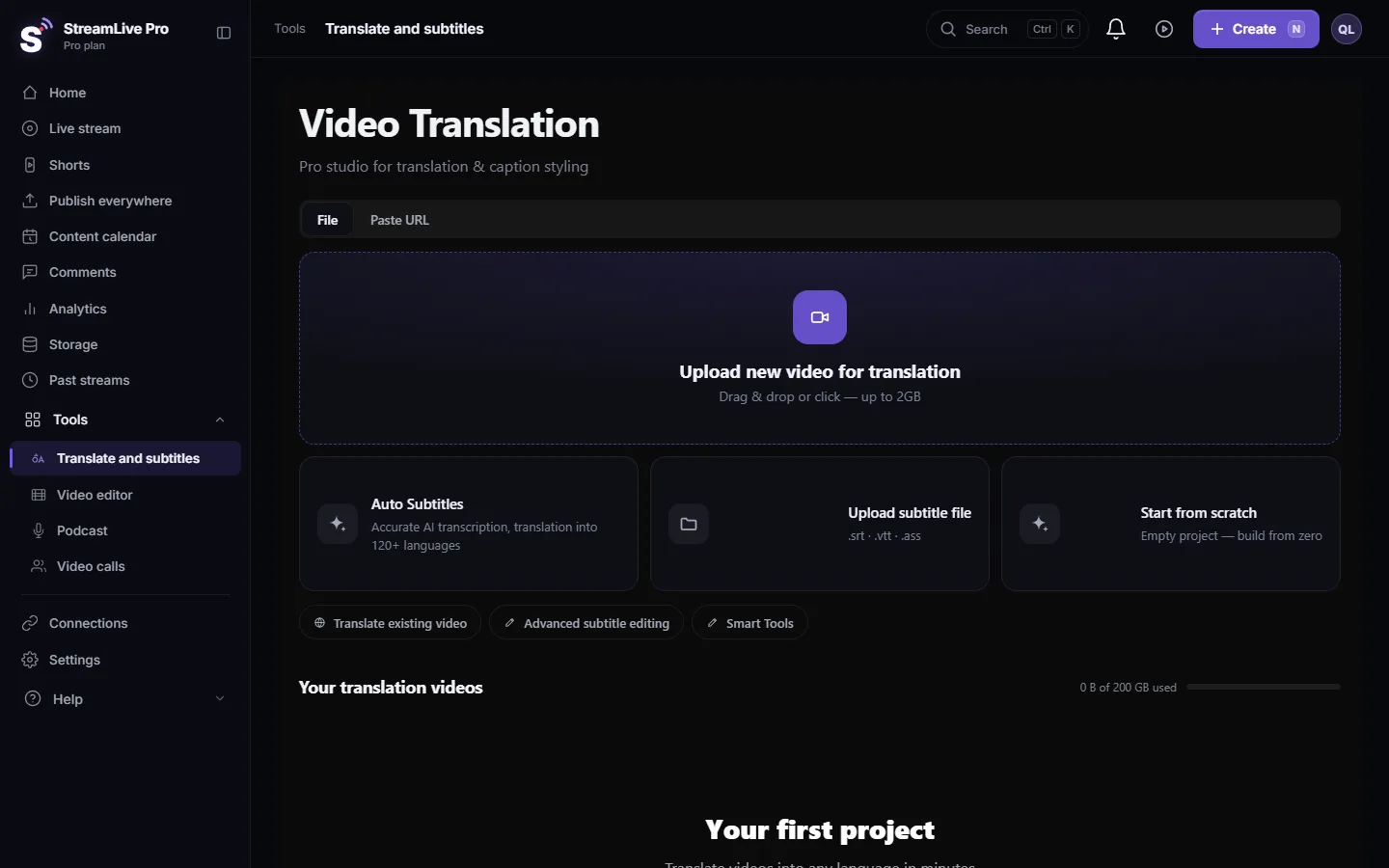
- Upload the video. Open Translate and subtitles and press Upload new video for translation.
- Set the languages. Choose the spoken language under Source language. Under Target language choose the same language for captions in the original language, or another language for translated captions. Press Start translation.
- Correct the text. In Subtitles, click a line to hear it and fix names, job titles, company names and numbers. A professional audience notices a wrong name.
- For a caption file: press Export and choose SRT — Subtitles. The file downloads straight away.
- For burned-in captions: pick a design in Templates, check it with the LinkedIn guide in the player's Safe menu, then press Export and choose MP4 — Burned-in subtitles.
- Post with the SRT on LinkedIn. On the LinkedIn desktop site start a video post, choose the video, open its settings with Edit, use the caption option to attach the SRT, and post. LinkedIn shows the captions once it has processed the video.
- Or post the burned-in video. Upload it on LinkedIn, or post it from Publish everywhere if your profile is connected: Post a video, photo or text to LinkedIn.
- Watch it once with captions on. Check the first line, the last line and a line with punctuation.
Hebrew captions on LinkedIn
Our SRT starts every Hebrew or Arabic line with an invisible right-to-left mark, so punctuation stays on the correct side in players that follow the standard. If a line still looks reversed on LinkedIn, use the burned-in version: in a burned video the direction is fixed in the picture and does not depend on the player. More: Hebrew captions in the wrong direction.
For an audience that reads another language, translate the corrected transcript and export one SRT per language, or one burned video per language: English subtitles for a Hebrew video.
What can go wrong
- No caption option on LinkedIn. LinkedIn describes the option on its desktop site. Post from a computer, or use the burned-in video.
- Captions do not show right after posting. LinkedIn shows them after it finishes processing the video. Wait and open the post again.
- Captions are early or late. The video on LinkedIn is a different cut from the one you captioned. Caption the exact file you post.
- A company page is not offered when posting from StreamLive Pro. Posting from StreamLive Pro goes to your personal profile. For a Page, upload the video on LinkedIn yourself.
- A wrong name in a burned video. It cannot be fixed in the file. Correct the line and render again.
Frequently asked questions
Does LinkedIn accept SRT caption files?
Yes. LinkedIn's help page describes attaching an SRT file to a video before you post it, on the desktop site.
Can I add captions to a video I post from StreamLive Pro to LinkedIn?
Yes, by burning them in. The captions are then part of the video file that is posted to your profile.
Can I add captions to a video on a LinkedIn company page?
LinkedIn says captions can be added to videos posted from a personal account or a Page. Upload the video on the Page yourself and attach the SRT there.
Do Hebrew captions work on LinkedIn?
Our SRT marks every Hebrew line as right to left. If a line still looks reversed, use burned-in captions.
Can I get captions in two languages on one LinkedIn video?
LinkedIn's help page describes attaching one SRT file. For two languages, post one video per language, each with its own captions.
Keep reading
Auto captions and subtitle translation for any video: transcribe, fix, translate into 143 languages, then burn in or export SRT or VTT. Limits and Hebrew included.
Open and closed captions: burned in or a separate fileOpen vs closed captions: burned into the picture or sent as a file the viewer can switch off. What each is good for, which networks take which, and how to make both.
My transcript came out in the wrong languageTranscript in the wrong language? Auto-detect decides from the opening of the video and keeps that choice. Set the source language yourself and run it again.
Edit captions on the timelineEdit captions on the StreamLive Pro editor timeline: move a line, drag its edges to retime it, split it, change its text on the video, and shift the lines after it.
Want to try it? 7-day trial, no credit card.
Start free