 StreamLive Pro
Video podcast setup, from one person to a remote guest
A browser podcast studio that brings guests in by link, records each camera connected to your computer separately and, on Pro and Studio, cuts to whoever is talking. Afterwards you can publish the episode to Spotify and Apple Podcasts, and Shorts are cut from it automatically.
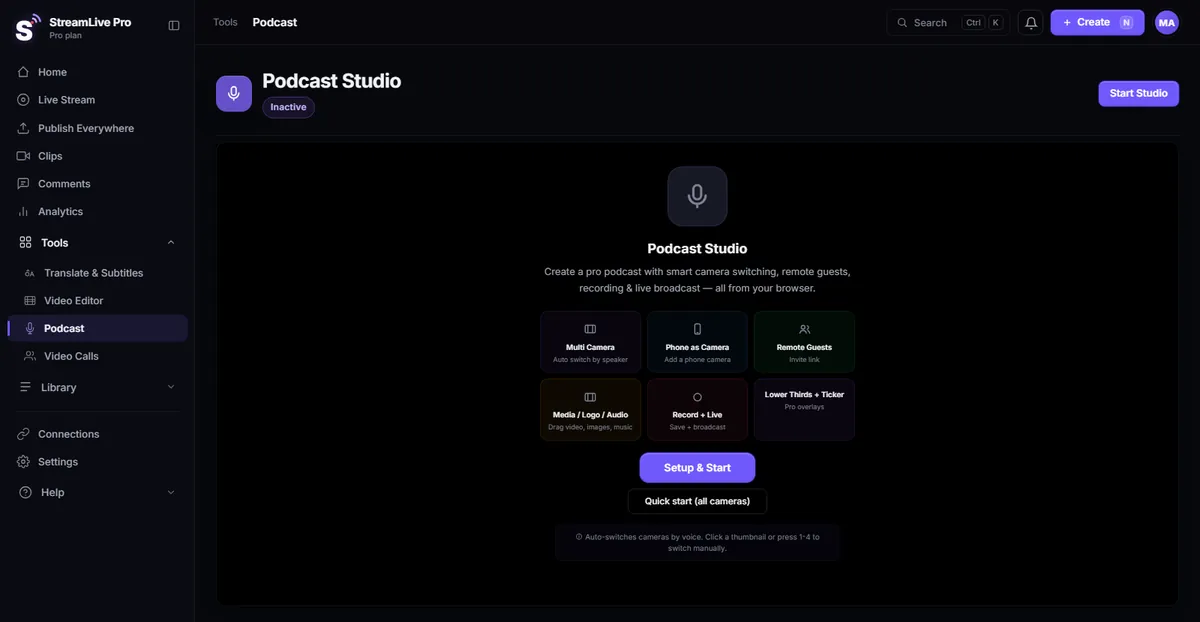
A video podcast needs four things to work: a picture that shows whoever is talking, clean sound from every person, a recording you can edit, and a way to get the episode to listeners and viewers. StreamLive Pro's podcast studio runs in the browser and covers all four, from a solo show with one camera to two hosts and a remote guest.
What the podcast studio does
- Multi-camera with automatic switching by speaker. Link each microphone to a camera. When a person speaks, the picture cuts to their camera. You can take over by hand at any time. This is on the Pro and Studio plans. Details: automatic camera switching.
- A phone as a camera. A phone joins by link as an extra angle, so a second camera does not mean buying one.
- Remote guests by invite link. Guests open a link on a computer or phone, with nothing to install. See record a podcast with remote guests.
- Separate recording of each camera (ISO). Besides the switched program, each camera connected to your computer has its own record button, so an editor can recut the episode later. Remote guests are part of the main recording, not separate files. See record each camera separately.
- Record and go live at the same time. Stream the episode to YouTube and Facebook while it records.
- Media, logo, lower thirds and a ticker for names, topics and a link.
Video podcast setup for one person
The smallest setup that looks deliberate:
- A webcam or your laptop camera as the main shot.
- Your phone on a stand at an angle, joined by link as a second camera.
- A USB microphone close to your mouth. Sound matters more than picture; viewers forgive a soft image before they forgive echo.
- A lower third with your name and the show's name.
With one speaker, automatic switching has nothing to follow, so switch the angles yourself between topics, or keep the main shot and use the phone for a demonstration. If you plan to edit, record the program and, separately, the camera connected to your computer.
Video podcast setup with two cameras and two hosts
This is the setup for the automatic director (Pro and Studio plans):
- One camera per host (webcams, or one webcam and one phone).
- One microphone per host, each linked to that host's camera.
- Optional: a wide camera showing both, for moments when both talk at once.
- Start recording. The picture follows whoever speaks. Override by hand for a reaction shot.
Separate microphones are the key. With one shared microphone the studio cannot tell who is speaking.
Adding a remote guest
Send the guest the invite link before the episode. They join, choose camera and microphone on a preparation screen, and you bring them on stage. Ask guests to use headphones and a wired connection if they can: their sound and connection are outside your control. More in guests and invitations.
After recording: Spotify, Apple Podcasts and Shorts
- Audio platforms. Publish the podcast to Spotify and Apple Podcasts through an RSS feed, on a paid plan. We host the feed and you submit it once in each app. You need a 3000x3000 cover, a verified owner email and at least one published episode. Steps: publish your podcast to Spotify and Apple Podcasts.
- Shorts from the episode. Vertical clips with captions are cut automatically from the episode, reframed to follow the speaker. You review them and publish to your networks. See AI Shorts.
- Captions and translation for the full episode or the clips; see auto captions.
- The video editor for trimming the start, cutting a mistake or adding an intro: multi-track timeline, colour correction, transitions and templates.
Recording a podcast at home: what to get first
Spend in this order: a decent microphone for each speaker, then quiet and soft surfaces in the room, then light from the front, and only then a better camera. A phone you already own makes a good second camera. The guide video podcast setup by budget lays out setups at different budgets.
| Situation | Cameras | Microphones | What to switch on |
|---|---|---|---|
| Solo, at home | Laptop camera + phone | 1 USB | Program + ISO recording |
| Two hosts, same room | 2 (webcam or phone each) | 2, one per host | Automatic switching |
| Host + remote guest | Your camera + guest's | Your mic + guest's | Invite link, automatic switching |
| Live episode with an audience | 2-3 | One per speaker | Record + go live together |
Mistakes that ruin an episode
- Recording only the switched program. If the automatic director cut at a bad moment, you cannot fix it later. Switch on the separate camera recordings.
- A guest on laptop speakers. Their microphone picks up your voice from their speakers. Mix-minus prevents an echo loop, but headphones give the cleanest result.
- Starting without a test. Run a two-minute test recording with every person speaking, and listen back before the real episode.
- Cameras at different heights. When the picture cuts between hosts, a camera looking up at one and down at the other is very noticeable. Put every camera at eye level.
What it does not do
- It cannot fix a bad microphone or a guest's weak connection. Test before you record.
- Automatic switching needs a separate microphone per speaker, and it is only on the Pro and Studio plans.
- Remote guests are not recorded to separate files.
- No live captions that viewers see during the broadcast (in development), and no dubbing.
- No free plan; the trial is 7 days.
Pricing
The podcast studio is part of every plan. Plans differ in Shorts a month (10, 30 or 300), live hours (30, 100 or 300) and destinations at once (3, 6 or 20). Creator is $29 a month. 7-day trial, no credit card. The trial never turns into a paid plan by itself. Details: pricing. For more on podcasts specifically, see StreamLive Pro for podcasters.
No credit card. The trial never turns into a paid plan by itself.
Start a 7-day trialFrequently asked questions
What is the simplest video podcast setup for one person?
Your laptop camera as the main shot, a phone joined by link as a second angle, and a USB microphone close to your mouth. Record the program and, separately, the camera connected to your computer, so you have material to edit.
How does automatic camera switching work?
Link each microphone to a camera. When someone speaks, the picture cuts to their camera. It needs a separate microphone per speaker and the Pro or Studio plan, and you can always take over by hand.
Do remote guests need to install software?
No. They open an invite link on a computer or phone, choose camera and microphone on a preparation screen, and you bring them on stage.
Can I publish the podcast to Spotify?
Yes, on a paid plan, to Spotify and Apple Podcasts through an RSS feed. A help article goes through the steps.
Can I record and stream live at the same time?
Yes. Press Record and go live: the episode is saved to Storage while it streams to YouTube, Facebook and any other destination you switched on.