 StreamLive Pro
Live streaming lectures and classes, with captions on the recording
Screen share and camera in one stream to every network, a cloud recording when you press Record, captions and translation for students, and Shorts from each session to promote the course.
A lecture that is streamed well has three audiences: the students watching live, the students who watch the recording the night before the exam, and the people who have never heard of the course and might sign up after seeing a one-minute clip. Below: how to reach all three with StreamLive Pro, and what the system does not do. For a full walkthrough with equipment and a checklist, read our guide how to live stream a lecture or online class.
How to live stream a class: slides and your face together
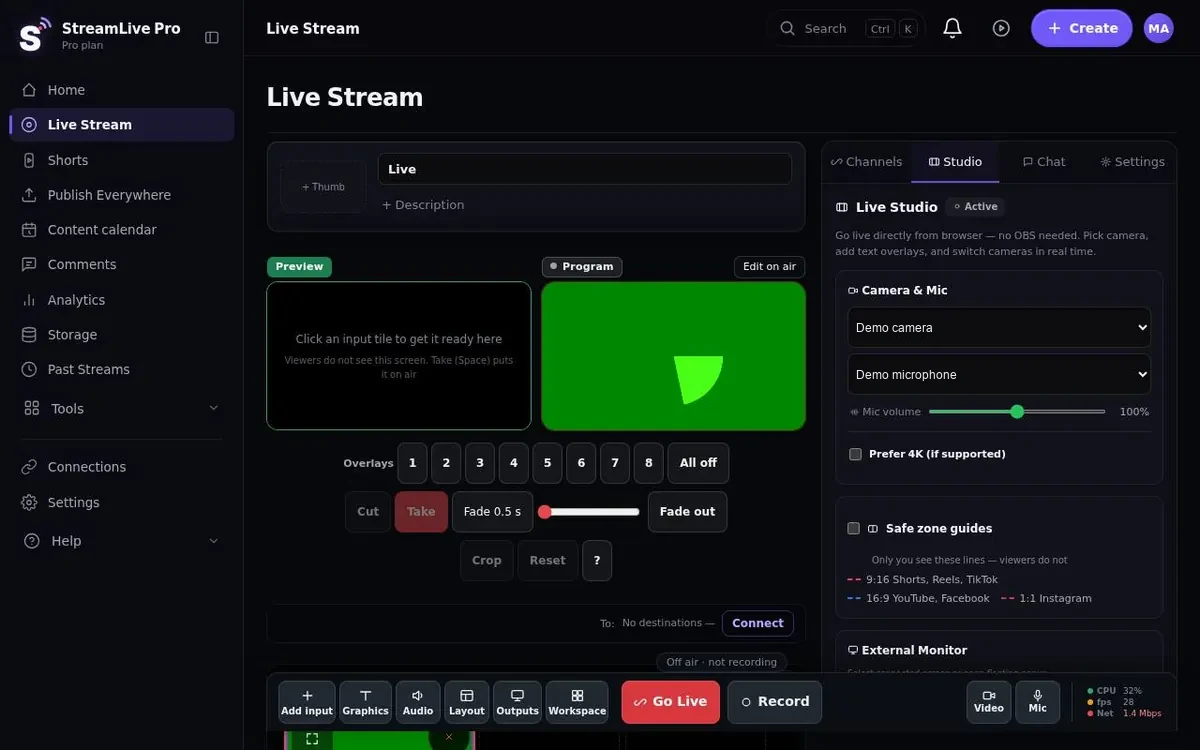
In a remote lesson, students need to see both the material and the person explaining it. In the browser studio you share your screen (slides, a code editor, a whiteboard app) and keep your camera on screen beside it. Nothing to install: open the studio in the browser, pick the camera and microphone, and share the window you are teaching from.
A few studio features that are useful in teaching:
- A phone as a second camera. Point it at a paper, a physical model or a lab bench and switch to it with Preview and Take. The phone joins through a link that opens in its browser. See phone as a camera.
- Lower thirds. Put the course name and the topic of today's session on screen, so a clip shared later still says what it is.
- A guest lecturer by link. Send an invite link; the guest joins from a browser, muted, and you decide when they reach the screen. Their audio return excludes their own voice, so they do not hear themselves on a delay. See guests and invitations.
- Green screen or a virtual background, if you teach from a home office you would rather not show.
- A saved setup. Save the studio once (camera, screen share, logo, lower third, destinations) and restore it in one click for every session of the semester.
Before each session, the 10-second camera check confirms that picture and sound arrive. That way you do not find out at the end that the microphone was muted for an hour.
Where the class goes
You can stream to YouTube, Facebook, Instagram, TikTok, X, LinkedIn, Twitch, Kick, or any RTMP or SRT server, 3, 6 or 20 destinations at once depending on the plan. Your computer uploads one stream and the copies are made on our servers, so campus or home Wi-Fi only carries one. More on multistreaming.
During the session, questions from YouTube and Facebook arrive in one panel, and you or a teaching assistant can answer both from there. Questions from other networks do not appear in that panel.
You can schedule each session in advance with its date, time and title, so a whole course can be set up at the start of term (schedule a broadcast in advance). If you prefer to record a lecture ahead of time, Pro and Studio can broadcast a pre-recorded video as live at the scheduled time.
If you already teach from OBS or vMix, send its output to a StreamLive Pro address and key over RTMP, RTMPS or SRT on a paid plan; the rest of this page still applies.
The recording students actually use
Press Record and the recording is saved to cloud storage, with no large file to upload afterwards. Without Record, the video is removed about two hours after the broadcast ends.
The recording opens in a multi-track editor with colour correction, transitions and templates. Use it to cut the ten minutes of waiting for people to join, or remove a section you do not want online.
Captions and translation for students
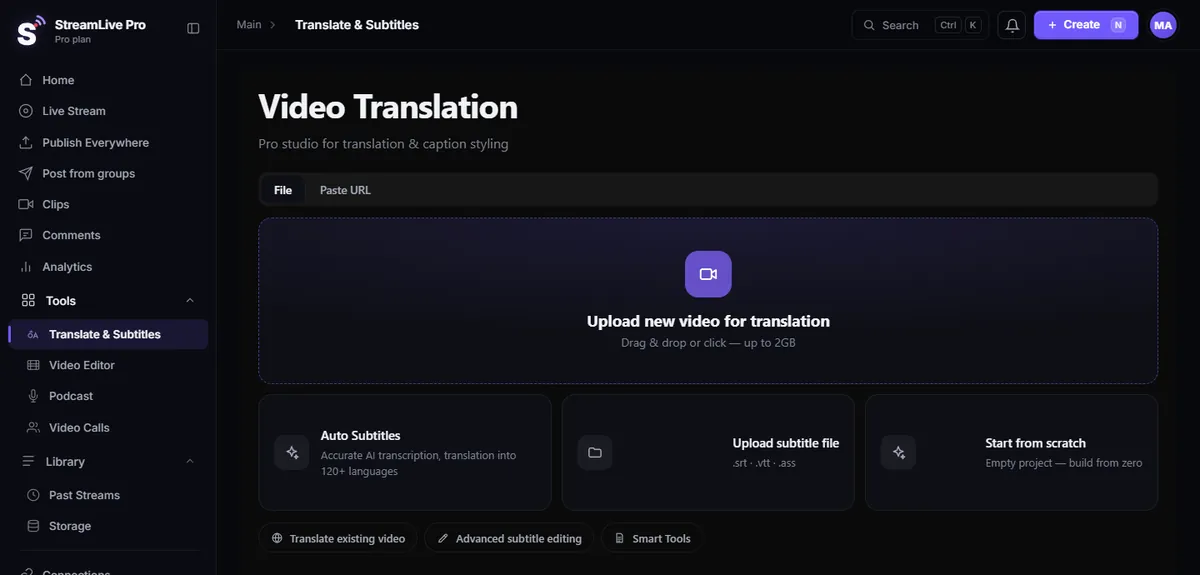
Captions help students who are deaf or hard of hearing, students watching in a noisy place, and students for whom the lecture's language is not their first one. The transcript has a timestamp on every word, so captions stay in sync. Hebrew runs right to left properly, with punctuation and numbers on the correct side, which matters in a Hebrew lecture full of numbers and formulas. Burn the captions into the video, or export SRT or VTT to upload next to the recording on YouTube or on the platform where your course lives. There are more than 80 caption designs.
Captions can be translated into 120+ languages, a whole sentence at a time, within 120, 500 or 1,500 minutes a month by plan. A lecture given in Hebrew can carry English, Arabic or Russian subtitles in the recording. See translating video captions into other languages.
What is not available: captions or translation that students see during the live session. That is in development. Today captions and translation are made from the recording, after the session. There is no dubbing or voice cloning.
Technical terms, names of researchers and formulas read aloud are where automatic transcription makes mistakes. Read the captions of a recording before you publish it as course material.
Shorts as course promotion
A course is easier to sell, or a lecture series easier to grow, when people can see a minute of the teaching first. When a session ends, StreamLive Pro cuts vertical 9:16 Shorts automatically, reframed to follow the speaker, with captions and a thumbnail. You can also make Shorts from any lecture video you upload, live or not. Shorts per month by plan: 10, 30 or 300.
The AI chooses the moments and can be wrong: a minute that only makes sense after the previous slide, or a clip that cuts off a sentence. Review them, keep the ones where one idea is complete, and publish them together to your connected accounts, now or on a schedule (publish all Shorts at once).
Where it fits, and where it does not
It fits a lecturer or school that streams publicly or semi-publicly to YouTube and other networks, wants a clean recording, and wants captions, translation and clips without separate tools. It fits less well if your teaching is an interactive seminar where every student needs to speak on camera: a video-meeting tool is built for that, and our guest links are for a few on-screen guests, not a class of thirty.
Pricing: there is no free plan. The 7-day trial needs no credit card and does not turn into a paid plan by itself. It covers the browser studio, up to 2 destinations, 2 lives of up to 60 minutes, 10 Shorts with a small watermark and 10 translation minutes: enough to stream one real lecture. Plans start at $29 a month; departments with several lecturers can invite them as team members, with the number of seats set by the plan on the pricing page.
No credit card. The trial never turns into a paid plan by itself.
Start a 7-day trialMore: automatic captions and translation, the browser studio, and AI Shorts.
Frequently asked questions
Can I share slides and stay on camera?
Yes. In the browser studio you share your screen and keep your camera beside it, with nothing to install.
Will students see captions during the live class?
Not yet; it is in development. Today captions and translation are made from the recording after the session, and you can export them as SRT or VTT.
Is the lecture recorded automatically?
No. You need to press Record. Without it the video is removed about two hours after the broadcast ends. The automatic Shorts are cut from it before that.
Can I bring in a guest lecturer?
Yes. Send an invite link; the guest joins from a browser, muted, and you decide when they go on air.
Does it suit a seminar where every student talks on camera?
Not really. Guest links are for a few on-screen guests. For a seminar where everyone speaks, a video-meeting tool is the better fit.