 StreamLive Pro
Turn automatic Shorts on or off
Turn automatic Shorts on or off in StreamLive Pro: the Autopilot button, the Settings card, a count for one live, and how to still make Shorts by hand when off.
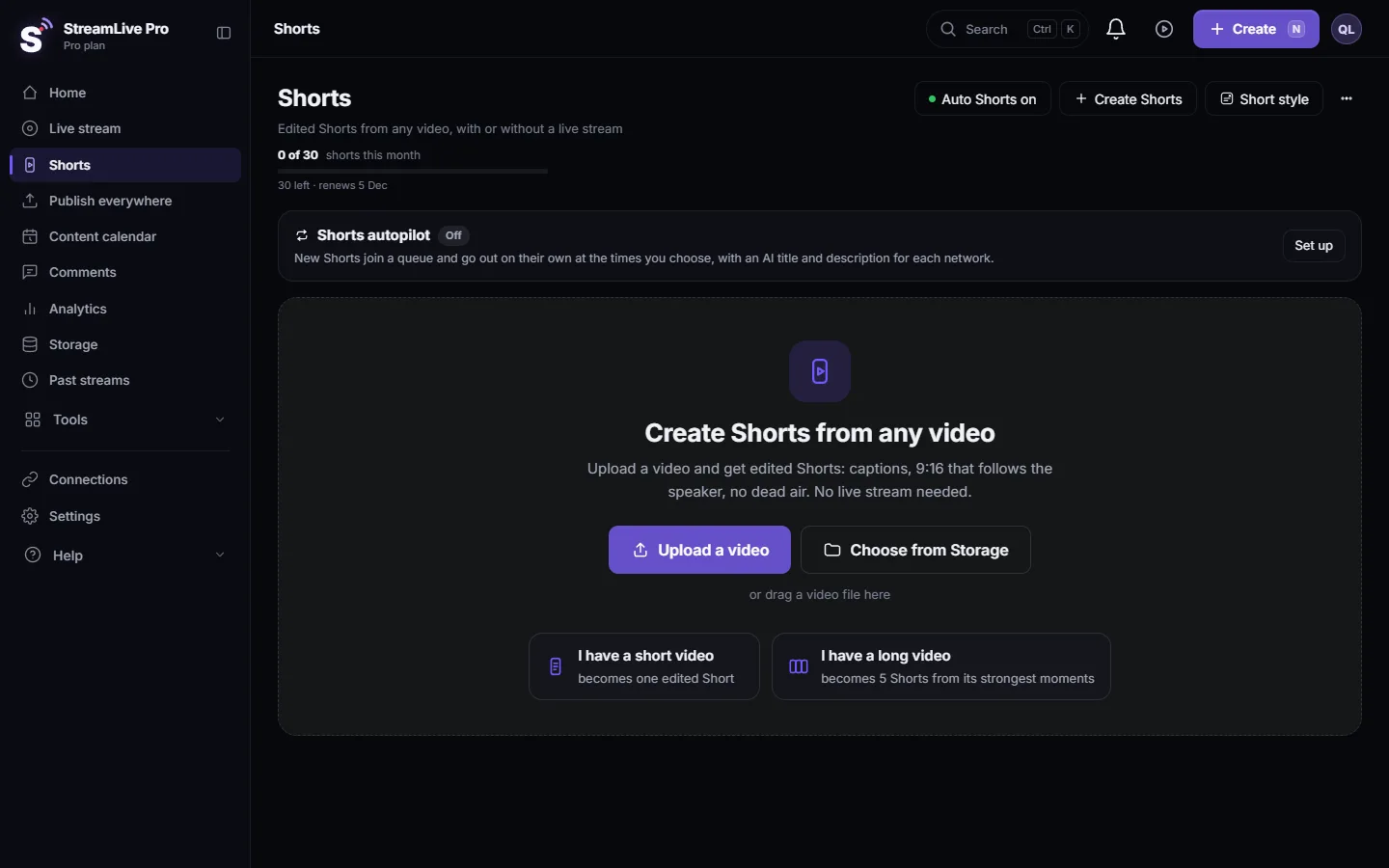
Automatic Shorts are on for every account unless someone turns them off: when a broadcast ends, up to 5 Shorts are cut from it and wait on the Shorts page. To switch them off or back on, press the Autopilot button at the top of the Shorts page, or set the generation mode in Settings. Turning them off stops only the automatic run; you can still make Shorts from any video with one click.
Before you start
- What "on" means. On Creator and the trial, "on" cuts at the natural pauses in speech; on Pro and Studio it uses the AI mode. Turning on from the Autopilot button follows your plan. See How the moments for your Shorts are chosen.
- Shorts count. Every Short counts toward the monthly Shorts of your plan (/pricing?lang=en). The trial has 10 Shorts in total.
- Why switch off. A test broadcast, a private session, or a month where you want to keep the allowance for one important live.
Steps
- Open the Shorts page. Choose Shorts in the menu.
- Press the Autopilot button. It shows whether automatic Shorts are on and switches them with one press. When you switch off you see "Automatic Shorts off. You can still make Shorts with a click"; when you switch on, "Automatic Shorts on: after every live and recording".
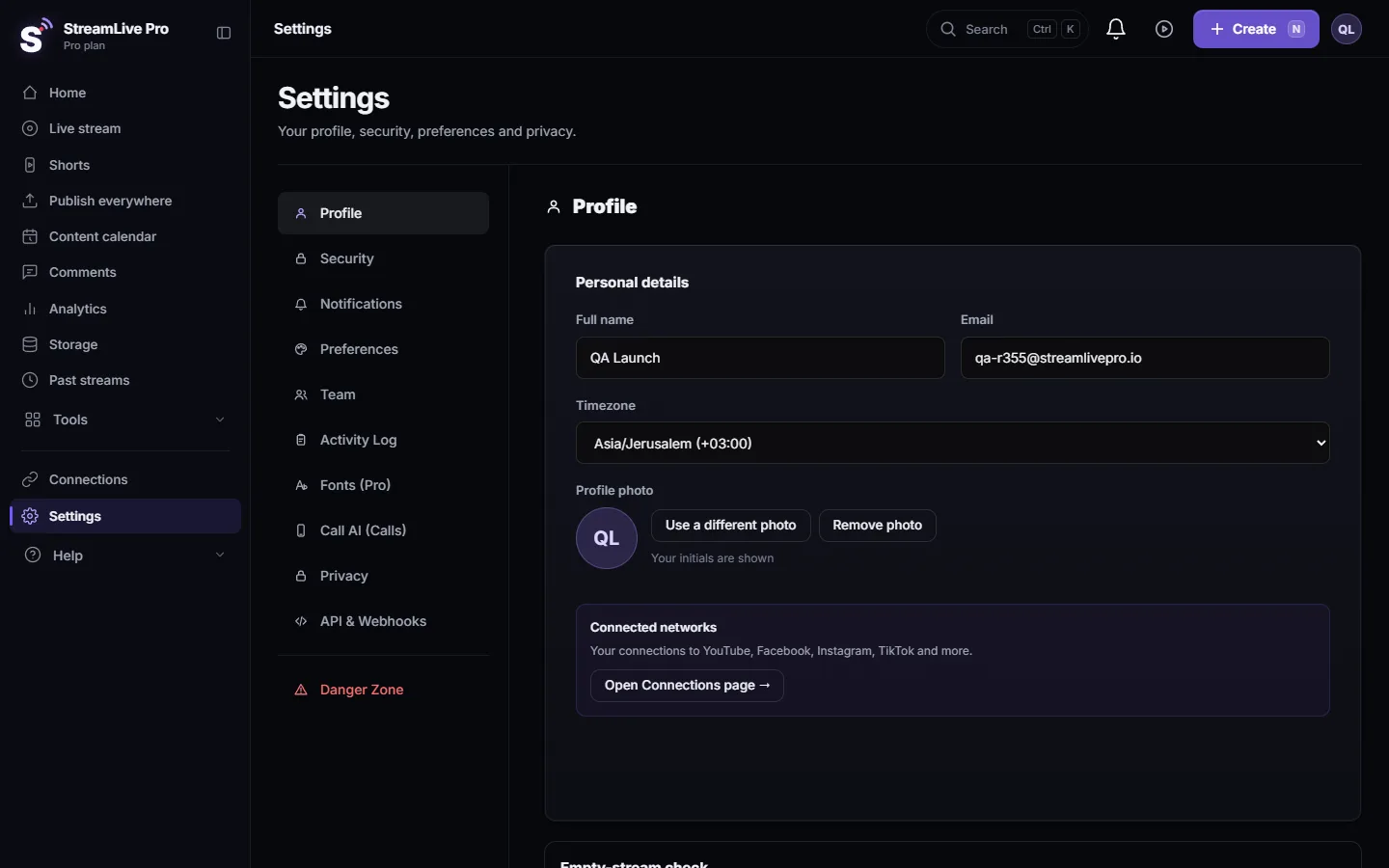
- Or use Settings. Open Settings and find the card "Auto-generate Shorts after every stream / recording". In Generation mode choose "Off: no automatic Shorts", or one of the On options.
- Set how many per live. On the same card, "Shorts from every live" sets 1 to 5. The other options on the card (edit style, length, caption language, logo) show only while the mode is on.
- Choose for one broadcast. On the Live stream page, under the description of the live, "Shorts from this live" lets you pick 1 to 5 for this live only, or leave "As in Settings". If you choose before the live exists, the choice is kept for your next live.
- Check the live page when off. With automatic Shorts off, the same place says "Automatic Shorts are off for your account." and offers a Turn on button.
When automatic Shorts are off
Nothing is cut when the broadcast ends. You can still ask for Shorts by hand:
- From the broadcast. Open Past streams, click the three dots on the card and choose Generate Shorts. A request by hand runs even when the automatic mode is off and uses the method your plan includes.
- From any video. On the Shorts page press Create Shorts and pick the file from Storage or upload one. See How to create Shorts from any video, no live stream needed.
Mind the recording. The broadcast's video is kept only if you pressed Record or kept it from its menu; otherwise it is removed about two hours after the end. With automatic Shorts off and no recording kept, there is nothing left to cut from later. More: Where is my live stream recording?.
Which setting wins
| Situation | What happens |
|---|---|
| Mode is On, nothing chosen for the live | The number in "Shorts from every live" |
| Mode is On, a number chosen for this live | That number, for this live only |
| Mode is Off | No Shorts after the live. A request by hand still works |
| Fewer Shorts left this month than the number chosen | As many as are left |
| A short or mostly silent broadcast | Fewer, or none |
What can go wrong
- I turned them off but Shorts still appeared. Someone else on your team may have turned them on, or Shorts were requested by hand from the broadcast or through the AI assistant. Check the mode in Settings.
- Settings shows On although I never chose it. That is the default. An account that never made a choice follows the plan.
- The AI option is greyed out. It is on Pro plans and up. On your plan "On" means smart cuts.
- Shorts from this live is greyed out. Automatic Shorts are off; press Turn on next to it.
- I chose a number and got fewer. The video had fewer good moments, or the month's Shorts ran low. See Shorts were not created after my live stream.
Frequently asked questions
Are automatic Shorts on by default?
Yes. Every account makes Shorts after each broadcast unless the mode is set to Off in Settings or with the Autopilot button.
Does turning them off delete Shorts I already have?
No. Existing Shorts stay on the Shorts page. Only new broadcasts stop producing Shorts automatically.
Can I keep them on but skip one broadcast?
There is no "none" choice for a single live. Turn the mode off before that broadcast and on again after it, or pick 1 Short for that live to use as little of the allowance as possible.
If they were off, can I still get Shorts from yesterday's live?
Yes, if the broadcast's video still exists, which means you pressed Record or kept it. Open Past streams, click the three dots and choose Generate Shorts.
Do Shorts made by hand count toward my monthly Shorts?
Yes. Every Short counts the same way, whether it was made automatically or by hand.
Keep reading
Storage full in StreamLive Pro? What uses the space, what stops working, which files to delete first, and how to keep a recording from being cut short.
Shorts were not created after my live streamShorts were not created after your live? Check the automatic Shorts setting, your monthly Shorts, the length of the live and how to make them by hand.
Trial has ended and other trial messages explainedWhat the trial messages in StreamLive Pro mean: the 7-day trial has ended, the trial's lives are used up, or a subscription ended. What still works and what to do.
StreamLive Pro app: questions and answersAnswers about the StreamLive Pro app: App Store and Google Play status, the Android download, iPhone, iPad, going live, Shorts, capture cards and the account.
Want to try it? 7-day trial, no credit card.
Start free