 StreamLive Pro
Save your podcast studio setup for the next episode
Save the podcast studio setup and bring it back next episode: Save Settings for cameras, mics and links in this browser, and named Sessions in your account.
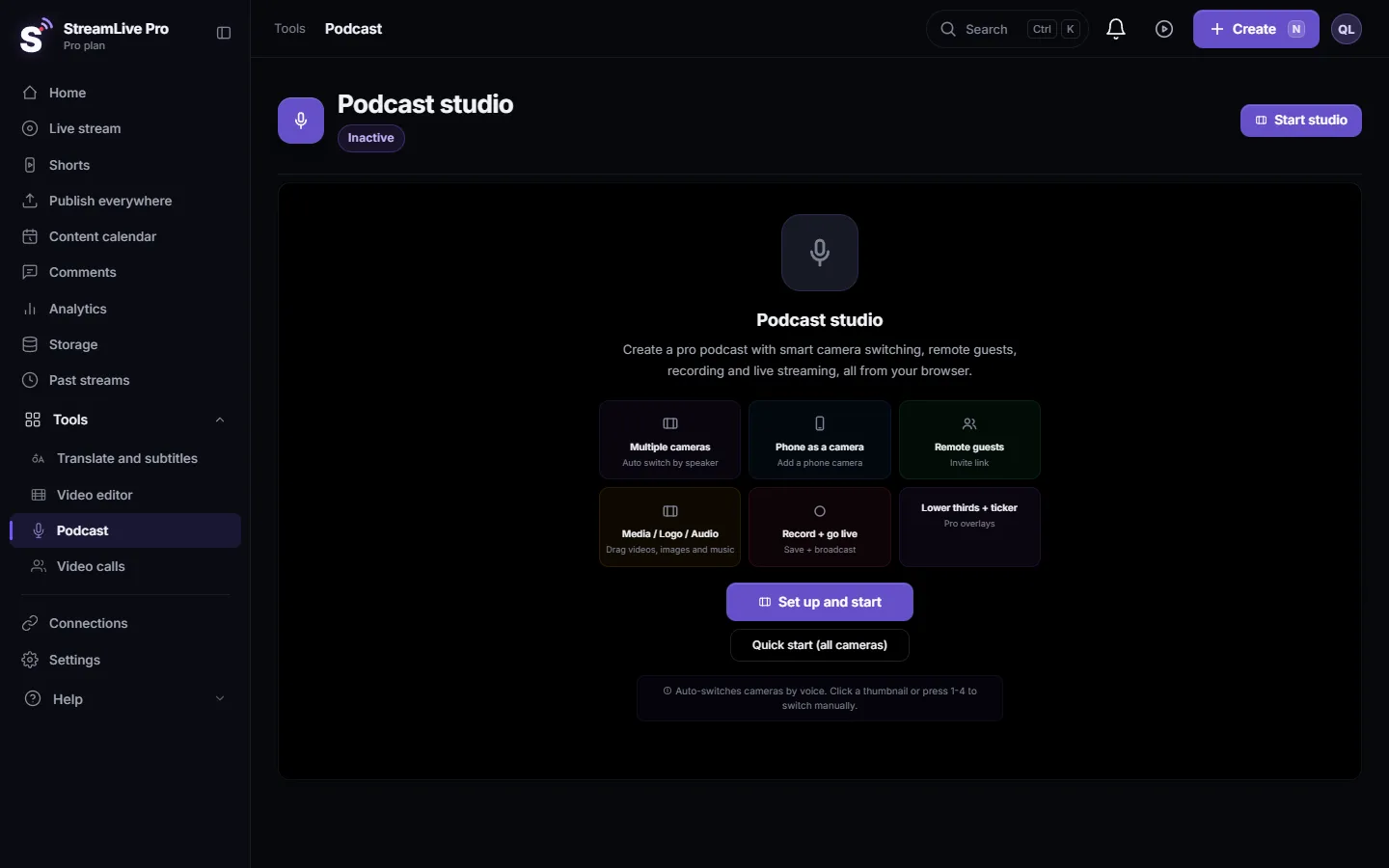
The podcast studio has two ways to keep your setup. The Preferences card (Save Settings and Load Settings) remembers the cameras, microphones, mic-to-camera links, levels and switching choices in this browser, and is also saved by itself every time you start the studio. The Sessions button in the top bar saves a named studio configuration to your account: green-screen and picture settings, logo position, text overlays, ticker and noise suppression. Neither one keeps files: pictures and logos are added again.
For the screen itself see A tour of the podcast studio in your browser. For the links and levels themselves: Record an in-person podcast with two or more microphones and Automatic camera switching for podcasts: the camera follows whoever speaks.
Which one keeps what
| Kept | Preferences: Save Settings | Sessions |
|---|---|---|
| Where it is stored | This browser on this computer | Your account |
| Cameras and microphones you chose | Yes, they are ticked for you in Studio Setup | Listed, but you select the cameras again |
| Mic to Camera Linking | Yes | No |
| Volume and Sensitivity of each mic, global sensitivity | Yes | No |
| Auto Mode on or off, Camera Transition, Wide cam | Yes | No |
| Green screen per camera (colour, threshold) | No | Yes, without the background picture |
| Brightness, contrast, saturation per camera | No | Yes |
| Logo position, size, opacity | No | Yes, the logo file is added again |
| Text overlays and ticker text | No | Yes |
| Noise Suppression | No | Yes |
| Several named setups | No, one per browser | Yes |
Save and load with Preferences
- Set up the studio. Choose Podcast, click Start studio, tick your devices and start. Link microphones, set levels and switching.
- Save. In the side panel, find the Preferences card and click Save Settings. A message confirms, and the card says "Settings saved from" with the date.
- Next time, open Studio Setup. The saved choice is loaded quietly when you open the setup: the saved cameras and microphones are already ticked, and links and levels are applied when the studio starts.
- Load by hand, if needed. Load Settings in the same card applies the saved settings again, for example after you changed things and want them back.
The studio also saves the Preferences by itself a moment after every Start studio. That means the saved copy is the setup you started with. If you change links or levels during the session and want to keep them, click Save Settings before you close.
Save and restore with Sessions
- Open Sessions. With the studio running and not live, click Sessions in the top bar (its tooltip says "Save / restore studio configuration"). The Studio Sessions window opens.
- Name it and save. Type a name, for example "Weekly two-camera show", tick Default if you want it marked, and click Save. Saving again with the same name updates it.
- Restore it later. Open Sessions, find it under Saved sessions and click Restore. Confirm: the current configuration is replaced.
- Read the messages. After a restore the studio lists what it could not bring back, for example "re-select from the camera panel" for cameras, or a background or logo file to add again.
- Tidy up. The star marks a session as default; the delete button removes one.
Honest limits
- Preferences stay in one browser. Another computer, another browser or a cleared browser starts empty. Use Sessions for what it keeps, and write the links down for a second computer.
- Devices are matched by the browser. If a microphone or camera is replaced, or the browser gives it a new identity, tick it again in Studio Setup and save again.
- Not kept by either: the channel chosen on a multichannel audio interface (Use an audio interface in the podcast studio), Min speak time before switch, the Wide Camera (Cut-Away) timing, and any picture or video file.
- Sessions cannot be used while live. The button is hidden during a broadcast.
What can go wrong
| Symptom | Likely cause | Fix |
|---|---|---|
| "No saved settings" | Nothing saved in this browser yet, or the browser data was cleared | Set up once and click Save Settings |
| A saved microphone is not ticked | The device was not connected, or the browser sees it as a new device | Connect it before opening the studio, tick it, save again |
| The links came back wrong | The saved copy is from the start of an earlier session | Fix the links, then click Save Settings |
| No Sessions button | You are live | Stop the live, or save before you go live |
| The green screen is back but without its background | Background pictures are not stored | Add the picture again in the camera's settings |
Frequently asked questions
Does the podcast studio remember my setup?
Yes. Save Settings keeps cameras, microphones, links and levels in this browser, and the studio also saves them each time you start it. Sessions keeps named configurations in your account.
Can I move my setup to another computer?
Sessions are in your account, so they open on any computer, but cameras must be selected again there. Save Settings stays in the browser where you saved it.
Why did my changes from last episode not come back?
The automatic save happens when the studio starts. Changes made later are kept only if you click Save Settings before closing.
Is my logo or background saved?
No file is saved. A session keeps the logo's position and size, and you add the file again.
Keep reading
Echo cancellation removes your speakers from your microphone; noise suppression removes background sound. What each does, its limits, and the StreamLive Pro settings.
What is LUFS? Loudness for video and podcastsWhat LUFS means: a unit for how loud audio sounds to people, not its peaks. Common targets, true peak, and the levels StreamLive Pro sets for Shorts and podcasts.
What is ISO recording? Each camera in its own fileISO recording saves every camera to its own file, next to the switched program. Why editors want it, what it costs in disk space, and where StreamLive Pro offers it.
Private video calls you can record, without going liveHold a private video call in StreamLive Pro and record it without going live: invite by link, control participants, share a screen and save the recording to Storage.
Want to try it? 7-day trial, no credit card.
Start free