 StreamLive Pro
A tour of the podcast studio in your browser
A tour of the browser podcast studio: setting up cameras and mics, inviting guests, automatic camera switching, recording, going live and publishing the show.
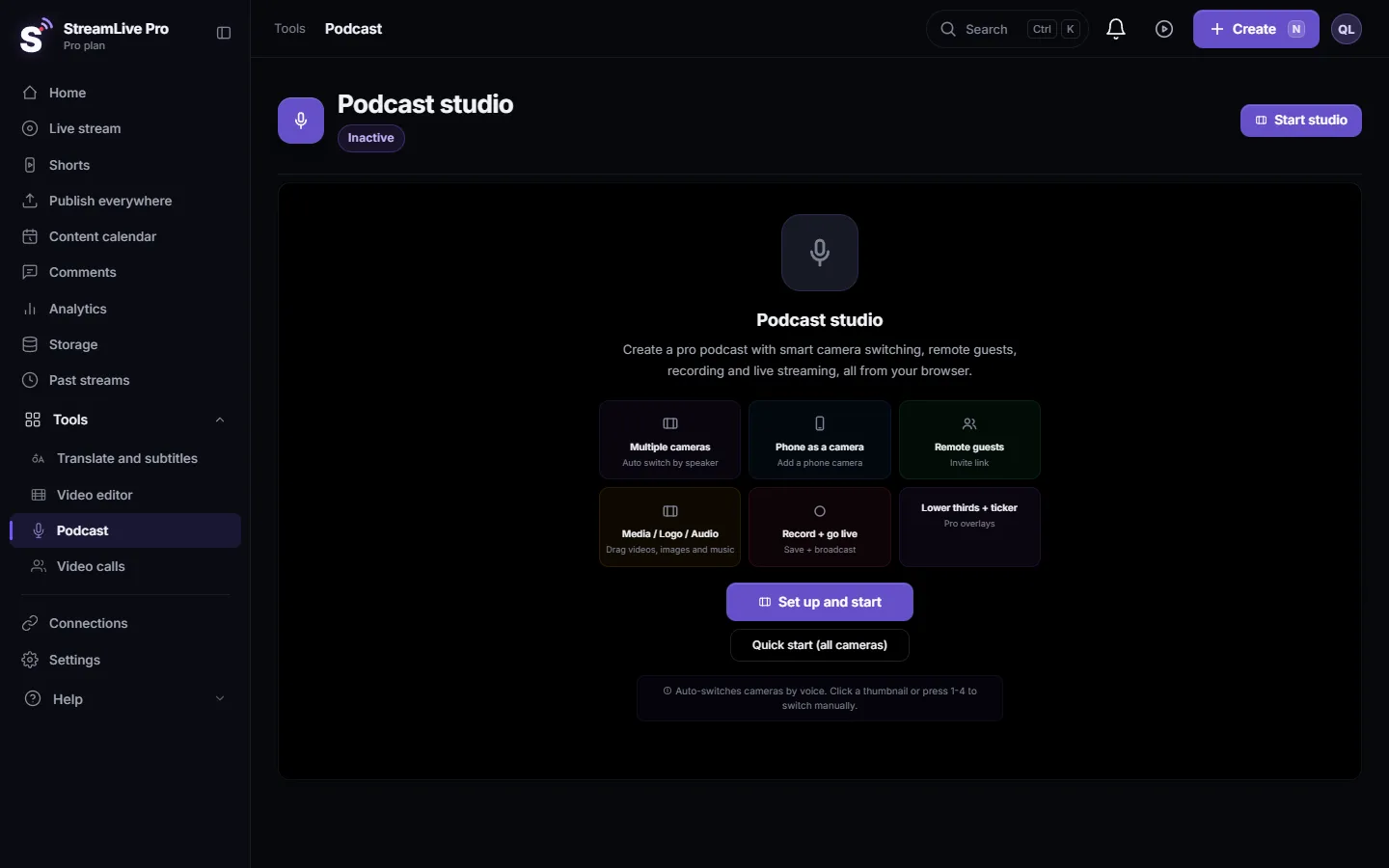
The podcast studio is a recording room in the browser. You choose your cameras and microphones, invite guests with a link, let the picture follow whoever speaks, and press Record, Go Live or both. Nothing to install. This page walks through the screen from top to bottom, so you know where each control is before your first episode.
To open it, choose Podcast in the menu. The page heading is Podcast studio, with a pill that says Inactive until you start it.
Before you start
- A recent desktop browser with permission to use the camera and microphone. Chrome and Edge are the safest choice for several cameras at once.
- One microphone per person if you want automatic camera switching. The switching listens to each microphone, so two people on one microphone look like one person.
- Headphones for remote guests. They stop the guest's speakers from leaking back into the room.
- Your plan. How many people the room holds, and whether automatic camera switching is included, depend on the plan: see /pricing?lang=en. Automatic switching is in the trial, Pro and Studio, not in Creator. In the trial you can record two podcasts of up to 60 minutes each.
Starting the studio
Click Start studio. A Studio Setup panel opens with two lists: Cameras and Microphones. Tick the ones you want in this session and click Start studio again. Every camera and microphone connected to the computer is listed, including USB capture cards. A phone can join as an extra camera from the Phone as a camera tile: see Use your phone as an extra camera.
The top bar
Once the studio runs, the top bar holds the controls you use during a session:
| Control | What it does |
|---|---|
| Record / Stop Rec | Records the program (the stage and the sound mix) to a file. A red timer shows while it runs |
| Go Live / Stop Live | Sends the same program to your live channels. Independent of Record |
| Readiness check | Checks that the studio is ready before you go live |
| Save / restore studio configuration | Saves this setup of cameras, mics and layout, and brings it back next time |
| Noise Suppression | Filters background noise from the microphones |
| Close | Closes the studio. If you are live, it stops the broadcast first |
Record and Go Live are separate on purpose: you can record without going live, go live without recording, or do both. See Record a podcast and go live at the same time.
The stage and the tools under it
The large picture in the middle is the stage, the 16:9 program that is recorded and broadcast. Under it is a row of tools:
- Invite creates the guest link. See How to invite a guest to your podcast recording.
- Phone adds a phone as a camera.
- Share screen puts your screen on the stage.
- Ticker and Lower Thirds add a running line and a name title.
- Professional guest layout arranges everyone on the stage by the number of cameras.
- Media Inputs take videos, images and music you drag in: an intro, a logo, a jingle.
Automatic camera switching
The Auto Switch panel decides which camera is on the stage:
- Mic to Camera Linking. Link each microphone to the camera that shows that person.
- Auto Mode. When it says "Active: camera follows the speaker", the picture cuts to whoever talks.
- Sensitivity and minimum speaking time. Raise the minimum time if the picture cuts on every short "yes".
- Camera Transition. The style of the cut between cameras.
- Wide Camera (Cut-Away). A wide shot that comes in every so often, for rhythm.
A click on any camera under Manual Switch takes over by hand. Turn Auto on again to hand back. More: Automatic camera switching for podcasts: the camera follows whoever speaks.
Separate files per camera
Each camera connected to your computer also has its own record button. Its file includes the microphone linked to it, so you can re-edit the episode later. Remote guests are part of the main recording, not separate files. See How to record each camera separately (ISO recording).
Where things end up
- Recordings are saved to Storage as MP4 files. The recording is uploaded in pieces while you record, so a closed browser does not lose what was already sent.
- Shorts from an episode: Turn a podcast episode into Shorts with captions.
- The podcast feed for Spotify and Apple Podcasts lives in Connections, on the podcast card (Podcast hosting). Start with Podcast cover art and show details: what each app needs, then Add an episode to your podcast RSS feed.
What can go wrong
| Problem | Fix |
|---|---|
| Record does nothing and a message says no active microphone | At least one microphone must be on and not muted. Check that its meter moves |
| The picture keeps jumping between people | Raise the minimum speaking time, or give each person their own close microphone |
| A camera is missing from Studio Setup | Another app or tab is using it. Close it and start the studio again |
| The recording stops when you switch tabs or minimise | Keep the studio tab visible for the whole session |
Frequently asked questions
Do I need to install anything to record a podcast?
No. The podcast studio runs in the browser. You and your guests only need a browser with camera and microphone permission.
Can I record without going live?
Yes. Record and Go Live are separate buttons. Press only Record and the file is saved to Storage without any broadcast.
Is each guest recorded to a separate file?
No. Remote guests are part of the main recording. Separate files exist for cameras connected to your own computer.
Does automatic camera switching work on every plan?
It is included in the trial, Pro and Studio. Creator does not include it. You can always switch cameras by hand.
Where do I publish the podcast to Spotify and Apple Podcasts?
In Connections, on the podcast card. You create the show there, add episodes, and submit the feed link once in each app.
Keep reading
Echo cancellation removes your speakers from your microphone; noise suppression removes background sound. What each does, its limits, and the StreamLive Pro settings.
What is mix-minus? Echo-free sound for remote guestsWhat is mix-minus: a sound feed for each remote guest with everyone except their own voice. Why it prevents echo, how it works, and how StreamLive Pro builds it.
I cannot hear my guest in the live streamCan't hear a guest in your live? Usually the guest arrived muted, joined without a microphone, or picked the wrong mic. The checks for host and guest, in order.
Echo during a live stream with guestsEcho in a live with guests usually comes from someone using speakers instead of headphones, or watching the live in another tab. How to find who and fix it.
Want to try it? 7-day trial, no credit card.
Start free