 StreamLive Pro
Record an in-person podcast with two or more microphones
Record a podcast with two or more people in one room on one computer: one microphone per person, linked to their camera, levels, room echo, and a file per camera.
To record two or more people in the same room, plug one microphone per person into the computer, tick them all in the podcast studio, and link each microphone to the camera that shows that person. The studio opens every microphone you tick, mixes them all into the recording and the live, and can cut the picture to whoever is speaking. Each camera can also record its own file with its linked microphone.
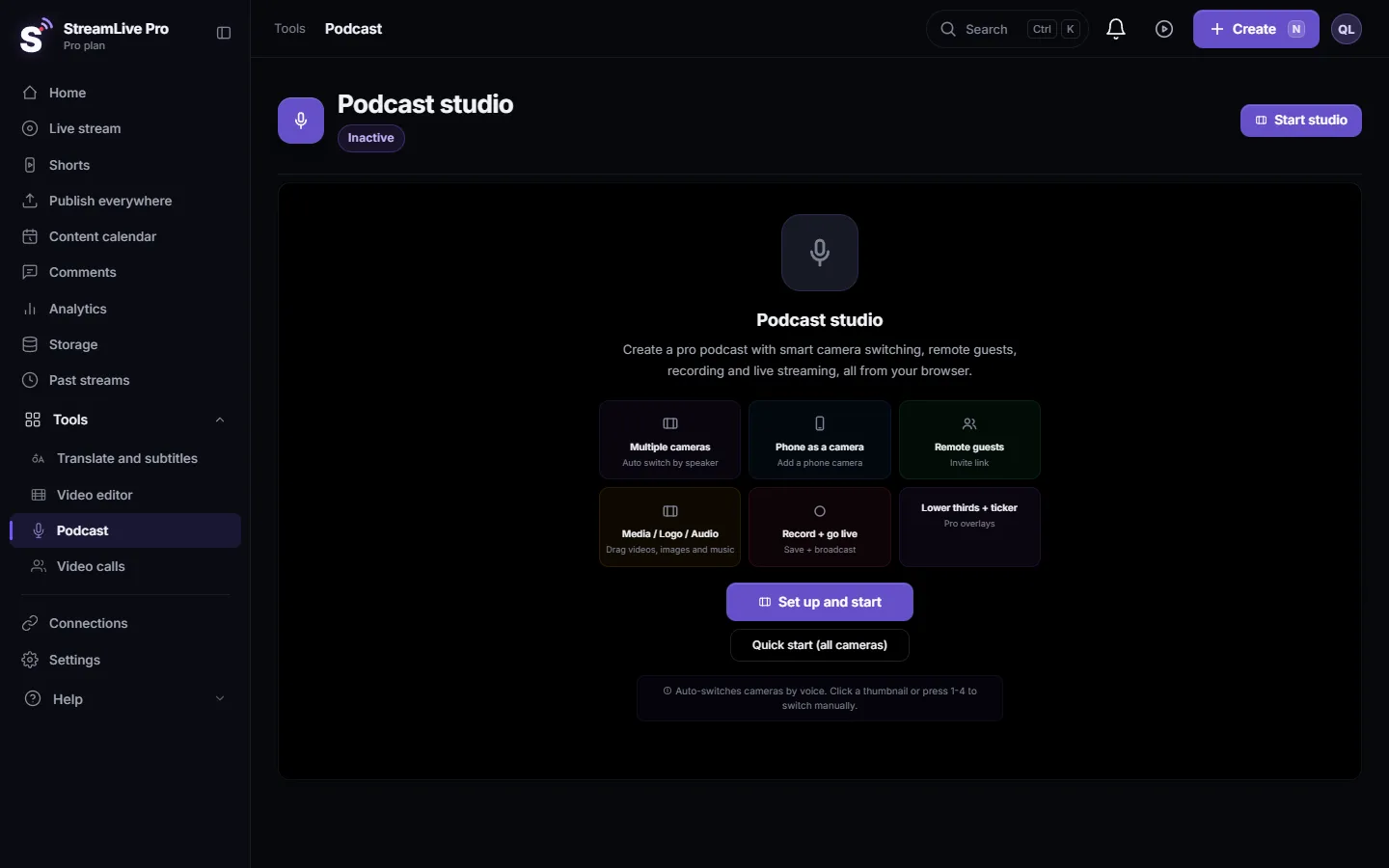
This page is about the room and the microphones. How the automatic cut works in detail is on Automatic camera switching for podcasts: the camera follows whoever speaks; a tour of the screen is on A tour of the podcast studio in your browser.
Before you start
- One microphone device per person. Two USB microphones, or a multichannel interface per person. The studio links each microphone device to one camera, so two people on one device cannot be told apart. For interfaces, see Use an audio interface in the podcast studio.
- One camera per person, or one wide camera. With one camera for everybody the switching has nothing to switch to; the sound still works.
- A computer with enough USB ports, ideally on the computer itself rather than a long chain of hubs, and Chrome or Edge.
- Your plan. Automatic camera switching is in the trial, Pro and Studio, not in Creator. How many cameras it can switch between depends on the plan: /pricing?lang=en.
Steps
- Connect everything first. Plug in all microphones and cameras before you open the studio, so the browser lists them.
- Open the studio and choose devices. Choose Podcast and click Start studio. In Studio Setup every camera and microphone is ticked by default. Untick what you do not use, such as the laptop's built-in microphone, then click Start studio.
- Check the links. In Mic to Camera Linking, each camera has a Linked mic list ("who speaks near this camera?"). The first microphone is linked to the first camera, the second to the second, and so on. Fix any that are crossed. A camera with no microphone shows "Not linked: Select Microphone".
- Set each person's level. Ask each person to talk in turn and watch their meter. Use Volume (0 to 150%) so the voices are about equally loud.
- Set the sensitivity against bleed. In a room every microphone also hears the other people. Raise a microphone's Sensitivity until it reacts to its own speaker and not to the neighbour, and raise the global sensitivity in the Auto Switch card if the picture jumps on noise.
- Choose how fast the picture cuts. In the Auto Switch card turn on Auto Mode. Min speak time before switch goes from 0.5 to 5 seconds; raise it if the picture cuts on every short "yes". Camera Transition is Fade or Cut.
- Add a wide shot, if you have one. In Wide Camera (Cut-Away) pick the wide camera and set Every and Show for: the studio cuts to it on that rhythm and comes back.
- Record. Press Record for the mixed program. To get a file per camera with its linked microphone as well, use Rec All in the Per-Camera Recording (ISO) card (How to record each camera separately (ISO recording)).
Placing people and microphones
- Close beats loud. A microphone a hand's width from the mouth picks up its speaker far more than the person next to it. That is what lets the switching and the sensitivity work.
- Point microphones away from each other. Seat people at an angle, not face to face across one table with mics pointing at each other.
- A soft room. Curtains, a rug or a sofa cut echo more than any setting.
- Headphones if anyone monitors the sound, so nothing plays back into the microphones.
What you get
| Output | What it contains |
|---|---|
| Record (program) | The picture as switched, with every microphone mixed |
| Per-Camera Recording (ISO) | Each camera's picture with only its linked microphone, for editing later |
| Go Live | The same program as Record, sent to your channels: Record a podcast and go live at the same time |
What can go wrong
| Symptom | Likely cause | Fix |
|---|---|---|
| The picture cuts to the wrong person | Microphones linked to the wrong cameras | Swap the Linked mic of the two cameras |
| The picture jumps on every cough or laugh | Sensitivity too low, or Min speak time too short | Raise the mic's Sensitivity and Min speak time |
| The picture never leaves one person | Their microphone hears everybody | Move microphones closer to their own speakers; raise that mic's Sensitivity |
| A microphone is missing | It was plugged in after the studio opened, or another app holds it | Close the studio, plug it in, start again. See My microphone does not work in the browser |
| One voice much quieter | Different microphones, different gain | Raise its Volume, or its gain on the device |
| Echo or a hollow sound | Bleed between microphones in a bare room | Closer microphones, softer room |
To start the next episode with the same links and levels, see Save your podcast studio setup for the next episode.
Frequently asked questions
Can I use two USB microphones on one computer?
Yes. Each USB microphone is its own device in the Microphones list. Tick both and link each one to its person's camera.
Do both microphones end up in the recording?
Yes. Every microphone you started the studio with is mixed into the main recording and the live.
Can two people share one microphone?
They can be heard, but automatic switching cannot tell them apart, so the picture will not follow who is speaking. Give each person their own microphone.
How do I stop the camera from switching too often?
Raise Min speak time before switch and the sensitivity, or turn Auto Mode off and switch by hand with the number keys.
Can I get each speaker on a separate audio track?
Each camera's separate recording carries only its linked microphone, so you get one file per person to edit with.
Keep reading
Echo cancellation removes your speakers from your microphone; noise suppression removes background sound. What each does, its limits, and the StreamLive Pro settings.
Private video calls you can record, without going liveHold a private video call in StreamLive Pro and record it without going live: invite by link, control participants, share a screen and save the recording to Storage.
What is mix-minus? Echo-free sound for remote guestsWhat is mix-minus: a sound feed for each remote guest with everyone except their own voice. Why it prevents echo, how it works, and how StreamLive Pro builds it.
I cannot hear my guest in the live streamCan't hear a guest in your live? Usually the guest arrived muted, joined without a microphone, or picked the wrong mic. The checks for host and guest, in order.
Want to try it? 7-day trial, no credit card.
Start free