 StreamLive Pro
Use an audio interface in the podcast studio
Use an audio interface such as a Focusrite or RODECaster in the browser podcast studio: pick the input channel, fix a voice on one side only, and know the limits.
An audio interface works in the podcast studio like any other microphone: tick it in Studio Setup and link it to a camera. When the interface reports more than two input channels, the camera's settings get a Channels selector, so you can take one input (Mono ch 1, Mono ch 2 and so on), the first pair in stereo, or all inputs summed to mono. An interface that reports only two channels gets no selector.
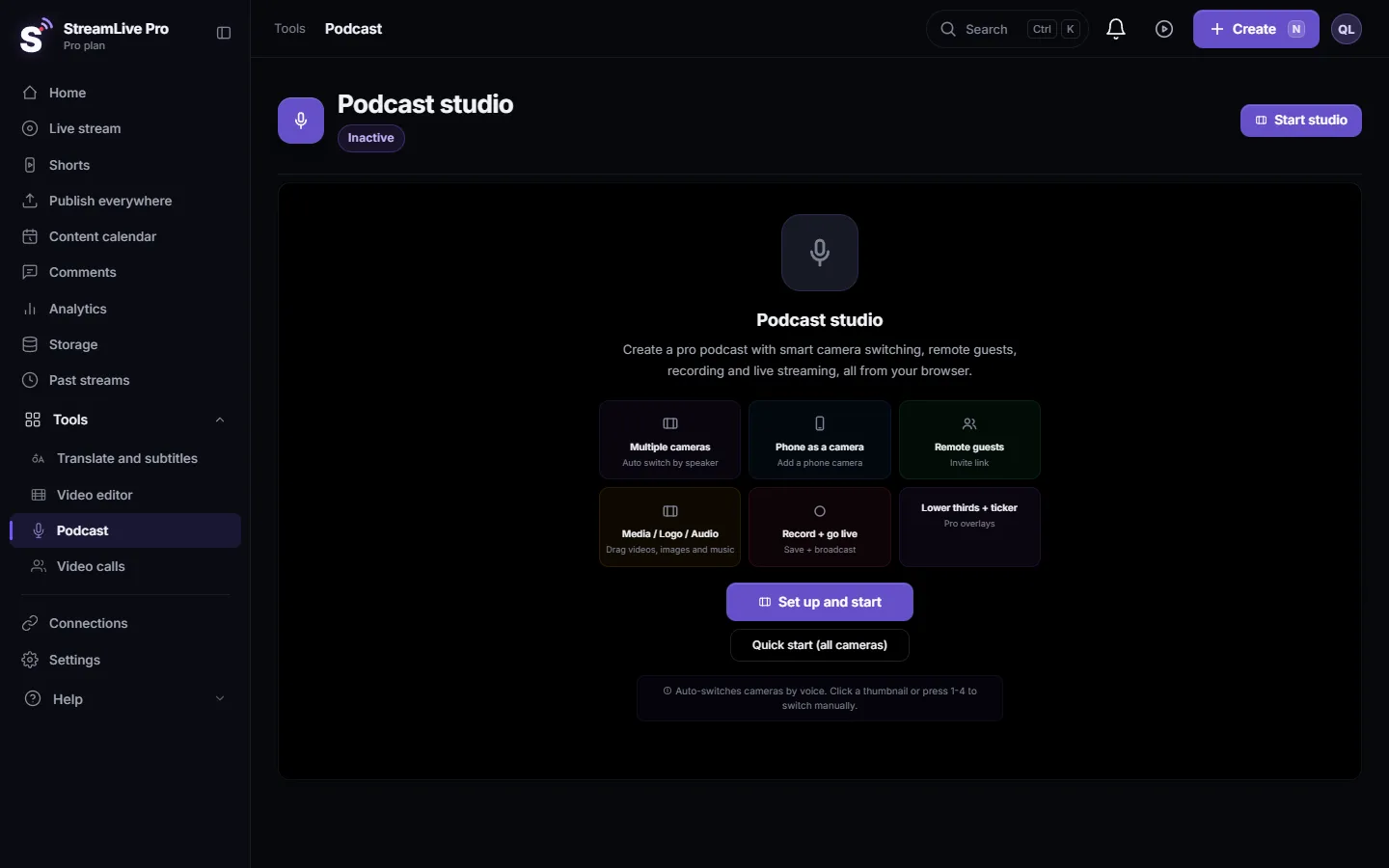
The podcast studio opens from Podcast. For a tour of the screen, see A tour of the podcast studio in your browser.
Before you start
- A computer browser. Chrome or Edge on Windows or macOS. The browser asks for permission to use the microphone the first time.
- The interface connected and working on the computer. If the computer itself does not hear it, the browser will not either. Close other apps that may hold it, such as a DAW or a meeting app.
- What the studio does with interfaces. When the device name is a known interface brand (Focusrite, Scarlett, Behringer, RME, MOTU, PreSonus, Audient, Tascam, Universal Audio, Apollo, Steinberg, RODECaster, Antelope, Apogee and others) or the device reports more than two channels, the studio opens it raw: no echo cancellation, no noise suppression, no automatic gain, so the sound is exactly what your preamps give. An ordinary USB microphone is opened with the browser's voice processing (echo cancellation and noise suppression on, automatic gain off).
Steps
- Open the podcast studio. Choose Podcast and click Start studio. The Studio Setup panel lists Cameras and Microphones.
- Tick the interface. In Microphones tick your interface (its name as the computer shows it) and untick mics you do not use, such as the laptop's built-in one. Click Start studio.
- Link it to a camera. In Mic to Camera Linking, choose the interface as the microphone of the camera that shows the speaker. The first microphone is linked to the first camera automatically.
- Open the camera's settings. In the camera strip, click the gear in the corner of that camera's thumbnail. The panel is titled Camera 1 Settings (or 2, 3 ...). The gear is orange while no microphone is linked.
- Choose the channel. If the interface has more than two channels, a Channels row appears under Microphone, with the number of channels found. Choose Mono ch 1 for a mic in input 1, Mono ch 2 for input 2, Stereo ch 1+2 for a stereo pair, or Sum all → mono to hear every input.
- Set the level. Under it, Volume goes from 0 to 150%. Set the gain on the interface first so the loudest words do not clip, then fine-tune here.
- Check before you record. Speak into the mic and watch the meter in Mic to Camera Linking. Make a 30-second test recording and listen to it with headphones.
Voice on one side only
The most common interface problem: the voice is heard only in the left ear. A microphone in input 1 is a mono signal on channel 1, and a stereo track puts channel 1 on the left.
| What you have | What to do |
|---|---|
| An interface with more than two channels | Choose Mono ch 1 (or the input the mic is in). Mono puts that one input on both sides |
| An interface with exactly two inputs | The studio shows no Channels selector for it. Use the interface's own mono or routing setting, if it has one (see its manual), or record and fix it in editing |
| Two people on inputs 1 and 2 of one interface | Choose Sum all → mono so both voices are heard on both sides |
Honest limits
- No selector for two-channel devices. The Channels row appears only above two channels.
- One interface is one microphone. The studio links each microphone device to one camera. Two people on two inputs of the same interface cannot drive automatic camera switching separately, because the studio hears them as one device. For automatic switching, give each person their own device: Record an in-person podcast with two or more microphones.
- Choose the channel again in each session. The channel choice is not part of the saved studio settings; after Start studio the selector is back on Sum all → mono.
- No audio delay setting. The podcast studio has no control to delay a microphone against the picture: My live stream's sound and picture are out of sync.
What can go wrong
| Symptom | Likely cause | Fix |
|---|---|---|
| The interface is not in the list | It is held by another app, or the browser has no microphone permission | Close the other app; allow the microphone in the browser's site settings, then reload. See My microphone does not work in the browser |
| No Channels row | The interface reports two channels, or no microphone is linked to that camera | Link it in Mic to Camera Linking; with two channels there is no selector |
| The level is very low | The interface is opened raw, without automatic gain | Raise the gain on the interface, then Volume up to 150% |
| Hum or hiss | Opened raw, the studio does not filter noise from an interface | Fix it at the source: gain, cables, distance; a dynamic mic helps in a noisy room |
| Guests hear themselves | Your speakers feed back into the mic | Use headphones on your side |
Frequently asked questions
Does a Focusrite Scarlett work in the browser podcast studio?
Yes. It appears in the Microphones list like any microphone. The studio recognises the brand and opens it without the browser's voice processing.
Why is my voice only in the left ear?
A mic in input 1 is on channel 1, which is the left side of a stereo track. On an interface with more than two channels choose Mono ch 1 in the camera's settings.
Can I pick a channel on a two-input interface?
No. The Channels selector appears only when the interface reports more than two channels. Use the interface's own routing, or fix the side in editing.
Can two people share one interface and still get automatic camera switching?
No. The studio treats one interface as one microphone, so it cannot tell the two voices apart. Give each person their own microphone device.
Is the channel choice saved for next time?
No. Choose it again after you start the studio.
Keep reading
Can't hear a guest in your live? Usually the guest arrived muted, joined without a microphone, or picked the wrong mic. The checks for host and guest, in order.
Screen sharing does not work on my MacScreen share not working on a Mac in Chrome, Edge or Safari? macOS must allow the browser to record the screen. Where to turn it on, and the other checks.
Echo during a live stream with guestsEcho in a live with guests usually comes from someone using speakers instead of headphones, or watching the live in another tab. How to find who and fix it.
Echo cancellation and noise suppression explainedEcho cancellation removes your speakers from your microphone; noise suppression removes background sound. What each does, its limits, and the StreamLive Pro settings.
Want to try it? 7-day trial, no credit card.
Start free