 StreamLive Pro
Import SRT captions into DaVinci Resolve (Hebrew included)
Import SRT captions into DaVinci Resolve: make the file in StreamLive Pro, import it as a subtitle track, line it up and check Hebrew text direction.
DaVinci Resolve imports SRT files as a subtitle track. Make the SRT in StreamLive Pro (transcribed, corrected, in Hebrew or another language), import it into Resolve's Media Pool, drop it on the timeline at the frame where the video starts, then check the right-to-left lines before you render.
Before you start
- The same cut in both places. The SRT is timed from the first frame of the file you upload to StreamLive Pro. Upload the final render of your Resolve timeline, or the exact clip you will caption, after trimming.
- SRT, not ASS. SRT carries text and timing. Our ASS files carry the full caption design, but SRT is the format Blackmagic documents for subtitle import, so use SRT here.
- Know where your timeline starts. New Resolve timelines often start at 01:00:00:00, while an SRT counts from 00:00:00. That gap is the usual reason imported subtitles land an hour late.
- Blackmagic's own manual. The DaVinci Resolve Reference Manual has a chapter on subtitles and captions; download it from the Blackmagic Design support page. Menu names can differ between Resolve versions; the manual for your version is the reference.
Steps
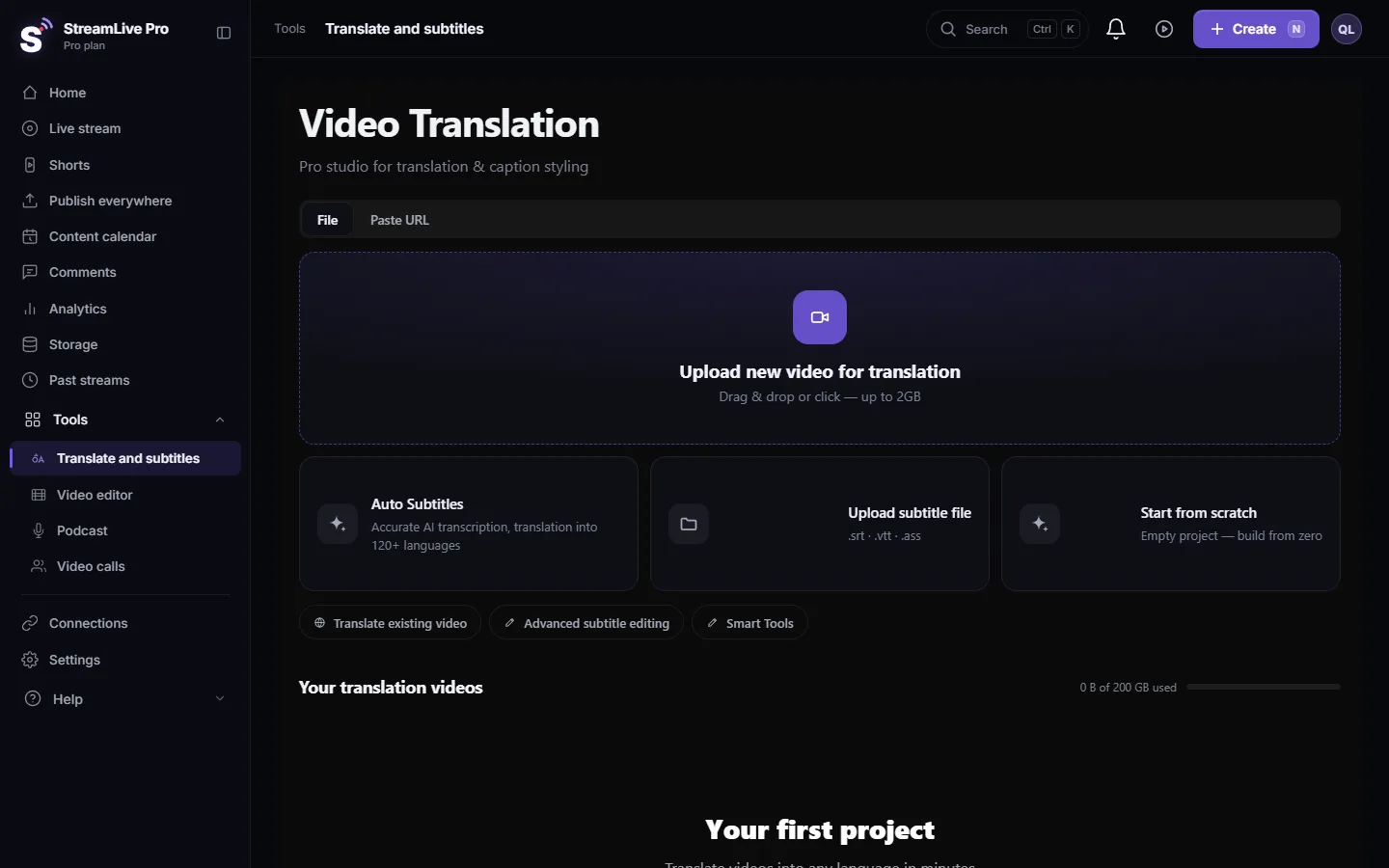
- Make the captions. In StreamLive Pro open Translate and subtitles, press Upload new video for translation and choose the spoken language under both Source language and Target language (for a translation, pick another target). Press Start translation.
- Correct the text. In Subtitles, fix names, numbers and terms. Click a line to jump to its moment; drag its edge to change its timing.
- Download the SRT. Press Export and choose SRT — Subtitles.
- Import it into Resolve. On the Edit page, right-click an empty area of the Media Pool and choose Import Subtitle (recent versions also have File > Import > Subtitle). The SRT appears in the Media Pool as a subtitle clip.
- Put it on the timeline. Drag the subtitle clip onto the timeline. Resolve creates a subtitle track and splits the file into separate subtitle events with their original timing.
- Line it up. Move the subtitle clip so its start sits on the first frame of the video it belongs to. If the timeline starts at 01:00:00:00, that is the start of the timeline, not the zero point of the SRT.
- Check direction and font. Play five lines: one ending in "?", one with a number, one with an English word inside Hebrew, one long line that wraps, and the last line. Set a font that has Hebrew letters in the subtitle track's style.
- Render. On the Deliver page, choose in the subtitle settings whether to burn the captions into the video or export them as a separate file, and render a short section first to check.
What the SRT contains
- Plain UTF-8 text with standard SRT timing.
- An invisible right-to-left mark (RLM) at the start of every line that contains Hebrew, so a full stop or question mark at the end of the sentence lands on the left. Lines without Hebrew are untouched.
- No design. Font, size, colour and position come from Resolve's subtitle style.
- Timing that follows your edits in our editor, not the raw transcript.
What can go wrong
| Symptom | Likely cause | Fix |
|---|---|---|
| Subtitles start an hour late | Timeline starts at 01:00:00:00, SRT at 00:00:00 | Drag the subtitle clip to the first frame of the video |
| Subtitles drift further off later in the video | The uploaded file is a different cut | Upload the final render again and download a new SRT |
| Boxes instead of letters | The subtitle font has no Hebrew | Choose a font that covers Hebrew in the track style |
| Question mark on the right of a Hebrew line | The line lost its direction mark, or the version lays it out differently | Download the SRT again (do not re-save it in a text editor), then test a short render |
| Words around a number or English word reorder | Mixed-direction line | Check it in the viewer; rephrase or split the line in StreamLive Pro if it stays wrong |
| Import is refused or only some lines appear | The file was edited by hand and broke the format | Download a clean SRT from StreamLive Pro |
If the right-to-left lines will not behave in your Resolve version, there is a second route: burn the captions in StreamLive Pro (MP4 — Burned-in subtitles) and put the finished video on the timeline. You keep our designs and the Hebrew layout, and lose the ability to edit the text inside Resolve.
Related pages
- The same flow for Adobe: Automatic Hebrew captions for Premiere Pro, step by step
- Every format and where it goes: Export captions as SRT, VTT or ASS
- The caption engine and Hebrew punctuation: Automatic Hebrew subtitles — transcribe, edit, and burn them in
- Translating captions well: How to translate video subtitles into other languages
Frequently asked questions
Which caption format should I use for DaVinci Resolve?
SRT. It carries the text and the timing, and Resolve imports it as a subtitle track. The design is then set in Resolve.
Why do my subtitles start an hour late in Resolve?
Resolve timelines often start at 01:00:00:00 and an SRT counts from zero. Drag the subtitle clip so it starts on the first frame of the video.
Can I keep the caption design from StreamLive Pro in Resolve?
Not through SRT, which has no styling. Burn the captions in StreamLive Pro and place the finished video in Resolve instead.
Does this work for translated captions?
Yes. Pick another target language before you start, correct the translation, and download that version as SRT. Each language is its own file and its own subtitle track.
Do I need to transcribe in Resolve at all?
No. The transcription and corrections happen in StreamLive Pro; Resolve only receives the finished file.
Keep reading
Open vs closed captions: burned into the picture or sent as a file the viewer can switch off. What each is good for, which networks take which, and how to make both.
My transcript came out in the wrong languageTranscript in the wrong language? Auto-detect decides from the opening of the video and keeps that choice. Set the source language yourself and run it again.
Edit captions on the timelineEdit captions on the StreamLive Pro editor timeline: move a line, drag its edges to retime it, split it, change its text on the video, and shift the lines after it.
A weekly Torah class online: live, Shorts and a podcastHow to run a weekly Torah class online: a weekday live, scheduling ahead, Shorts with Hebrew captions, translation for students abroad and a podcast episode.
Want to try it? 7-day trial, no credit card.
Start free