 StreamLive Pro
Edit a live stream recording in the video editor
Open a live broadcast recording in the StreamLive Pro video editor from Past streams or Storage, trim the waiting at the start, cut mistakes and export a clean video.
To edit a broadcast you already ran, open Past streams, click the three dots on the broadcast's card and choose Edit Video. StreamLive Pro copies the recording into your library and opens it in the video editor, where you can trim the waiting at the start, cut out mistakes, add captions and export a new file. The original recording is not changed. If the broadcast has just ended, the editor waits for the recording to be ready and opens by itself.
Before you start
- There must be a recording. The full video is kept only when Record was pressed during the broadcast, or when you kept it afterwards. Otherwise it is removed about two hours after the broadcast ends. If a recording is missing, see Where is my live stream recording?.
- Give it a few minutes after the end. A recording is usually ready 1 to 3 minutes after the broadcast ends.
- The copy uses storage. The recording is copied into your library for editing, and that copy counts toward your storage like any other video.
- A studio recording is already in Storage. A recording made in the browser studio lands in Storage, and you can open it from there (step 6).
Steps
- Open Past streams. In the menu choose Past streams.
- Find the broadcast. Look for its card by title and date.
- Choose Edit Video. Click the three dots on the card and choose Edit Video. In the watch window of a recording the same action is the Edit / Trim button.
- Wait for the panel. A panel called Opening the recording in the editor shows each stage and the time elapsed: Preparing the recording for the editor, then Copying the recording into your library for editing. If the broadcast is still finishing or the recording is still processing, the panel says so and keeps waiting. Cancel closes it.
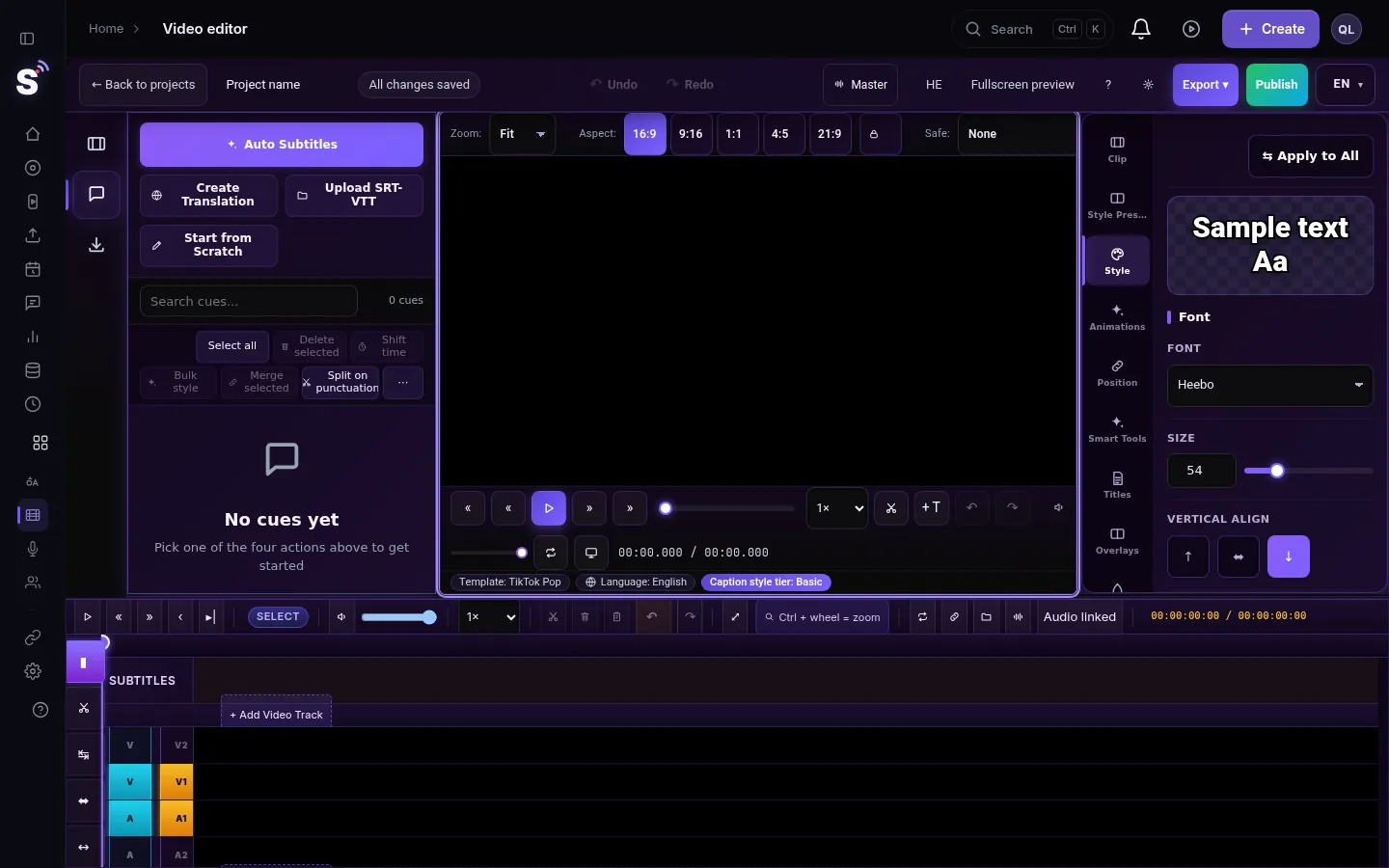
- Edit. The video opens in the editor. Trim the start and the end, split and remove the parts you do not want, and add captions or a logo. See Cut and split clips in the video editor.
- Or start from Storage. In Storage, open the menu of a video and choose Edit the video, or press Open in editor.
- Export. Press Export and choose the format and size. The export is a new file; the recording itself stays as it was.
What the panel tells you
| Message | What it means |
|---|---|
| Preparing the recording for the editor | The request was received and the work started |
| The broadcast is still finishing | The broadcast has not fully closed. The recording opens by itself as soon as it is ready |
| The recording is still processing | Usually 1 to 3 minutes after the broadcast ends. The editor opens by itself |
| Copying the recording into your library for editing | The video is being copied, which takes longer for a long broadcast |
| Continuing where you left off on this recording | You opened it before, and the same editing project opens again with your changes |
What can go wrong
- This broadcast has no recording. Record was not pressed and the two-hour window has passed, so there is nothing to open. Press Record next time; see Record in the browser studio, live or offline.
- The recording could not be copied for editing. The copy failed. Wait a minute and try again. If it fails again, download the recording from the card's menu and upload it to the editor.
- The recording file is missing. The file is no longer in storage, for example because it was deleted. Check Storage.
- This recording cannot be prepared for the editor right now. The service that prepares recordings is not available at the moment. Try again later.
- Edit Video is not in the menu. The card has no recording. See Where is my live stream recording?.
- The panel has been waiting a long time. A long broadcast takes longer to copy. Leave the page open; the editor opens by itself.
Related pages
- Where recordings are kept: Recordings and storage — what is kept and for how long
- Cutting and trimming: Cut and split clips in the video editor
- Export settings: Exporting from the editor — formats and render settings
- Short clips from the same broadcast: Edit a Short before you publish it
Frequently asked questions
How do I trim the start of my live stream recording?
Open Past streams, choose Edit Video in the broadcast's menu, and in the editor trim the beginning of the clip to the moment you start talking. Then export.
Does editing change the original recording?
No. The editor works on a copy in your library, and the export is a new file.
Why does it say the recording is still processing?
A recording needs about 1 to 3 minutes after the broadcast ends. Leave the panel open; the editor opens by itself when the recording is ready.
Can I open the same recording again later?
Yes. Choosing Edit Video again opens the same editing project, with the message Continuing where you left off on this recording.
Keep reading
Open vs closed captions: burned into the picture or sent as a file the viewer can switch off. What each is good for, which networks take which, and how to make both.
What is B-roll? Cutaway footage explainedWhat is B-roll: cutaway footage laid over a speaker to show what they talk about. A-roll vs B-roll, when it helps a Short, and how StreamLive Pro adds it.
Live streaming glossary: the terms you will meetA live streaming glossary in plain words: stream key, RTMP, SRT, bitrate, multistream, Preview and Program, ISO, captions, reframe. Where each shows up in StreamLive Pro.
Turn a podcast episode into Shorts with captionsTurn a podcast episode into vertical Shorts: pick the recording in Shorts, get up to 5 captioned clips that follow the speaker, check them and publish to every network.
Want to try it? 7-day trial, no credit card.
Start free