 StreamLive Pro
Edit a Short before you publish it
Edit an AI Short before publishing: fix caption words and re-render, change the caption style, trim it in the editor, then check it on a phone before posting.
The AI picks the moments and writes the captions; it can pick a weak moment and it can mishear a word. Before a Short goes out, open Shorts and use the buttons on the Short's card: Captions to fix words and change the caption style (the Short is re-rendered in seconds), Edit to open it in the full editor for trimming, logo and more, then Publish or Download.
Before you start
- Where Shorts come from. After a broadcast (unless you turned automatic Shorts off) or from any video you upload with Create Shorts. See How to create Shorts from any video, no live stream needed.
- What is already done. Every Short is cut to 9:16 following the speaker, has burned-in captions in your chosen design, even sound and a thumbnail. Editing is for the parts the AI cannot judge: meaning, names and the first seconds.
- Watch it on a phone. That is where it will be seen, at that size.
The buttons on a Short's card
| Button | What it does | Use it for |
|---|---|---|
| Edit | Opens the Short in the full editor, from a clean copy without burned captions, with its captions already loaded | Trimming, a logo, the caption design, a translation, a different export |
| Captions | A quick window: the caption lines with their times, a caption style picker, and Save & re-render | A misheard word or name, or a different caption look |
| Publish | Opens publishing for this Short | Posting it now or scheduling it |
| Write & publish | Writes a title, description and hashtags for each network, then publishes | When the text per network matters |
| Download | Saves the MP4 | Posting by hand, or keeping a copy |
| Delete | Removes the Short | A weak moment you will not post |
In the Hebrew interface the Captions button is labelled תרגום.
Steps
- Watch the first three seconds. If the opening line does not make sense without what came before, the moment is weak. Delete it, or open it with Edit and trim the start.
- Read every caption line. Press Captions on the card. Click a time to jump to that moment in the player. Fix names, terms and numbers; a surname that sounds like a common word is the usual error.
- Pick the caption look. In the same window choose a style: karaoke (the word fills with colour), colour box, pop, glow, underline, typewriter, clean white, gradient or neon. To compare, use the option that generates every style and pick one.
- Save and re-render. Press Save & re-render. The Short is burned again with the corrected text; it takes a few seconds.
- Trim or add more in the editor. For a cut at the start or the end, a logo or a translated version, press Edit. The Short opens in Translate and subtitles with its lines; if you edited it before, you continue where you left off. Export the result when you are done; see Export captions as SRT, VTT or ASS for the caption file.
- Check the frame. Watch for a speaker cut at the edge, captions covering a face, or a sentence that ends mid-word. If the frame is wrong for this video, see Turn a horizontal video into vertical.
- Publish. Press Publish or Write & publish. To send several Shorts of one video together, use the bar described in Publish all your Shorts at once.
Set it once for the next Shorts
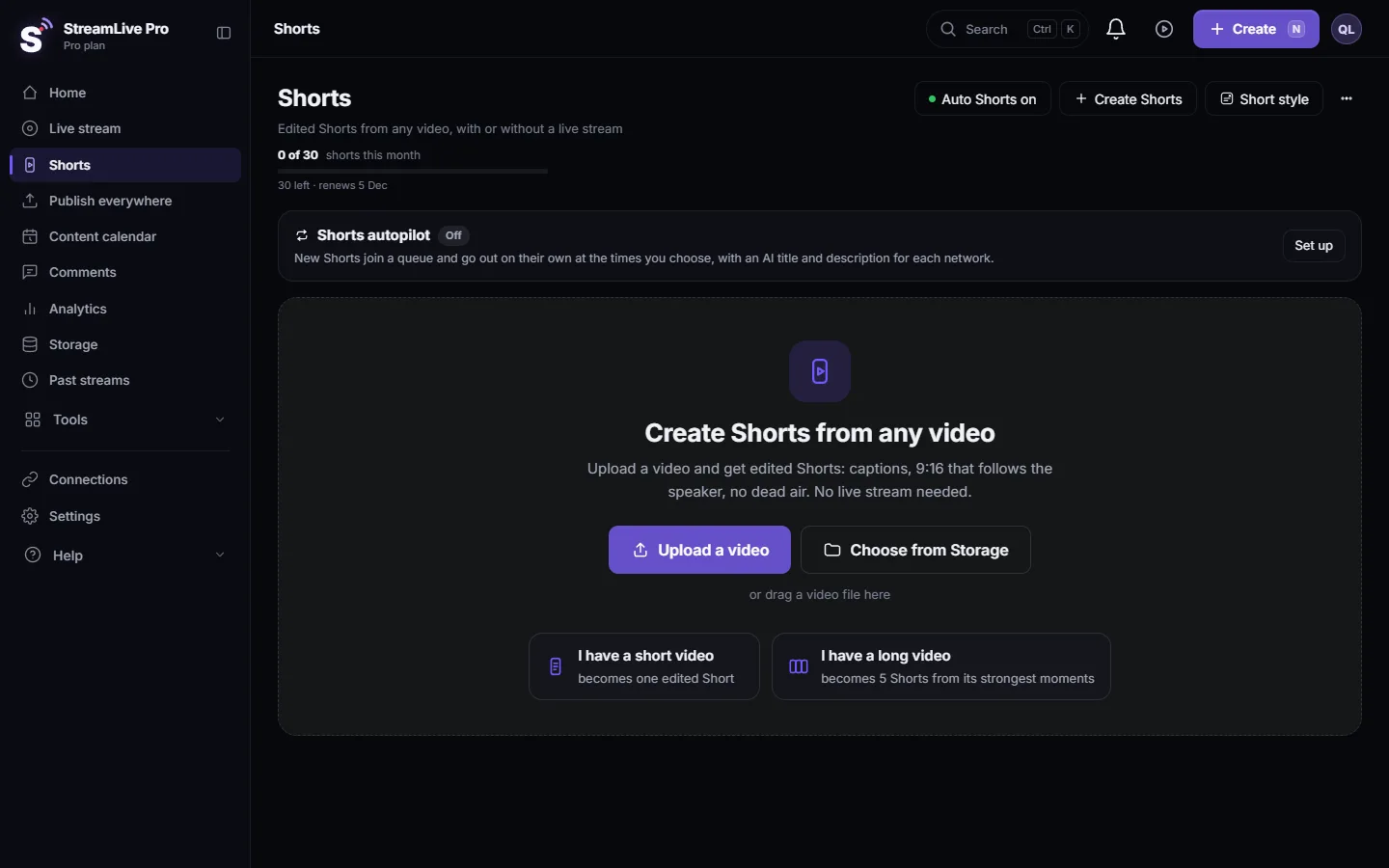
The Short style button at the top of Shorts sets the look for the Shorts that are made next: your logo (placed and sized for you), the caption look, the caption language and its text direction. Translated captions on Shorts work on every plan and in the trial; the number of caption languages depends on the plan (/pricing?lang=en). Changing it does not re-render Shorts that already exist; fix those one by one with Captions.
A quick check before posting
| Check | Why |
|---|---|
| The first line stands on its own | Viewers decide in the first seconds |
| Names are spelled right | A wrong name is the error people notice and screenshot |
| Captions do not cover the face | Faces hold attention in a vertical feed |
| It ends on a full sentence | A cut mid-sentence looks like a mistake |
| No watermark, if the network matters | Trial Shorts carry one, and TikTok refuses them (The trial watermark and TikTok) |
What can go wrong
- The Captions button is missing. The Short has no caption lines to edit, or was made before this option existed. Make the Short again from the same video.
- I fixed the text but the downloaded file still shows the old words. Download again after Save & re-render finished.
- The look I picked with the Short style button did not change my old Shorts. It applies to new ones. Use Captions on each existing Short.
- The edited version from the full editor is not on the card. The full editor makes a new export. Download or publish that export.
Frequently asked questions
Can I fix a wrong word in a Short's captions?
Yes. Press Captions on the Short's card, correct the line and press Save and re-render. The Short is burned again with the new text in a few seconds.
Can I change the caption design of a Short that is already made?
Yes. The Captions window has a style picker, and the full editor has every template. The Short style setting only affects Shorts made after you change it.
Can I trim a Short?
Yes. Open it with Edit in the full editor, trim the start or the end, and export it.
Do I have to edit every Short?
No. Every Short comes out finished. Reading the captions and watching the first seconds is the minimum check before posting.
Can I translate the captions of a Short?
Yes. For new Shorts, choose a caption language with the Short style button (how many languages depends on the plan). For an existing Short, open it with Edit and translate it in the editor, which uses translation minutes.
Keep reading
Add stickers to a video in the StreamLive Pro editor: arrows, highlight boxes, Subscribe and Like badges, reactions, with their place, size and timing.
Change a video's aspect ratio in the editorSwitch a video between 16:9, 9:16, 1:1 and 4:5 in the StreamLive Pro editor, choose which part of the picture stays, lock the frame, and export at the network's size.
Fade in, fade out and dissolves in the video editorAdd a fade in, fade out, dip to black or white, or a dissolve at a cut in the StreamLive Pro editor, and fade music with the handles on audio clips.
Keyframes and effects in the video editorAnimate a clip with keyframes in the StreamLive Pro editor, such as a slow zoom, a move or a fade of opacity, and add looks like black and white or a vignette.
Want to try it? 7-day trial, no credit card.
Start free