 StreamLive Pro
Record in the browser studio, live or offline
Record in the browser studio: press Record next to Go live, with or without broadcasting. Where the file goes, why it matters for keeping a live, and what to check.
To record in the browser studio, press Record in the centre of the studio bar, next to Go live. The studio records Program, the same picture and sound viewers get, including titles, overlays and guests on air. You can record while you are live or without going live at all. When you stop, the recording is saved to Storage, and if you were live, Record also tells our servers to keep that broadcast's full recording instead of removing it about two hours after the end.
Before you start
- Storage space. Recordings count against your plan's storage: /pricing?lang=en. When storage is full, new uploads are blocked: Recordings and storage — what is kept and for how long.
- A consent step, once per browser session. The first time you press Record, a window titled Recording — Legal Acknowledgement asks you to confirm you may record the people in it.
- Keep the tab open. The studio records in your browser and sends the recording to us in pieces while you record.
- Any plan, including the trial. Recording in 4K is on Pro and Studio.
Steps
- Open the studio. Choose Live stream, start a new live and pick Browser Studio (Go live or record directly from your browser).
- Set up the picture and sound. Cameras, guests, titles: whatever is on Program is what gets recorded.
- Press Record. It sits in the centre of the bar with Go live. Confirm the consent window if it appears.
- Check the state. The status next to the buttons changes from Off air · not recording to REC with a timer. A red timer and a level bar appear under the bar; the level bar shows that sound is arriving.
- Go live too, if you want. Press Go live. The status then shows LIVE and REC together.
- Stop the recording. Press Stop Rec. Wait for the message that it is saved; if you press again too fast the studio says the previous recording is still finalizing.
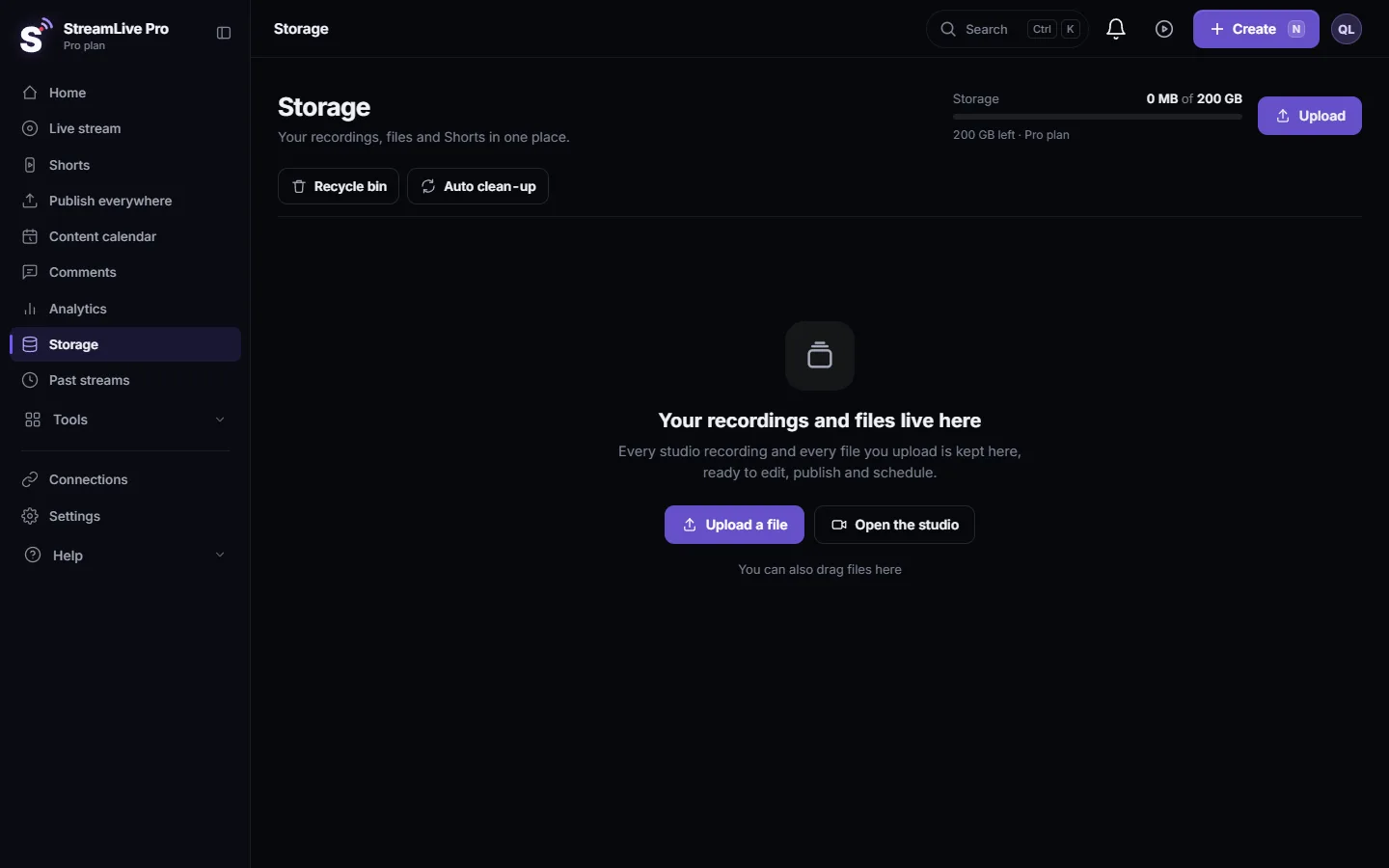
- Find the file. Open Storage. The recording is there as an MP4, ready to download, edit or cut into Shorts: Where is my live stream recording?.
Record and the live's own recording
| What | Without Record | With Record |
|---|---|---|
| Studio recording in Storage | None | Saved when you stop |
| The broadcast's full recording on our servers | Removed about 2 hours after the broadcast | Kept, counts against storage |
| Shorts cut after the live | Yes | Yes |
If marking the broadcast to keep fails, the studio says so: the local recording still saves, but the server copy may be deleted. You can still keep it from the broadcast's card in Past streams within those two hours.
What is recorded
- One file of Program, the picture and sound that go on air. Overlays, the ticker, comments on screen and guests on air are in it.
- Not separate camera files. A file per camera (ISO) is a podcast studio feature: How to record each camera separately (ISO recording).
- Not what is off air. A guest waiting off air, or a camera on Preview, is not in the recording.
What can go wrong
- "Start studio first". The studio is not running. Press Start studio, then Record.
- No sound warning after a few seconds. No audio arrived. Check the microphone is not muted, the volume on its tile is not at zero, and that NDI or vMix cameras send audio too.
- The browser closed during the recording. Pieces already sent are not lost; interrupted recordings are restored from them: Recordings and storage — what is kept and for how long.
- The browser rejected the codec. A very old browser cannot record this way. Update it, or use Chrome or Edge.
- The file is not in Storage. Give it a minute after Stop; long recordings take time to finish. If it is still missing, see Where is my live stream recording?.
Frequently asked questions
Can I record without going live?
Yes. Open the browser studio and press Record without Go live. The recording is saved to Storage when you stop.
Is every broadcast recorded automatically?
No. The full recording is kept only if you press Record; otherwise it is removed about two hours after the broadcast. Shorts are still cut from it.
Where do browser studio recordings go?
To Storage in the dashboard, as an MP4 file you can download, edit or turn into Shorts.
Does the recording include my guests?
Yes, when they are on air. The recording is the Program picture, so whoever viewers see is in it.
Can I record each camera separately?
Not in the live studio. Separate camera recordings are in the podcast studio.
Keep reading
Go live from a Mac with nothing to install: the browser studio in Safari or Chrome, the macOS permissions to allow, and when an app is still better.
Resolution and frame rate for live streamingResolution and frame rate for live streaming in plain words: 720p or 1080p, 30 or 60 fps, how both drive bitrate, and how to set them in StreamLive Pro and OBS.
How to live stream a panel discussionHow to live stream a panel discussion with remote speakers: invites, layouts for three to five people, a moderator's run sheet, audience questions on screen, and Shorts.
How to live stream a cooking show with two camerasHow to live stream a cooking show with two cameras: a phone overhead on the pan, the cook's face, picture in picture, sound in a noisy kitchen, and Shorts of each recipe.
Want to try it? 7-day trial, no credit card.
Start free