 StreamLive Pro
Speed up, slow down or reverse a clip in the editor
Change the speed of a clip in the StreamLive Pro editor with Speed / Duration: speed up, slow motion, a set length, reverse, and keeping the voice's pitch. What exports.
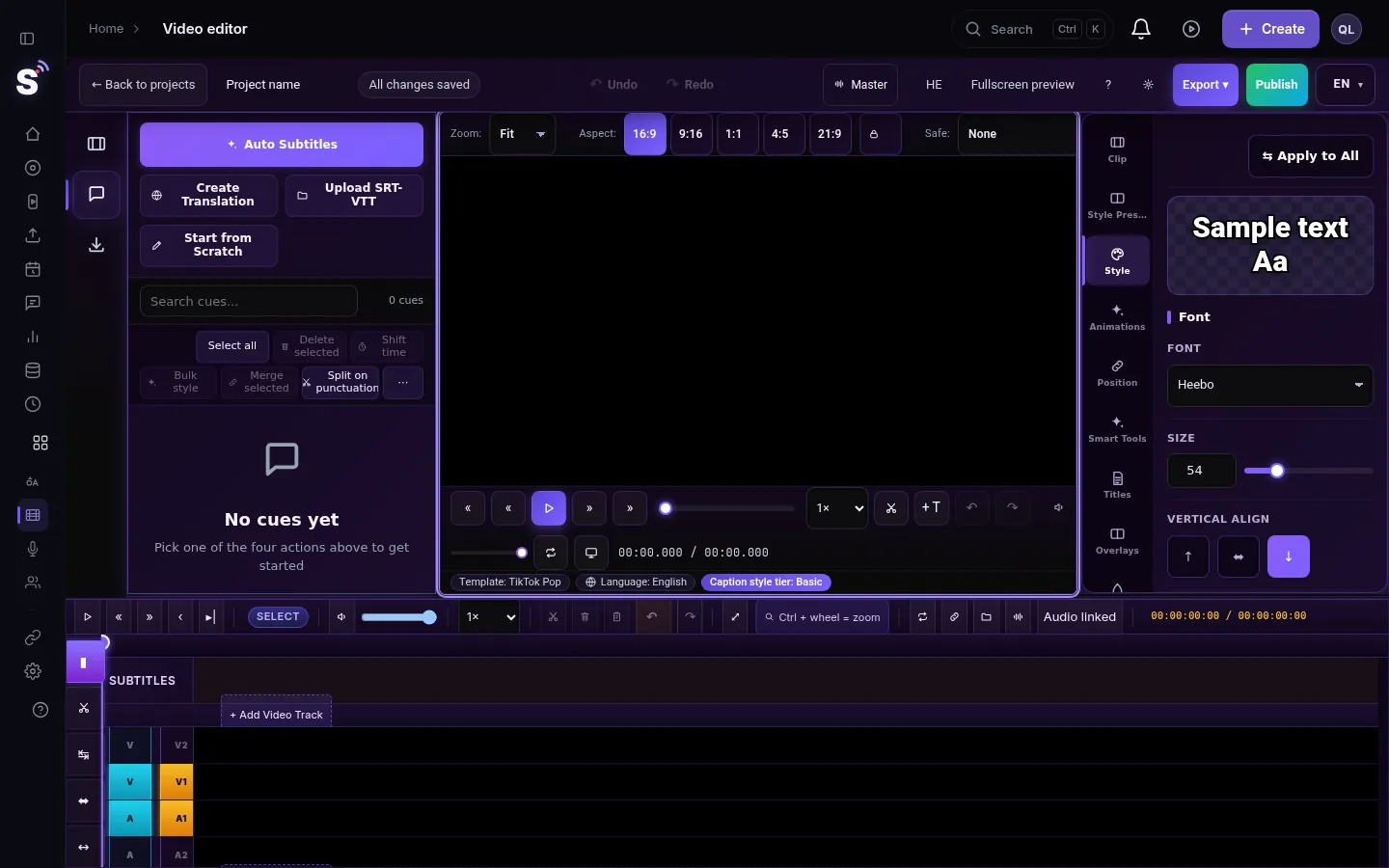
To change how fast a clip plays, right-click it on the timeline and choose Speed / Duration, or select it and press Ctrl+R. Type a speed in percent (200 is twice as fast, 50 is half speed) or the length you want in seconds, tick Reverse to play it backwards, and press Apply. The clip gets shorter or longer on the timeline, the sound follows, and the change is rendered into the exported MP4.
Before you start
- Speed is per clip. To change part of a clip, split it first with S at the start and end of that part. See Cut and split clips in the editor.
- The preview speed is something else. The Speed control of the player only changes how fast you watch while editing. It does not change the video.
- Locked tracks cannot be changed. Unlock the track in its header first.
- Open the project. In the menu choose Video editor.
Steps
- Select the clip. Click it on the timeline. To change the picture and its sound together, keep both selected (a linked clip selects both).
- Open Speed / Duration. Right-click the clip and choose Speed / Duration, or press Ctrl+R.
- Set the speed. In Speed (%) type the value, or drag the slider. The preview plays at the new speed while you choose.
- Or set the length. In Duration (seconds) type how long the clip should last. The speed is worked out for you; the two fields always match.
- Reverse it if you want. Tick Reverse to play the clip backwards.
- Decide about the voice. Maintain audio pitch keeps a voice sounding natural at a new speed. Untick it for the tape effect, where faster sounds higher and slower sounds lower.
- Apply. Press Apply. Cancel puts everything back.
- Check the clips after it. Play across the clip and the next one, and check the captions over it.
What happens on the timeline
| You do | The clip | The clips after it |
|---|---|---|
| Speed up (for example 200%) | Gets shorter | Stay where they are; a gap opens after the clip |
| Slow down (for example 50%) | Gets longer | Move later on the same track, so nothing is covered |
| Set a duration | Gets exactly that length | As above, depending on longer or shorter |
| Reverse at 100% | Same length, played backwards | Do not move |
To close a gap left by a speed-up, select the gap and press Shift+Delete, or drag the next clip back.
Stretch a clip to fit
The Rate Stretch tool changes speed by dragging. Press R, then drag the end of a clip: instead of trimming it, the editor speeds it up or slows it down so the whole clip fits the new length. This suits b-roll that has to fill an exact gap. Press V to go back to the selection tool.
Useful values
| Effect | Speed (%) |
|---|---|
| Gentle slow motion | 50 to 75 |
| Strong slow motion | 25 |
| Slightly tighter talk, still natural | 110 to 125 |
| Quick time-lapse of a set-up or a drive | 400 to 800 |
What can go wrong
- The export is not as fast as the preview. The dialog accepts up to 1000%, but the export renders at most 8 times the normal speed (800%) and at least a tenth of it. Keep speed-ups at 800% or below.
- Slow motion looks choppy. Slowing a normal video repeats frames. Video shot at a high frame rate slows down more smoothly.
- The voice sounds like a chipmunk. Maintain audio pitch is off. Open Speed / Duration again and tick it.
- The captions no longer match the speech. Check the captions over a clip after every speed change, and move the ones that are off on the subtitles track; see Edit captions on the timeline.
- Nothing happened. The clip is on a locked track, or no clip was selected when you pressed Ctrl+R.
Related pages
- Fades on a sped-up clip: Fade in, fade out and dissolves in the video editor
- Animating size and position: Keyframes and effects
- All the keys: Keyboard shortcuts in the video editor
Frequently asked questions
How do I speed up a video in StreamLive Pro?
Right-click the clip on the timeline, choose Speed / Duration, type a speed such as 200 and press Apply. The clip plays twice as fast and is half as long.
How do I make slow motion?
Open Speed / Duration and type a speed below 100, for example 50 for half speed. Keep Maintain audio pitch ticked if someone is speaking.
Can I play a clip backwards?
Yes. Tick Reverse in Speed / Duration. The sound is reversed as well.
Is the speed change kept in the exported video?
Yes. Speed, reverse and the pitch choice are rendered into the MP4, up to eight times the normal speed.
Keep reading
Open vs closed captions: burned into the picture or sent as a file the viewer can switch off. What each is good for, which networks take which, and how to make both.
What is B-roll? Cutaway footage explainedWhat is B-roll: cutaway footage laid over a speaker to show what they talk about. A-roll vs B-roll, when it helps a Short, and how StreamLive Pro adds it.
Live streaming glossary: the terms you will meetA live streaming glossary in plain words: stream key, RTMP, SRT, bitrate, multistream, Preview and Program, ISO, captions, reframe. Where each shows up in StreamLive Pro.
Turn a podcast episode into Shorts with captionsTurn a podcast episode into vertical Shorts: pick the recording in Shorts, get up to 5 captioned clips that follow the speaker, check them and publish to every network.
Want to try it? 7-day trial, no credit card.
Start free