 StreamLive Pro
Background music in Shorts: choose a mood or turn it off
Background music in StreamLive Pro Shorts: Smart, Calm, Upbeat or Cinematic, or no music at all. Where to set it, when Smart adds none, and copyright.
Shorts made by StreamLive Pro can get a quiet music bed under the speech. You choose the mood once in the Short style window: Smart (the default), Calm, Upbeat, Cinematic, or No music. The music is original music of StreamLive Pro's own library, so it does not bring copyright claims from YouTube or Instagram. The choice applies to every new Short, automatic or made by hand.
Before you start
- Where it applies. Shorts cut by StreamLive Pro: after a live and from Create Shorts. The video editor has its own audio tracks for music you add yourself: Add music to a video and adjust the sound.
- Plan. The music choice is part of the Shorts on every plan and in the 7-day trial.
- Your own song. You cannot upload your own music into the automatic Shorts. Pick No music, then add your track in the editor or in the network's own app.
Steps
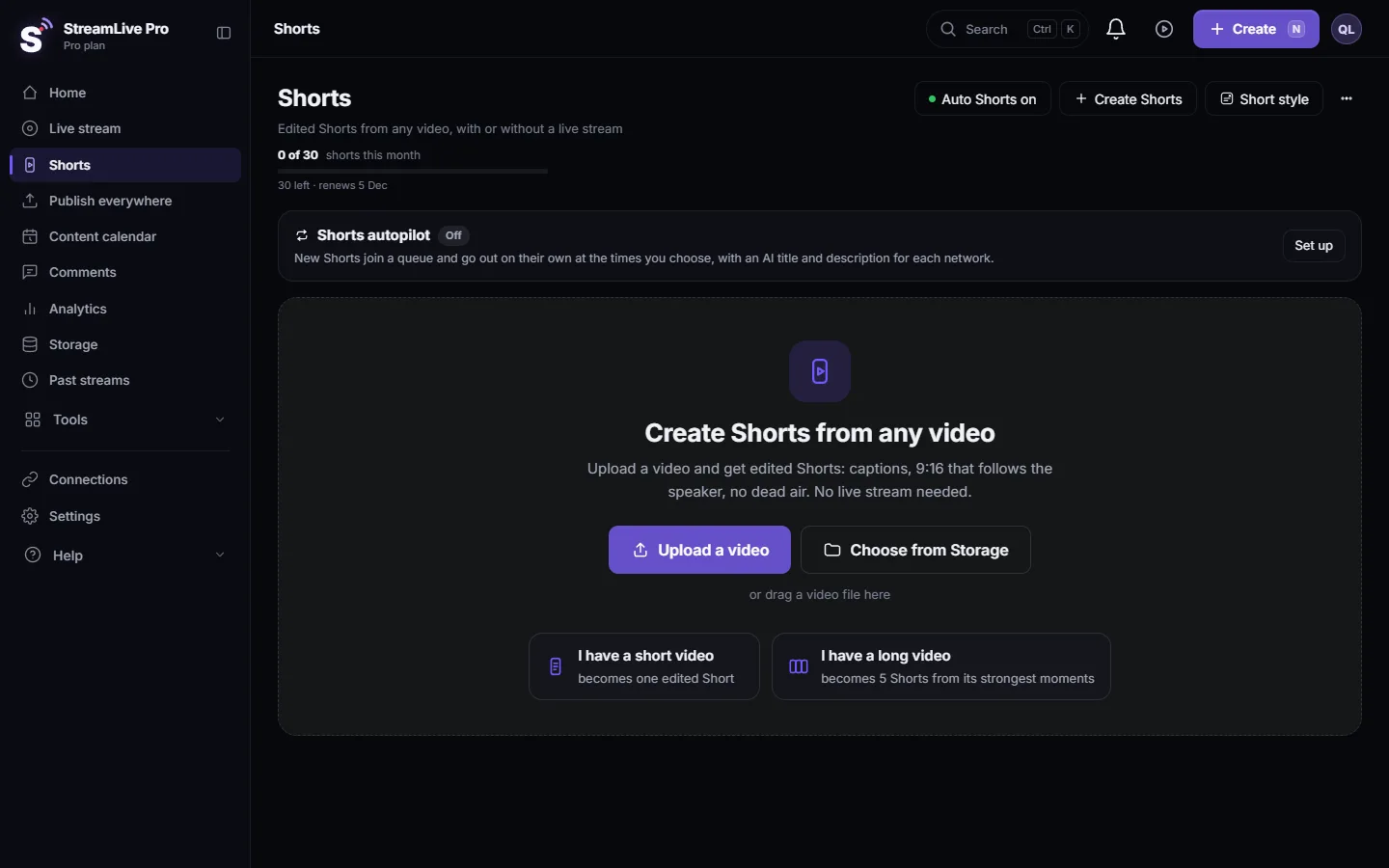
- Open the Short style window. On the Shorts page press Short style. The same window opens from Settings, automatic Shorts card, Brand & Short style, Open.
- Find Music. The section says "Our own original music - no copyright claims."
- Choose a mood. Smart is marked Recommended. Calm is a soft bed for talk and teaching. Upbeat has more energy, for fast and light content. Cinematic is wider and slower. No music turns music off for every new Short.
- Set the sound effects too, if needed. The next section, Sound effects & transitions, has Smart and Calm. Calm turns off the small sound effects that come with cuts and on-screen moves, which suits a lesson or serious talk.
- Close with Done. The choice is saved the moment you tap it. Shorts already made keep their soundtrack.
- Check the next Short. Listen on a phone with the sound on. If the music is in the way of a particular Short, edit that Short or make it again with No music.
What Smart does
Smart decides per Short whether music fits and which bed to use. On a class or a Torah lesson, Smart adds no music at all unless you choose a mood yourself; a lesson is better with the speaker alone. When you choose Calm, Upbeat or Cinematic, that mood is used for every Short instead of the automatic decision.
Which mood fits which content
| Content, for example | Mood to try | Why |
|---|---|---|
| A weekly class or lesson | Smart (no music) or Calm | The words carry the Short; a soft bed at most |
| A podcast conversation | Calm | Keeps the talk in front |
| Quick tips, behind the scenes, light humour | Upbeat | More energy for fast cuts |
| A story, a trip, a launch | Cinematic | A wider, slower feel |
| News or a sensitive subject | No music | Music can sound wrong under hard news |
If you are not sure, leave Smart on and listen to the first few Shorts. Change the mood only when you hear a pattern you do not like, not because of one Short.
What can go wrong
| Symptom | Likely cause | Fix |
|---|---|---|
| A Short of a lesson has no music | Smart leaves lessons without music | Choose Calm if you want music on lessons |
| The music is too lively for the subject | Upbeat or Cinematic chosen for all Shorts | Choose Smart or Calm |
| You switched to No music but a Short still has music | It was made before the change | Make that Short again; new ones follow the setting |
| You want a specific song | The library is fixed | Choose No music and add the song in the editor |
| The network mutes the audio | Usually a song you added yourself, not the built-in library | Remove the added track |
When you add your own song after downloading, the copyright of that song is your responsibility and the network's rules apply. YouTube explains its rules in its own help: Learn about copyright claims (checked 5 November 2026).
Related: Add your logo to every Short automatically, B-roll in Shorts: what it is and how to turn it off, Edit a Short before you publish it, How to create Shorts from any video, no live stream needed.
Frequently asked questions
Is the music in StreamLive Pro Shorts copyright free?
It is original music from StreamLive Pro's own library, made so that it does not trigger copyright claims. Music you add yourself is your responsibility.
How do I turn off the music in all my Shorts?
Open Short style on the Shorts page and choose No music under Music. Every new Short comes out without music.
Why did a Short come out without music when Smart is on?
Smart adds music only where it fits. On classes and lessons it adds none unless you choose a mood such as Calm.
Can I upload my own music for automatic Shorts?
No. Choose No music and add your track in the video editor or in the network's app.
Does changing the music change Shorts I already made?
No. The choice applies to Shorts made after the change.
Keep reading
Find your best time to post from your own posts: the heatmap by day and 3-hour block, how many posts it needs, and how scheduling and Publish all use it.
My video upload failedVideo upload failed in StreamLive Pro? The file may be over 6 GB, bigger than your free storage, or the upload was cut off. What each message means and the fix.
My YouTube upload is waiting in a queueYour YouTube upload says it is queued? Why it waits for midnight Pacific time, how to check when it starts, and what to do when it cannot wait.
Use the Content calendar for posts and livesThe Content calendar shows every scheduled post and live and what happened on each network: list, week and month views, filters, statuses and what to do next.
Want to try it? 7-day trial, no credit card.
Start free