 StreamLive Pro
Add your logo to every Short automatically
Add your logo to Shorts once and it appears on every new Short in the same corner and size. Which file works best, where it goes, and how to remove it.
You upload your logo once, in the Short style window, and every new Short made after that carries it: automatic Shorts after a live and Shorts you create from a video. You do not choose the position or the size. StreamLive Pro places the logo in one top corner, at one size and opacity, clear of the buttons that YouTube, Instagram and TikTok draw over a vertical video, and the same on every Short so it reads as a brand.
Before you start
- A file. A PNG with a transparent background works best. SVG and WebP also work; JPEG, AVIF and a still GIF are accepted too. Animated files are refused.
- Size. At least 600 pixels on the long side; 1000 or more looks sharp. Under 240 pixels the file is refused because it would look blurry. Up to 20 MB.
- Shape. An icon or a wordmark (logo with text) both work. You do not need to add margins; empty transparent edges are trimmed.
- Plan. The logo is part of the Shorts on every plan and in the 7-day trial. In the trial, the small StreamLive Pro watermark still appears next to it.
Steps
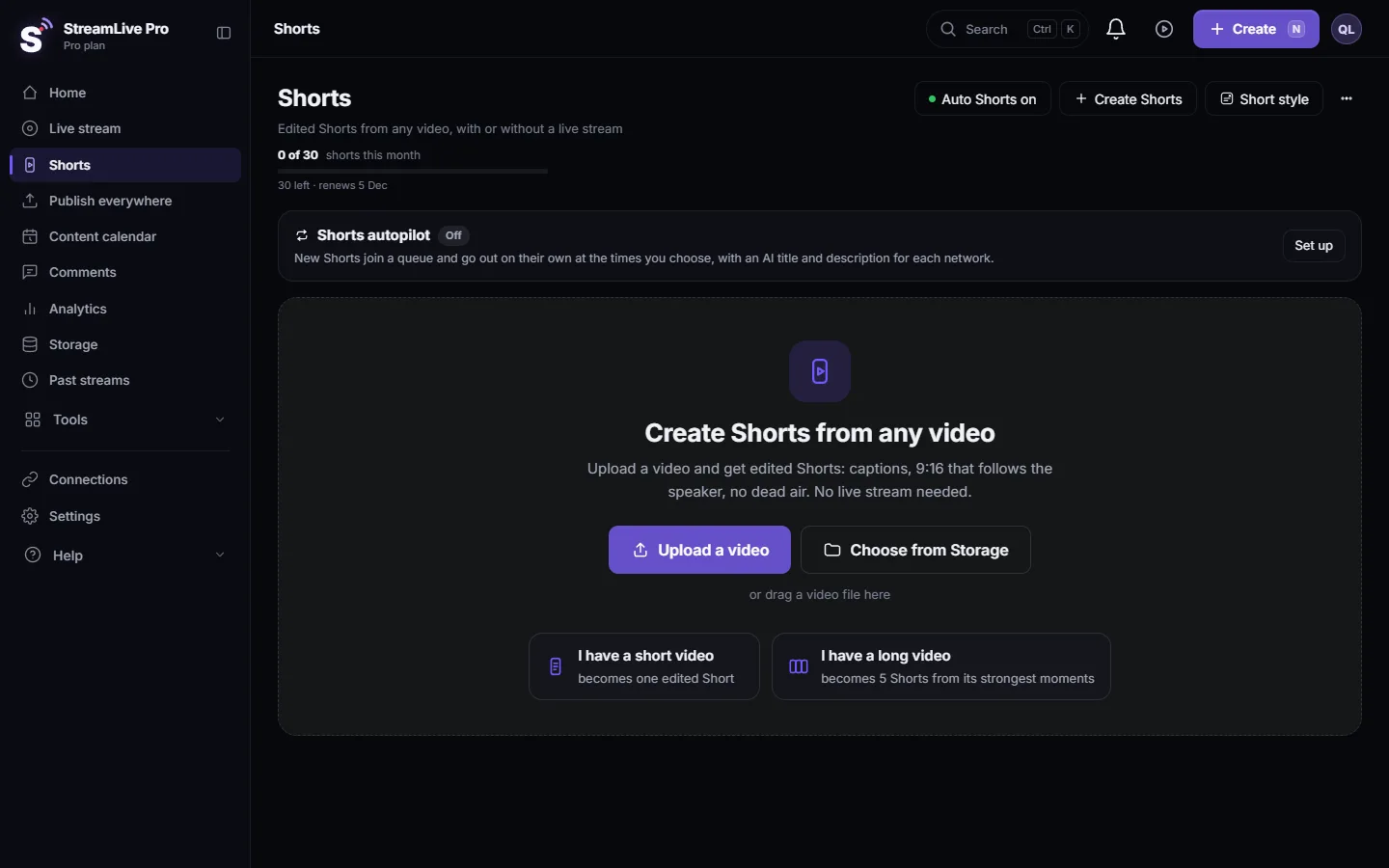
- Open the Short style window. On the Shorts page, press Short style at the top. The same window opens from Settings, in the automatic Shorts card, on the row Brand & Short style, with Open.
- Add the logo. Under Logo, press Add your logo and pick the file. "Preparing your logo..." shows while the file is cleaned up: colours set to standard, metadata removed, empty edges trimmed.
- Answer the offer if one appears. If the logo has a plain solid background, the window offers to remove it in one tap. If the background looks like a photo, it offers to use the logo as a rounded badge. A small logo gets a warning and a Use it anyway button. You can always Choose another file instead.
- Check the preview. The window shows a 9:16 frame with your logo where it will be. Switch between Bright and Dark to see it on a light and a dark picture. A light logo gets a soft shadow and a dark logo a soft glow, so it stays visible on both.
- Close with Done. Each choice is saved the moment you make it ("Saved" appears). The next Short you make carries the logo.
- Make a test Short. Create one Short from a short video (Create Shorts on the Shorts page) and watch it on the phone before relying on it for a whole week of posts.
Where the logo goes and why you cannot move it
The corner follows the language of your account. For Hebrew, Arabic, Persian, Urdu and Yiddish accounts the logo sits top left; for other languages top right. The top edge is about a tenth of the way down the frame, below the top bar the apps draw, with a side margin of about 6 %. Icons and wordmarks get the same visual weight, and very wide or very tall logos are capped so they do not cover the speaker. Opacity is fixed at 92 %.
The logo is drawn first and then locked as the very last layer, so captions, title cards, graphics and colour changes never cover or tint it. Captions and cards are moved out of its way instead.
What can go wrong
| Symptom | Cause | Fix |
|---|---|---|
| "This format is not supported." | The file is not an image type the window takes | Export a transparent PNG |
| "This is an animated file." | An animated GIF or WebP | Upload one still image |
| "This logo is too small" | Under 240 pixels on the long side | Upload a version of at least 600 pixels |
| "This SVG points to outside files." | The SVG links to fonts or images elsewhere | Export it again as a PNG or a self-contained SVG |
| The logo looks thin or short | A very tall or very wide logo | Use an icon or a stacked version |
| Older Shorts have no logo | The logo applies to Shorts made after you added it | Make the Short again if you need it with the logo |
Remove or hide the logo
- Hide it for now. Switch off Show the logo on Shorts in the same window. The file stays saved.
- Remove it. Press Remove and confirm "Remove the logo from your next Shorts?". Shorts already made keep the logo they have.
- Replace it. Press Replace and pick the new file.
The logo here is only for Shorts. A logo on a live broadcast is set in the studio: Add a logo and overlays to your live stream. The other Short style choices (captions, music, B-roll, accent colour) are in the same window.
Related: How to create Shorts from any video, no live stream needed, My Short has a "Made with StreamLive Pro" watermark, Edit a Short before you publish it.
Frequently asked questions
Can I choose the corner or the size of the logo?
No. The corner follows your account language and the size and opacity are fixed, so every Short looks the same and the logo stays clear of the app buttons.
Does the logo replace the trial watermark?
No. In the 7-day trial the small StreamLive Pro mark stays on Shorts. It goes away on a paid plan.
Will my logo be added to Shorts I already made?
No. It is added to Shorts made after you upload it. To get it on an older one, create that Short again.
Which file gives a sharp result?
A PNG with a transparent background, 1000 pixels or more on the long side, with no extra margins.
Is the logo covered by the captions?
No. The logo is locked on top, and captions and graphics are placed around it.
Keep reading
Open vs closed captions: burned into the picture or sent as a file the viewer can switch off. What each is good for, which networks take which, and how to make both.
What is B-roll? Cutaway footage explainedWhat is B-roll: cutaway footage laid over a speaker to show what they talk about. A-roll vs B-roll, when it helps a Short, and how StreamLive Pro adds it.
Live streaming glossary: the terms you will meetA live streaming glossary in plain words: stream key, RTMP, SRT, bitrate, multistream, Preview and Program, ISO, captions, reframe. Where each shows up in StreamLive Pro.
Turn a podcast episode into Shorts with captionsTurn a podcast episode into vertical Shorts: pick the recording in Shorts, get up to 5 captioned clips that follow the speaker, check them and publish to every network.
Want to try it? 7-day trial, no credit card.
Start free