 StreamLive Pro
Write the post text and hashtags with AI
Write with AI on the Publish everywhere page drafts the post text, hashtags and a YouTube title from a few words of yours. How it works and its limits.
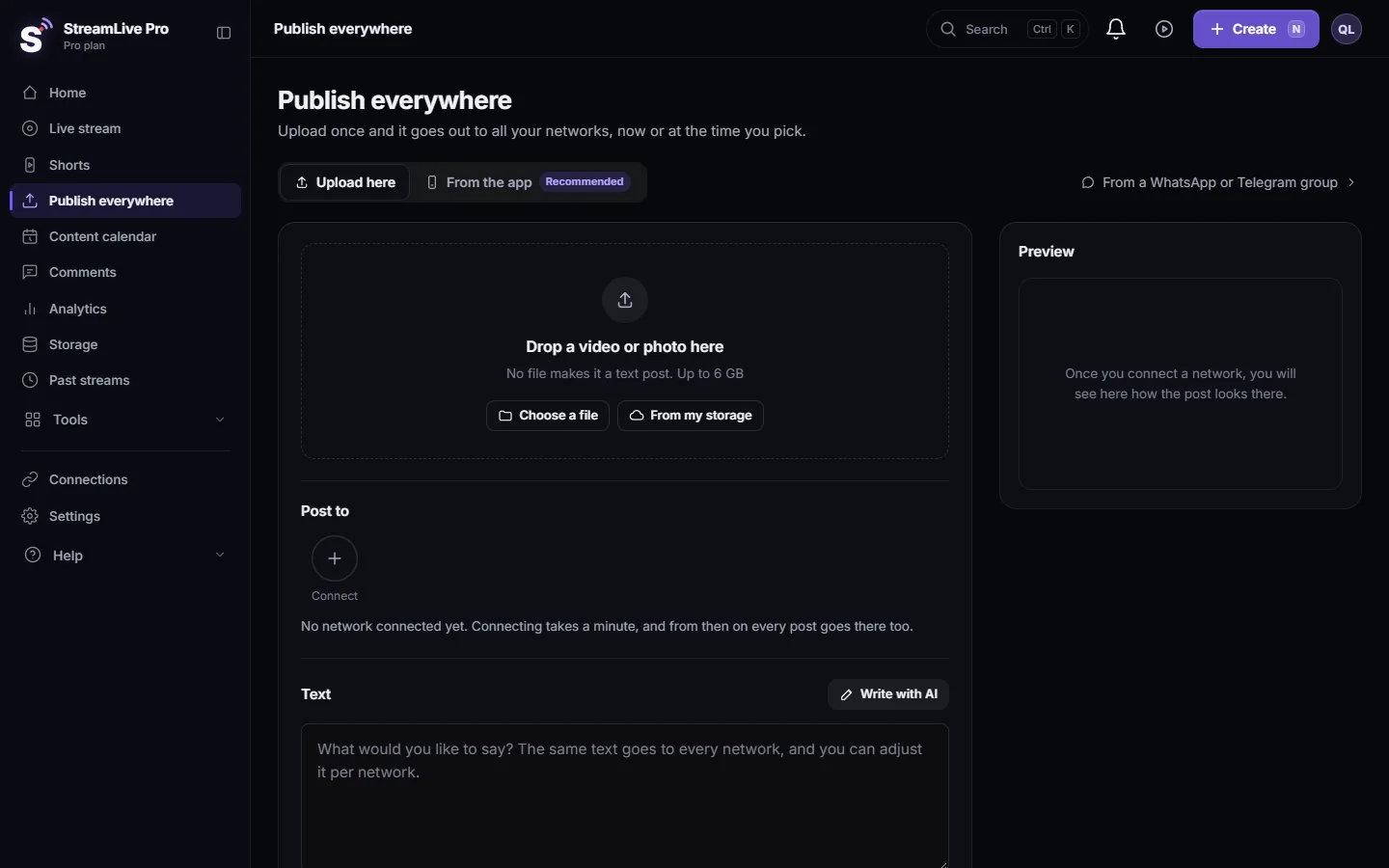
On the Publish everywhere page, the Write with AI button turns a few words of yours into a ready post: the text, hashtags, and a YouTube title when YouTube is one of the networks. It writes for the networks you picked, and when the text is too long for one of them, it prepares a shorter version for that network only. Nothing is published by the AI. The text lands in the box, you change what you want, and you press Publish yourself.
Before you start
- Give it something to work from. A few words in the Text box about the video, or a file with a meaningful name such as "pesach-seder-tips.mp4". A file called "IMG_4021.mp4" tells the AI nothing.
- Pick the networks first. The AI writes for the networks that are ticked under Post to. With none ticked, it writes for Instagram, Facebook and YouTube.
- A daily number. Each plan has a number of AI suggestions per day, and the trial has fewer. Failed attempts do not count. If they run out, see AI suggestions are paused" or "AI editing is paused.
Steps
- Open the page. Choose Publish everywhere in the menu.
- Add the file. Drop a video or photo, or use Choose a file or From my storage. With no file, it is a text post.
- Tick the networks. Under Post to, select the accounts the post goes to.
- Write a hint. In the Text box, write one or two lines: what the video is about, who it is for, and any word or link you want kept. For example: "3-minute tip on lighting a home studio, link to the full class: example.com/class".
- Press Write with AI. It shows "Writing…" for a few seconds. When it is done, the note says "Written from your words. Change anything."
- Read and fix. Correct names, facts and tone. Open Adjust per network to see the separate text the AI made for a network with a shorter limit, and the YouTube title in the YouTube part.
- Publish or schedule. Choose Now or Schedule and press the publish button. To try another version first, press Write again.
What it does with your text
- Your words are not overwritten. If you already wrote a full text yourself, the AI does not replace it. An "AI suggestion" box appears under the text with Use this and Not now.
- Links. A link you wrote yourself can stay in the suggestion. Other links are removed, and so is anything that looks like a password or a code.
- Language. It writes in the language of your words: a Hebrew hint gives a Hebrew post.
- Per network. Each network has its own character limit, shown under the text. When the main text is over a network's limit, the AI's shorter version for that network is put in as a separate text for it.
- YouTube title. If the YouTube title is empty, the AI fills it, up to YouTube's 100 characters.
What can go wrong
| Symptom | Likely cause | Fix |
|---|---|---|
| "Write a few words about the video and the AI will finish a post for every network." | The box is empty and the file name says nothing | Write one line about the video |
| "The AI could not write right now. Try again in a minute." | A short failure | Wait a minute and press again; it does not count |
| A message that today's AI suggestions are used | The daily number of your plan is reached | Write the text yourself, or wait until tomorrow: AI suggestions are paused" or "AI editing is paused |
| The text has a wrong name or fact | The AI only knows what you wrote | Fix it by hand before publishing |
| Red "over the limit" on one network | Your own text is too long for it | Press Shorten for this one, or Write with AI |
Related: Adjust the post for each network, Publish a finished video to social networks, Schedule social media posts to several networks at once, Post a photo or a text to several networks at once.
Frequently asked questions
Does the AI publish anything by itself?
No. It only fills in the text. You review it and press Publish or Schedule yourself.
Will the AI replace the text I wrote?
No. When you already wrote a text, its proposal appears in a separate box and is used only if you press Use this.
Can it write hashtags in Hebrew?
It writes in the language of your words, so a Hebrew hint gives a Hebrew post. Always read the hashtags before publishing.
How many times a day can I use it?
There is a daily number by plan, higher on Pro and Studio. Attempts that fail do not count.
Why did it make a different text for X or Threads?
Those networks allow shorter posts. When your main text is too long for one, the AI puts a shorter version in that network's own text.
Keep reading
What a webhook is: a private web address that gets a message when something happens. Incoming webhooks in Discord and Slack, event webhooks, and how to keep them safe.
What is OAuth? Connecting an account without a passwordWhat OAuth is: how one app gets limited access to your account on another service without your password. Tokens, scopes, why connections expire, how to revoke.
What is a podcast RSS feed?What a podcast RSS feed is: one web address listing your show and every episode, which Spotify, Apple and other apps read by themselves. What is inside and who hosts it.
Find your best time to post from your own resultsFind your best time to post from your own posts: the heatmap by day and 3-hour block, how many posts it needs, and how scheduling and Publish all use it.
Want to try it? 7-day trial, no credit card.
Start free