 StreamLive Pro
Write captions by hand, line by line
Write captions by hand in StreamLive Pro when automatic transcription does not fit: start from scratch, add lines, set their times, then burn them in or export SRT.
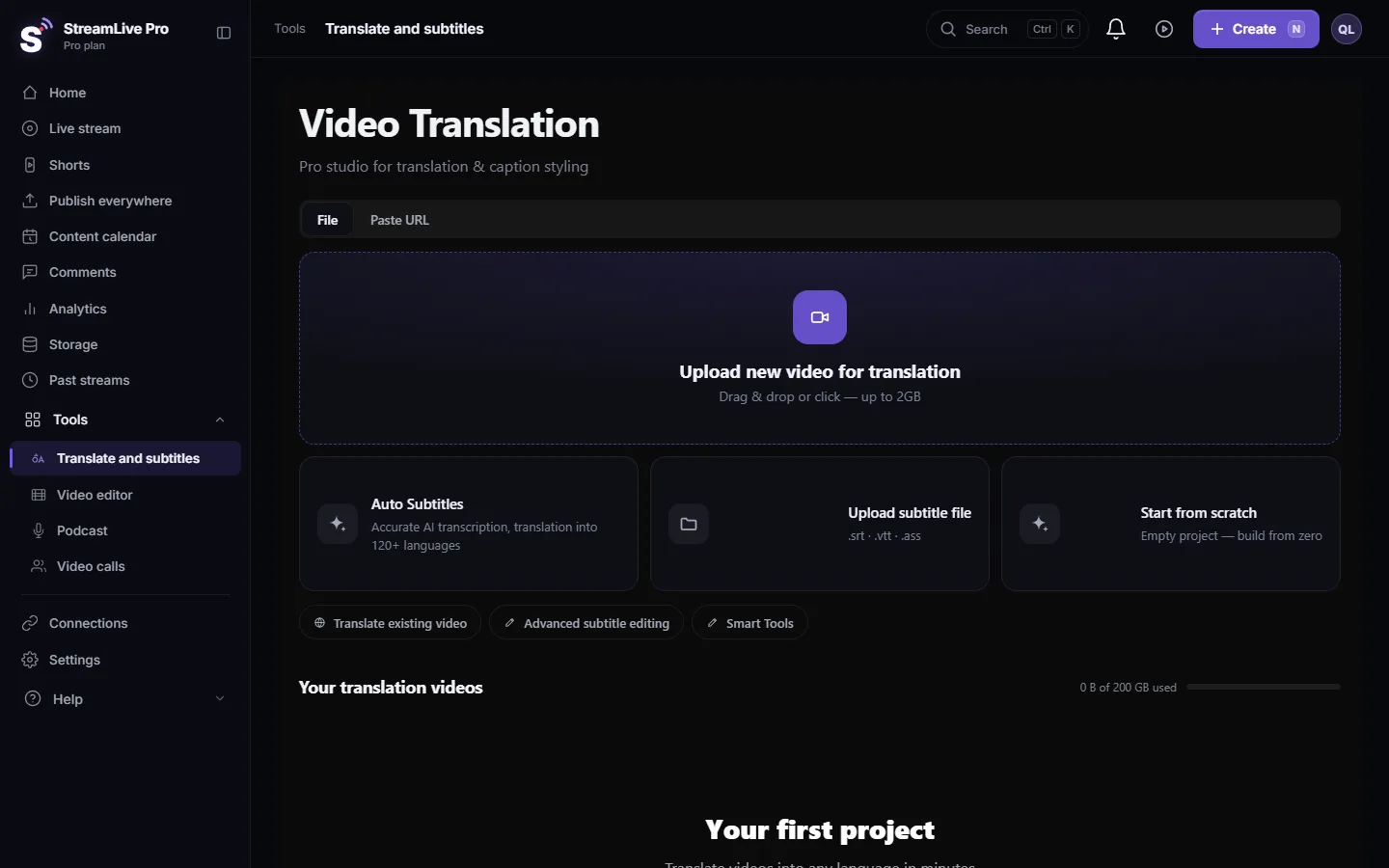
Automatic transcription is the fast way to caption speech, but some videos need captions typed by hand: a song, a video with no speech where you want text on screen, a language the recogniser does not know, or a short clip where you want exactly your own words. In StreamLive Pro you open the video's project in Translate and subtitles, go to Subtitles and press Start from Scratch. You get one empty line at the start of the video; type the text, set its time, and add the next line with Add Line.
Before you start
- A project needs a video. Upload the video in Translate and subtitles with Upload new video for translation, or open it from Storage. Creating the project runs the automatic transcription once, which uses translation minutes according to the length of the video; plans and minutes are on the /pricing?lang=en.
- Start from scratch clears the list. Start from Scratch replaces every line in the project with one empty line, without asking. If the automatic lines might still be useful, duplicate the project first with Duplicate on its card in Your translation videos.
- Often you do not need to clear anything. If the automatic lines are mostly right, correct them instead. Hand-writing is for when there is little or nothing worth keeping.
Steps
- Open the project. In Translate and subtitles, open the project from Your translation videos.
- Open the Subtitles pane. Click Subtitles. At the top are four actions: automatic subtitles, create a translation, upload a file and start from scratch.
- Start from scratch. Press Start from Scratch. One empty line appears, from the first second of the video to the second, with the text box open.
- Type the first caption. Write the text and press Enter. Keep it to what a viewer can read in the time it is on screen: one or two short lines.
- Set the time. Play the video, stop where the caption should start and end, and set the start and end of the line. Start must come before end, otherwise you see Invalid time — start must be < end.
- Add the next line. Hover over the line and press Add Line. The new line starts where the current one ends; type it and set its end.
- Repeat to the end. Use split for a caption that runs too long and Merge Lines for two that belong together.
- Pick a design and export. Choose a look in Templates, then press Export: MP4 — Burned-in subtitles or SRT — Subtitles.
Hand-written or automatic
| Situation | Better choice |
|---|---|
| Clear speech in a supported language | Automatic, then correct |
| Song lyrics, or speech under loud music | By hand, or import the lyrics as an SRT |
| A video with no speech that needs on-screen text | By hand |
| You already have an SRT from someone else | Import it with Upload SRT-VTT in the same pane |
| A spoken language the recogniser does not support | By hand |
Which spoken languages are recognised: Which languages can I translate captions to?.
Reading speed and line length
Captions that change too fast cannot be read. When you write your own, leave each caption on screen long enough to read it twice in your head, keep a line short enough to take in at one glance, and break long sentences where the speaker breathes. On vertical video keep the captions inside the safe area of the network; see Caption safe zones for TikTok, Reels, Shorts and more.
What can go wrong
- All the automatic lines disappeared. Start from Scratch replaced them. If you saved a version, restore it from Versions; otherwise start a new project from the video.
- **Invalid time — start must be < end.** The start of the line is after its end. Fix one of the two times.
- Lines overlap or flicker. A line ends after the next one starts. Shorten the first.
- The highlighted-word effect does not move word by word. Hand-written lines have no timing per word. Pick a design without the word highlight.
- Hebrew punctuation looks wrong in another app. See Hebrew captions reversed or punctuation on the wrong side.
Frequently asked questions
Can I write captions without running the automatic transcription?
Every project starts with the automatic run when it is created. After that you can clear the lines and write your own.
Does Start from Scratch ask before it clears my lines?
No. It replaces the lines at once. Duplicate the project or save a version first.
Can I export hand-written captions as an SRT file?
Yes. Press Export and choose SRT, VTT or another format, the same as for automatic captions.
Can I add a caption between two existing lines?
Yes. Hover over the earlier line and press Add Line. The new line starts where that line ends.
Is writing captions by hand available on the trial?
Yes. Exports made on the trial carry a small watermark on burned videos.
Keep reading
How to produce accurate Hebrew captions for a video, correct them, choose a style, and burn them in — including what really goes wrong with right-to-left text.
Open and closed captions: burned in or a separate fileOpen vs closed captions: burned into the picture or sent as a file the viewer can switch off. What each is good for, which networks take which, and how to make both.
What is a lower third? Name titles in video, explainedA lower third is the name and title shown at the bottom of the screen when someone speaks. What it contains, how long to show it, Hebrew pitfalls, and how to add one.
Could not parse the subtitle file: fixing an SRT importCould not parse the subtitle file? The editor found no timed lines in your SRT, VTT or ASS. The usual causes, how to check the file in a text editor, and the fix.
Want to try it? 7-day trial, no credit card.
Start free