 StreamLive Pro
Hide a channel from the publish and live lists
Hide a channel you rarely use from the Publish everywhere and live channel lists without disconnecting it, see what is hidden, bring it back, and know where it applies.
If you manage many Pages, channels and accounts, the list of networks on Publish everywhere gets long, and an old Page you never post to sits next to the ones you use every day. You can hide it from the list without disconnecting it. In Publish everywhere, press Edit list, then the small x on the channel. The connection stays in Connections, and you can bring the channel back at any time from the hidden list.
Hiding is a view setting. It is saved in the browser you use, and it applies to every channel list in that browser: Publish everywhere, the live channel list and the schedule window.
Before you start
- The channel is connected. Only connected channels appear in these lists: Connecting your channels — YouTube, Facebook and the rest.
- Decide if you want to hide or disconnect. Hiding keeps the connection, its sign-in and its settings; you can still use it after restoring it. Disconnecting removes the connection from your account. To stop StreamLive Pro from using an account at all, disconnect it in Connections instead.
Steps
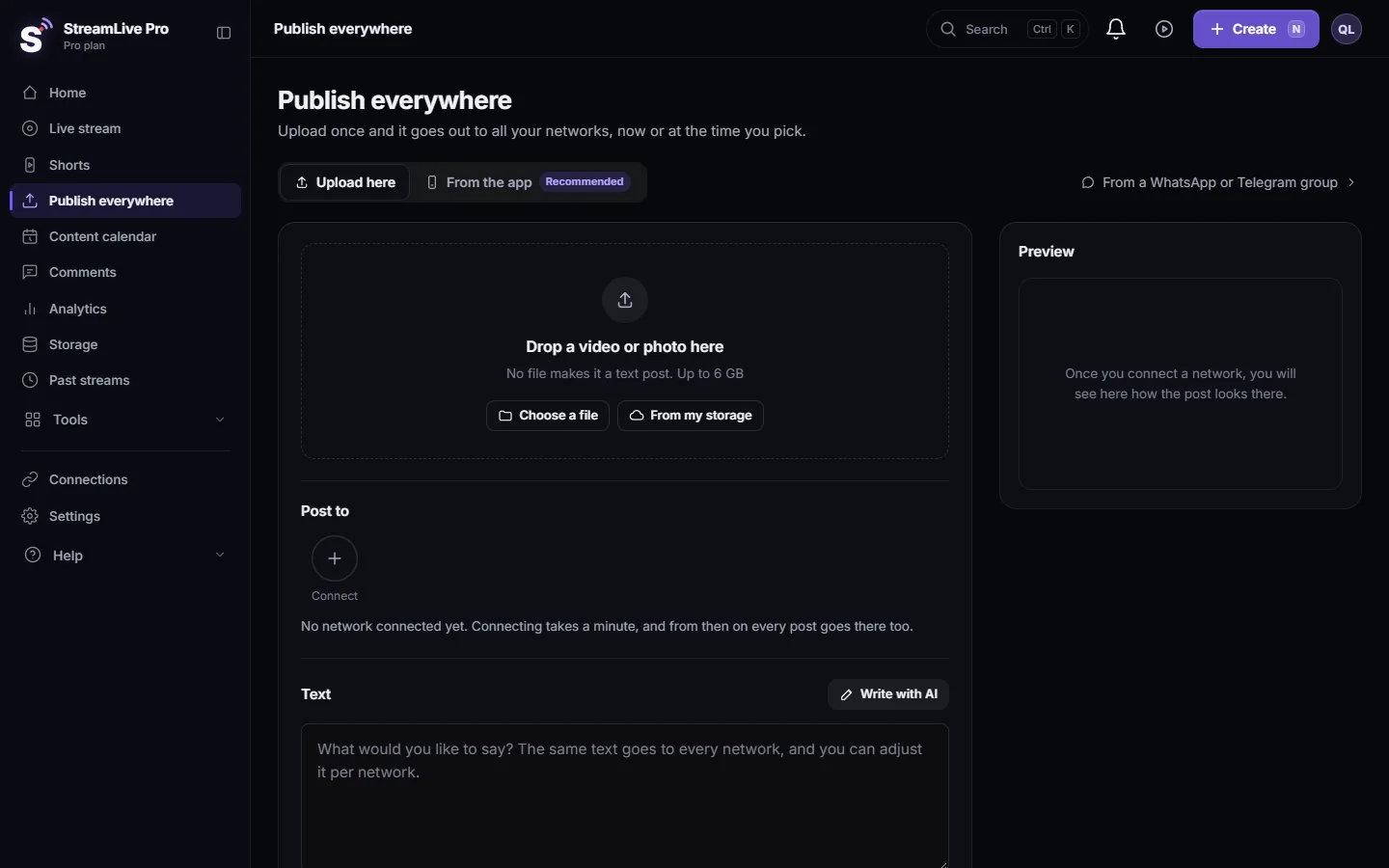
- Open Publish everywhere. In the menu click Publish everywhere. The section Post to shows your connected accounts as a row of pictures.
- Press Edit list. It is under the row. A small x appears on each account.
- Press the x on the channel to hide. Its tooltip reads "Hide" and the channel name. The channel leaves the row at once, and a message confirms it was removed from this list.
- Press Done. The row returns to normal.
- See what is hidden. Under the row, a link shows how many channels are hidden, for example "2 hidden". Press it to open the list.
- Bring a channel back. In the hidden list press Restore next to the channel. It returns to the row and to the other lists in this browser.
On the live page
The channel list on the live page uses the same hidden list. Each channel there has a Remove button, which hides it from the list without disconnecting it. When channels are hidden, a line says how many, with Show hidden. Show hidden lists them again with Restore next to each; Hide again closes them.
To skip a channel for one broadcast only, do not hide it: switch it off with its toggle in the live channel list. It stays in the list for next time.
What hiding does and does not do
| Hidden channel | Disconnected channel | |
|---|---|---|
| Appears in Publish everywhere and the live list | No, until restored | No |
| Gets new posts and lives you start from this browser | No, it cannot be ticked | No |
| Connection and sign-in kept | Yes | No |
| Shown in Connections | Yes | No |
| Hidden on another computer, browser or the phone app | No, each keeps its own view | Gone everywhere |
Because the hidden list is kept in the browser, clearing the browser's site data brings every channel back, and a colleague on their own computer sees the full list. To change what scheduled posts do, edit or cancel them: Edit, copy or cancel a scheduled post.
What can go wrong
- A channel I use is missing from Publish everywhere. It may be hidden. Look for the hidden link under the row and press Restore. If it is not there either, check that it is still connected in Connections. A channel that is shown but greyed out is not hidden: it does not accept this kind of post, for example a text-only post to a video-only network, or it needs reconnecting.
- I hid a channel and it still received a post. The post was scheduled before you hid it, or it was sent from another computer or the phone app. Hiding does not change posts already scheduled.
- The channel is back after a few days. The browser's site data was cleared, or you are on a different browser. Hide it again there.
- I wanted it gone for good. Disconnect it in Connections instead of hiding it.
Related pages
- Publish a finished video to social networks
- Connecting your channels — YouTube, Facebook and the rest
- Reconnect a channel whose connection expired
Frequently asked questions
Does hiding a channel disconnect it?
No. The connection stays in Connections with its sign-in. Hiding only removes it from the channel lists in this browser.
How do I get a hidden channel back?
In Publish everywhere press the hidden link under the row of accounts and then Restore. On the live page use Show hidden and Restore.
Is a hidden channel hidden for my team too?
No. The hidden list is kept in your browser. Each person, each browser and the phone app have their own view.
Will a hidden channel receive a post I scheduled earlier?
Yes. Hiding does not change posts that were already scheduled. Edit or cancel the scheduled post to change its destinations.
Can I skip a channel for just one live?
Yes. Switch it off in the live channel list instead of hiding it. It stays in the list for the next broadcast.
Keep reading
How to live stream a product launch: announce it ahead, live demo or a pre-recorded video at a set time, questions from the chat, and Shorts that keep selling after.
Hootsuite alternative for creators: vs StreamLive ProHootsuite alternative for video creators: plans, trial, networks, inbox, analytics and AI, vs live streaming and Shorts, from Hootsuite's pages checked November 2026.
Buffer alternative for video posting: Buffer vs StreamLive ProBuffer alternative for video posting: networks, scheduling, TikTok, comments, analytics, plus live streaming and Shorts, from Buffer's own pages checked November 2026.
Live streaming for small business: a practical guideLive streaming for a small business: which live formats sell, which networks to pick, a weekly routine, and turning each live into a week of Shorts and posts.
Want to try it? 7-day trial, no credit card.
Start free