 StreamLive Pro
Find a post in Analytics: search, sort, paste a link
Find any post or video in Analytics: search by words of the title, paste the post's link, filter videos, lives or posts, and sort by views or engagement.
There are two ways to find one post in Analytics. If you know roughly what it was called, type words of its title, in any order. If you have it open on its network, copy its link and paste it in the same box. Search looks through every post of every account shown in Analytics, at every date, not only the period on screen. To browse instead, the Content tab lists every post of the period with filters for Videos, Lives and Posts, and sorting by Newest, Most views, Most interactions or Best engagement. Clicking a row opens the post's own page with its numbers.
Before you start
- The account the post belongs to is shown in Analytics (Choose what Analytics shows). Posts on accounts that are switched off are not searched. See Read your social media analytics for every account.
- Analytics reads Facebook Pages, Instagram, YouTube, Threads and Twitch, including posts that were not published with StreamLive Pro.
- A link works for a post on Facebook, Instagram, YouTube, TikTok or Threads.
Steps
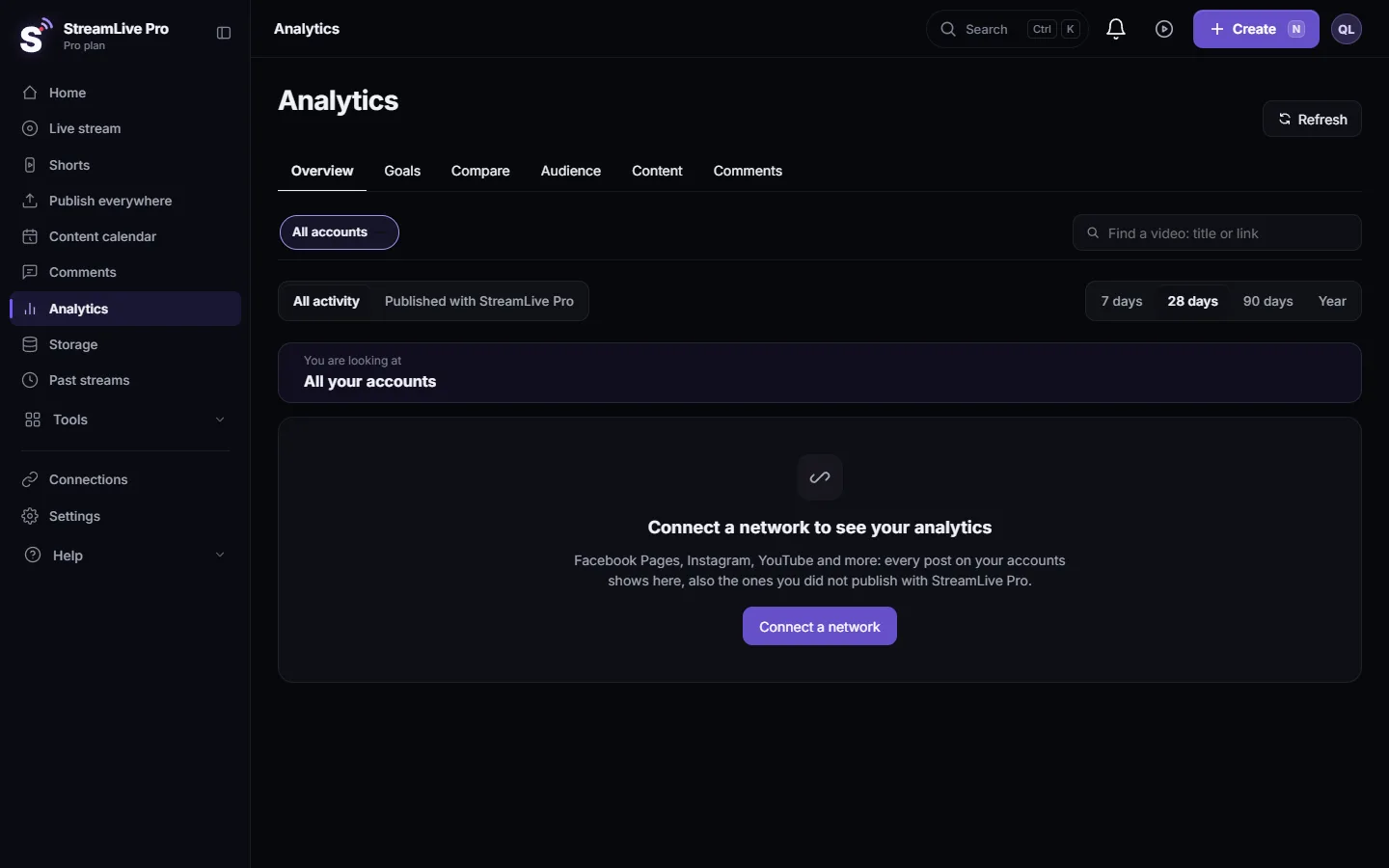
- Open the search. In Analytics click Find a video in the account switcher at the top (it is on every Analytics view), or use the search box on the Content tab. It is the same search.
- Type words or paste a link. Words of the title in any order, for example "budget meeting" finds "Meeting on the city budget" (an example). Or paste the post's link from the network.
- Pick the result. Results show the picture, the account, the date and its views and interactions. Clicking the row opens its page in Analytics; clicking the picture opens the original on its network in a new tab.
- Or browse the Content tab. Open Content, choose the period and the account, and narrow it with Videos, Lives or Posts.
- Sort. Newest, Most views, Most interactions or Best engagement. Best engagement brings up posts that people reacted to strongly, even with fewer views.
- Load more. The list shows the first posts; Show more adds the next ones.
- Read the post page. It says how the post did against your usual on that account, then breaks it into Overview, Reach, Engagement and Audience: Analytics for one post: reach, engagement and audience.
Search tips
| You want | Do this |
|---|---|
| A video you remember by topic | Type two or three words of its title |
| A post you have open on Facebook or YouTube | Copy the address bar and paste it |
| The strongest video of the month | Content, 28 days, Videos, sort by Most views |
| A post that did well for its size | Content, sort by Best engagement |
| Only lives | Content, Lives |
| Only what you published from StreamLive Pro | Set the scope at the top to Published with StreamLive Pro; those rows also carry a StreamLive Pro tag |
What can go wrong
| Message | Why | Fix |
|---|---|---|
| This link is not a post of a connected network | The link is not of a post on Facebook, Instagram, YouTube, TikTok or Threads | Copy the post's own link, not a profile or a share page |
| No post with this link in your accounts | The post belongs to an account not shown in Analytics, or it was deleted | Switch the account on in Choose what Analytics shows |
| Showing the first 100. Add a word to narrow it down. | Too many matches | Add another word of the title |
| Nothing matches | The filters or the period hide it | Change the period, the account or the filters |
| Post not found | It was deleted, or its account was switched off in Analytics | Check the post on its network |
Related pages
- Read your social media analytics for every account
- Analytics for one post: reach, engagement and audience
- Analytics: every account, every post, your audience
Frequently asked questions
How do I see the stats of one specific post?
Paste the post's link, or type words of its title, in the search at the top of Analytics, then click the result. Its page shows views, reach, engagement and how it compares with your usual.
Does the search only cover the period I picked?
No. Search covers every date of every account shown in Analytics. The Content tab list is the one that follows the period.
Which video got the most views across all my accounts?
Open Content, choose All accounts and the period, filter Videos and sort by Most views.
Can I find a post I published outside StreamLive Pro?
Yes. Every post on an account shown in Analytics can be found, wherever it was published from.
Why does clicking the picture open YouTube?
The picture opens the original on its network in a new tab. Click the row itself to open the post's page in Analytics.
Keep reading
Export social media analytics from StreamLive Pro: a CSV of numbers per day, a CSV of every post, or a PDF report of the account and period on screen.
Compare two accounts in Analytics, per followerCompare your social accounts side by side in Analytics: a ranking, 2 to 4 accounts in columns, and account vs account per follower, fair to small Pages.
The Audience tab: age, countries, devices and hoursThe Audience tab in Analytics shows who follows or watches one account: age and gender, countries and cities, devices, subscribers, and when followers are online.
Analytics for one post: reach, engagement and audienceRead the analytics of a single post or video: how it ranks against your usual, reach and traffic sources, the retention curve, audience, and why a number can be missing.
Want to try it? 7-day trial, no credit card.
Start free