 StreamLive Pro
Analytics for one post: reach, engagement and audience
Read the analytics of a single post or video: how it ranks against your usual, reach and traffic sources, the retention curve, audience, and why a number can be missing.
Every post, video, Reel and live on your connected accounts has its own page in Analytics. It answers the question a bare total cannot: did this one do well for this account? The page compares it with your own recent posts on the same account, at the same age when we have the readings, and then breaks it down into four tabs: Overview, Reach, Engagement and Audience.
Before you start
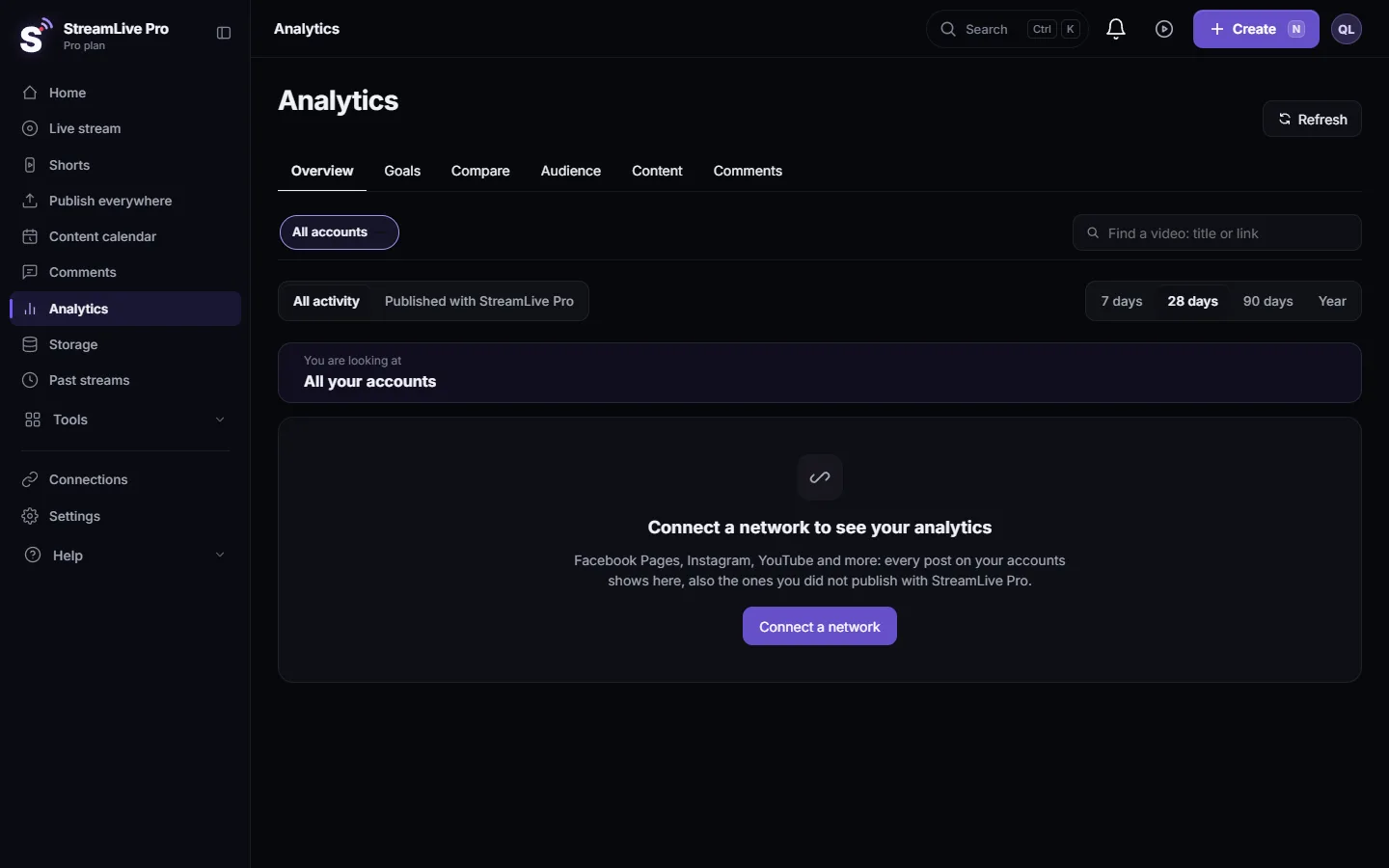
- The account is switched on in Analytics. Facebook Pages, Instagram, YouTube, Threads and Twitch are read, including posts that were not published with StreamLive Pro. TikTok, LinkedIn, X, Pinterest and Kick give no numbers today. See Read your social media analytics for every account.
- Permissions. Some numbers need a read permission on the connection, for example Facebook insights or Instagram insights. When one is missing, the page says which and offers Reconnect.
- Time. YouTube gives watch time and average watch about 48 hours after publishing. A post younger than 2 hours is marked too early to judge.
Steps
- Find the post. In Analytics open the Content tab and sort by Most views or Most interactions. Or type words of the title in any order, or paste the link of the post, in the search at the top.
- Open its page. Click the row. Clicking the picture opens the original on its network instead.
- Read the one-line verdict. For example "Above your usual: 2,400 views, a typical post on this account has about 1,500 at the same age" (an example). It also says when it is too early, or when the account needs at least 3 more posts before a typical value exists.
- Overview tab. Views, watch time, average watch (in minutes and as a share of the length), likes, comments, shares, saves and reach. Its rank among your recent posts on that account, its first 48 hours against your typical post, and the same content on every network you published it to.
- Reach tab. Where people found it: on YouTube the traffic sources (Shorts feed, search, suggested), subscribers against non-subscribers; on Facebook how the video spread; on Instagram its reach.
- Engagement tab. The retention curve, starting on the left in every language like YouTube Studio, and likes, comments and shares per 100 views against your usual. On YouTube, a comparison with similar videos.
- Audience tab. Age and gender, countries and devices, where the network gives them for one post.
How "your usual" is worked out
| Part | How |
|---|---|
| Typical post | The middle value of your other posts on the same account. For a post under 3 days old, the other posts' values when they were the same age, when we have those readings |
| Verdict | Well above (1.5 times or more), above, about your usual, below, or well below (half or less) |
| Rank | Its place among your recent posts on that account |
| Rates per 100 views | Likes, comments and shares divided by views (or reach), against your usual rate |
Why rates matter: a post with few views but many likes per 100 views reached the right people. The verdict line points this out, for example "People who saw it reacted more than usual".
Lives
A live has extra numbers on the Overview tab: the peak and average number of viewers at once, viewers minute by minute, chat messages per minute, and live viewing against replay. A live still on air shows "On air now". Numbers during the broadcast itself are covered in See live viewers from YouTube and Facebook together.
Why a number is missing
The page never shows a bare dash. A missing number says why, for example:
| Message | What to do |
|---|---|
| Not in yet: YouTube gives it within 48 hours | Check again in two days |
| Waiting for Meta approval | Nothing on your side; it fills in once approved |
| Instagram gives age, gender and country for the whole account, not for one post | Use the account's Audience view |
| Reconnect YouTube (or another network) | Click Reconnect and approve every permission: Reconnect a channel whose connection expired |
| Not available for a personal Facebook profile | Connect a Page. Meta gives numbers only for Pages |
Frequently asked questions
How do I know if my post did well?
Open the post's page in Analytics. The first line compares it with your typical post on the same account, at the same age when possible, and says above, about or below your usual.
Can I see who watched my video?
Not people, only groups: age and gender, countries and devices, where the network gives them for one post. Instagram gives these for the whole account only.
Can I open a post by pasting its link?
Yes. Paste the link of a YouTube, Facebook, Instagram or Threads post into the search at the top of Analytics.
Why is watch time missing on my new YouTube video?
YouTube gives watch time and average watch about 48 hours after publishing. The page says how long is left.
Does it work for posts I published outside StreamLive Pro?
Yes. Every post on a switched-on account has a page, wherever it was published from.
Keep reading
Export social media analytics from StreamLive Pro: a CSV of numbers per day, a CSV of every post, or a PDF report of the account and period on screen.
Compare two accounts in Analytics, per followerCompare your social accounts side by side in Analytics: a ranking, 2 to 4 accounts in columns, and account vs account per follower, fair to small Pages.
The Audience tab: age, countries, devices and hoursThe Audience tab in Analytics shows who follows or watches one account: age and gender, countries and cities, devices, subscribers, and when followers are online.
Find a post in Analytics: search, sort, paste a linkFind any post or video in Analytics: search by words of the title, paste the post's link, filter videos, lives or posts, and sort by views or engagement.
Want to try it? 7-day trial, no credit card.
Start free