 StreamLive Pro
Caption designs: style gallery, templates and Short looks
Where caption designs live in StreamLive Pro: the Live style gallery on the Translate page, 89 editor templates, and the 8 caption looks for Shorts.
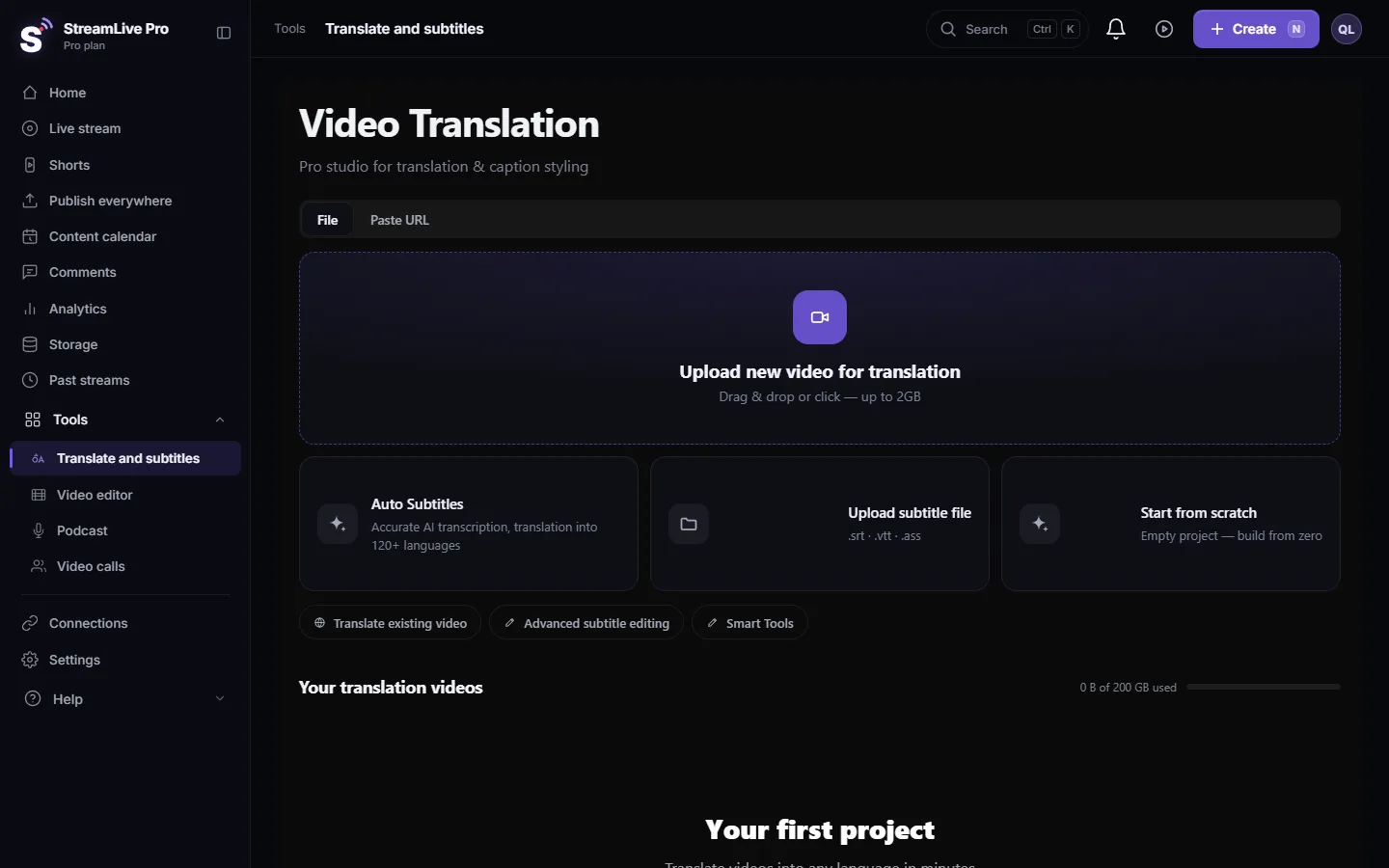
StreamLive Pro has caption designs in three places, and each one is for a different job. The Live style gallery on the Translate and subtitles page shows 12 animated designs to start a new project from. The Templates tab of the caption editor holds the full set of 89 designs, with every font, colour and shadow open to change. And the Short style window has 8 caption looks for automatic Shorts. This page shows which one to use and how they connect.
The three places at a glance
| Place | Where | How many | Used for | Can you change details? |
|---|---|---|---|---|
| Live style gallery | Translate and subtitles page, at the bottom | 12 | Starting a new captions or translation project in a design | Yes, later in the editor |
| Templates tab | The caption editor of a project | 89 | Choosing and fine-tuning the design of one video | Yes: font, size, colours, outline, shadow, position |
| Short style, Captions | Shorts page, Short style | 8 looks and an accent colour | The look of every new automatic Short | Only the look and the accent colour |
The Live style gallery
At the bottom of the Translate and subtitles page, under "Live style gallery", each tile plays the words "Hello world" in its design so you see the motion, not just a name. The 12 designs are Pop, Classic, Karaoke, Cinema, Modern Bold, Minimal Clean, Neon Glow, Bubble Pop, Typewriter, Glitch, Retro Wave and News Ticker.
Clicking a tile opens the file picker. Choose the video, and the upload settings open with that design already selected, so the project starts in it. You can still pick another design in the same settings before you start.
The 89 editor templates
Inside a project, the caption editor's Templates tab lists all 89 designs. Clicking one applies it to the preview at once. When the captions are in Hebrew, designs made for Hebrew come first, and a Latin-only display font is swapped for a Hebrew font of similar character so the letters render. From there the Style tab changes font, size, weight, colour, plate, outline, shadow and the spoken-word highlight, and the Position tab moves the captions. The full guide: Caption templates and styles in depth.
The 8 looks for Shorts
Automatic Shorts use a smaller set chosen to read well on a phone: Smart, Clean, Pop, Karaoke, Highlight, Podcast, Soft and Plain, plus an accent colour. Smart picks a look for each Short; choose one look to keep all Shorts the same. Set it in the Short style window on the Shorts page. To change the captions of one finished Short, edit that Short.
Terms you will see
- Burned in. The captions are drawn into the picture of the exported video. They show on every network and cannot be turned off by the viewer.
- Karaoke or spoken-word highlight. The word being spoken changes colour or gets a box or glow as it is said.
- Accent colour. The colour of the highlighted word in a Short look.
- Plate. A coloured box behind the caption text that keeps it readable on a busy picture.
- Subtitle file. Text and timings without the picture (SRT, VTT and others): Export captions as SRT, VTT or ASS, and which one to use.
Which one to use
- One video with captions or translation: start from the gallery or upload normally, then fine-tune in the Templates tab.
- Every Short after every live: set the look once in the Short style window.
- A news or channel style that must match exactly every time: build it in the editor once and save it as your own preset there.
Entrance animations such as fade or slide stay in the preview; the spoken-word highlight is what reaches the burned file. Details are in the templates guide above.
Related: Burn captions into a video (hardcoded subtitles), Automatic Hebrew subtitles — transcribe, edit, and burn them in, Automatic Hebrew captions on Shorts.
Frequently asked questions
How many caption designs does StreamLive Pro have?
89 templates in the caption editor, 12 of them shown as animated tiles in the Live style gallery, and 8 caption looks for automatic Shorts.
Can I change a design after starting from the gallery?
Yes. The project opens in the editor, where the Templates and Style tabs change everything.
Why do my automatic Shorts not use the template I picked in the editor?
The editor template belongs to that one project. Automatic Shorts follow the look set in the Short style window on the Shorts page.
Do the designs work with Hebrew captions?
Yes. Hebrew designs come first for Hebrew captions, and a Latin-only font in a template is replaced by a similar Hebrew font.
Keep reading
Open vs closed captions: burned into the picture or sent as a file the viewer can switch off. What each is good for, which networks take which, and how to make both.
A weekly Torah class online: live, Shorts and a podcastHow to run a weekly Torah class online: a weekday live, scheduling ahead, Shorts with Hebrew captions, translation for students abroad and a podcast episode.
How to live stream a lecture or an online classLive stream or video call, slides and camera layout, lecture hall sound, student privacy, chat moderation, and captions and clips from the recording.
How to translate video subtitles into other languagesTranscription vs translation vs dubbing, SRT vs VTT vs burned-in, a workflow that stops errors multiplying, Netflix line-length rules and Hebrew RTL.
Want to try it? 7-day trial, no credit card.
Start free