 StreamLive Pro
Detect speakers in a transcript (two-speaker labels)
Detect speakers in a StreamLive Pro transcript: one click labels lines Speaker 1 and Speaker 2 by the pauses between them. How it decides, its limits, how to fix it.
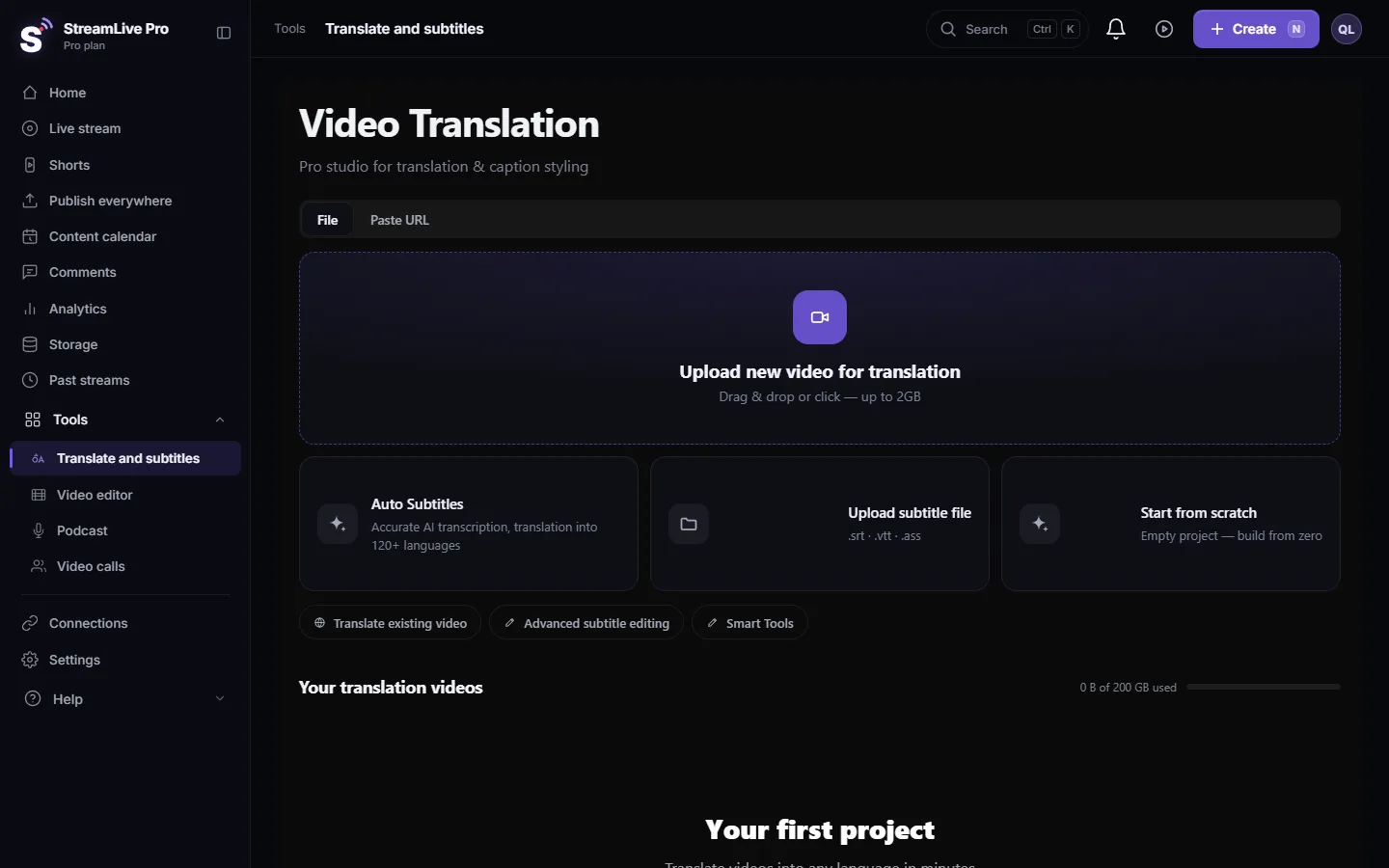
In an interview or a two-person podcast it helps to see who says what. In StreamLive Pro open the project in Translate and subtitles, go to Subtitles, open the "⋯" menu above the lines and choose Detect speakers. Every line gets a label, Speaker 1 or Speaker 2, and a coloured edge so the conversation is easy to follow. The detection is a simple rule based on pauses, not voice recognition, so read the result and fix the lines it got wrong with Change Speaker.
How it decides
The detection does not listen to the voices. It walks through the lines in order:
- The first line is Speaker 1.
- When the gap between the end of one line and the start of the next is longer than 1.5 seconds, the label switches to the other speaker.
- A shorter gap keeps the same speaker.
That works well for a calm conversation of two people who take turns. It does not work for every video:
| Situation | What happens | Fix |
|---|---|---|
| Two people taking turns with a short pause | Mostly correct | Check a few changes of speaker |
| One person who pauses to think | A false switch to Speaker 2 | Set those lines back with Change Speaker |
| Quick back-and-forth without pauses | Both people get the same label | Mark the lines by hand |
| Three or more people | Only two labels, alternating | Mark the lines by hand |
| One speaker for the whole video | Labels switch at every long pause | Do not run it; use None |
Before you start
- The video must be transcribed. The detection works on the lines. On an empty project you see "Transcribe before running speaker detection".
- Correct the line breaks first. If one line holds the words of two people, split it at the change of speaker before you run the detection. See Fix names and terms in a transcript (find and replace).
- It overwrites labels. Running it again replaces every label in the project, including ones you set by hand. Run it once, at the start, then correct.
- No plan limit. The detection is part of the subtitle editor on every plan and does not use translation minutes.
Steps
- Open the project. In Translate and subtitles open the transcribed video from Your translation videos.
- Open the Subtitles pane. Click Subtitles.
- Open the more menu. Above the list of lines, press "⋯" to open the extra actions.
- Choose Detect speakers. A message shows while it runs, then "Detected 2 speaker(s)" or a similar count.
- Read the result. Each line now has a speaker chip and a coloured edge. Play the video and watch the changes of colour.
- Fix wrong lines. Hover over a line, press Change Speaker and pick Speaker 1, Speaker 2 or None. Select several lines first to change them all at once.
- Continue editing and export. The labels help you check the text; then export as usual.
Speaker detection in the live studio is a different thing
In the browser studio and the podcast studio, the automatic camera switching follows the microphone of whoever speaks. That is a separate feature that changes the picture during a recording or broadcast; see Automatic camera switching for podcasts: the camera follows whoever speaks. The detection on this page only labels lines of text after the fact.
What can go wrong
- "Transcribe before running speaker detection". The project has no lines yet. Wait for the transcription, or add lines first.
- "Speaker detection failed". Try again in a minute. If it repeats, write to [email protected] with the project name.
- Every other line is a different speaker. The speakers pause often. Set the labels by hand for those parts.
- My manual labels were replaced. Detect speakers was run again after you set them. Set those labels again by hand.
Related pages
Frequently asked questions
How does StreamLive Pro tell the speakers apart?
By pauses. A gap of more than 1.5 seconds between two lines switches the label to the other speaker. It does not recognise voices.
Can it detect more than two speakers?
No. It uses two labels, Speaker 1 and Speaker 2. Mark lines of a third person by hand or leave them without a speaker.
Does speaker detection use translation minutes?
No. It works on the lines that already exist.
Can I change a speaker label on several lines at once?
Yes. Select the lines, then press Change Speaker on one of them and pick the speaker.
Does it work on Hebrew transcripts?
Yes. It looks at the timing of the lines, not at the language.
Keep reading
How to run a weekly Torah class online: a weekday live, scheduling ahead, Shorts with Hebrew captions, translation for students abroad and a podcast episode.
Descript alternative: Descript vs StreamLive ProDescript alternative for transcription in Hebrew and more: languages, exports, remote recording, clips and live, from Descript's pages checked November 2026.
Open and closed captions: burned in or a separate fileOpen vs closed captions: burned into the picture or sent as a file the viewer can switch off. What each is good for, which networks take which, and how to make both.
What is B-roll? Cutaway footage explainedWhat is B-roll: cutaway footage laid over a speaker to show what they talk about. A-roll vs B-roll, when it helps a Short, and how StreamLive Pro adds it.
Want to try it? 7-day trial, no credit card.
Start free