 StreamLive Pro
Turn on two-step verification (2FA) in StreamLive Pro
Turn on two-step verification in StreamLive Pro with an authenticator app, a passkey or an email code, save the 10 backup codes, and trust a device for 30 days.
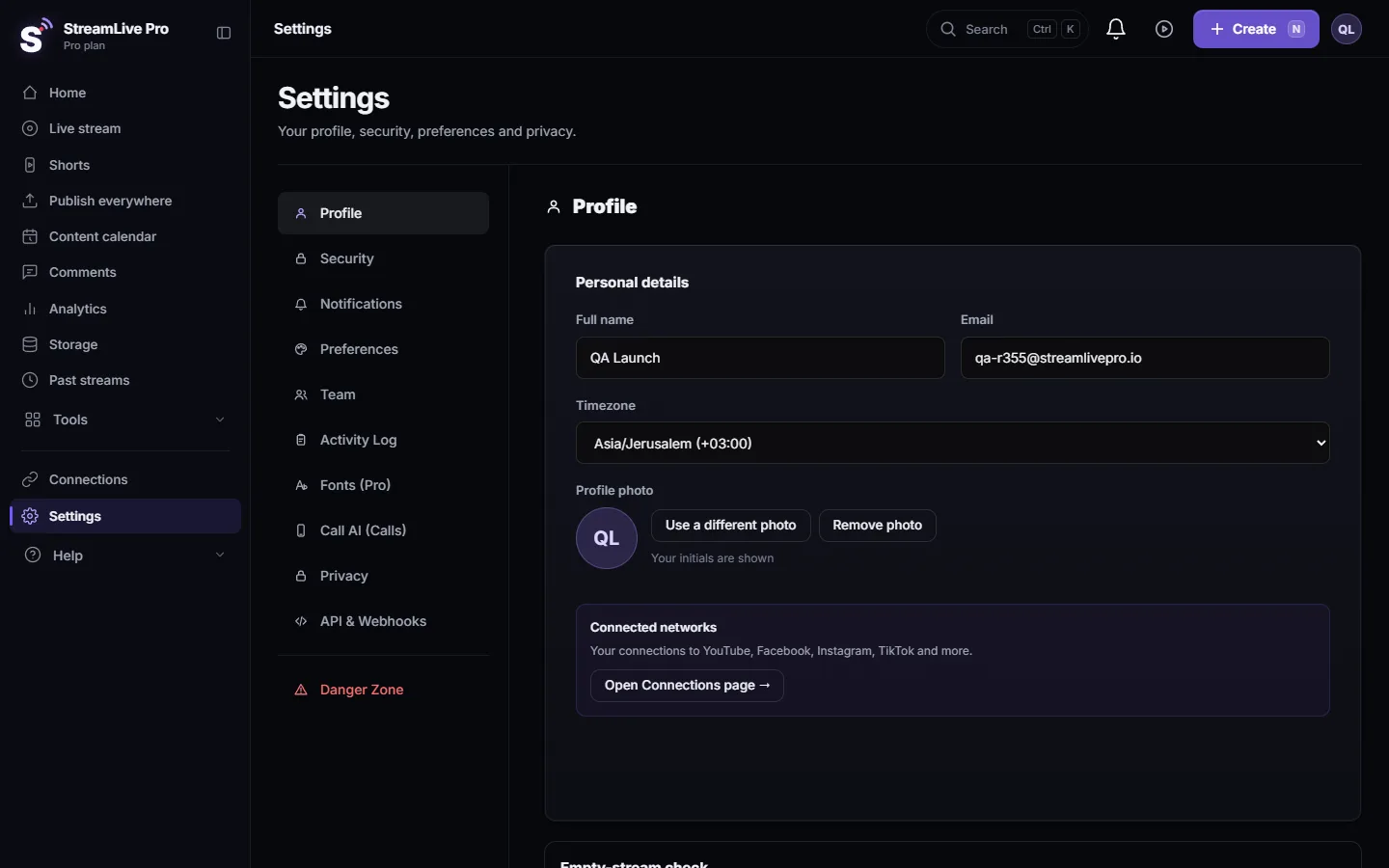
Two-step verification adds a second step when you sign in, so a stolen password is not enough on its own. Open Settings, choose Security and find the Two-step verification card. Pick a method (an authenticator app, a passkey or an email code), confirm it once, and save the 10 backup codes you are shown. It is off until you turn it on, and you can use more than one method at the same time.
Before you start
- Pick the method that fits you. An authenticator app (Google Authenticator, Microsoft Authenticator, Duo, Authy, 1Password and others) works without internet and is the one we mark as recommended. A passkey uses Face ID, Touch ID, Windows Hello or a security key, so there is nothing to type. An email code is the simplest, and it is only as safe as your mailbox.
- Have your password ready. Before any security change we ask you to confirm it is you: your password, a code from the app, an email code or a passkey. The confirmation lasts 10 minutes. If you signed up with Google and have no password, confirm with an email code.
- Have somewhere to keep the backup codes. They are shown once. A password manager, a printed page in a drawer, or a file outside the computer you sign in from.
- For a passkey, use an up-to-date browser. Chrome, Safari or Edge. If the browser does not support passkeys, the window says so.
Steps
- Open Settings, Security. Choose Settings in the side menu, then Security. Find the card called Two-step verification. It shows Off.
- Choose how to verify. Authenticator app, Passkey or Email code. You can add the others later.
- Confirm it is you. Type your password, or use one of the other ways offered, and press Confirm.
- Authenticator app: add the account. On a phone, press Open in authenticator app. On a computer, scan the QR code with your phone. Cannot scan? Copy the key shown under the code and type it into the app.
- Enter the 6-digit code. Type the code the app shows for StreamLive Pro and press Verify and turn on.
- Passkey or email instead. For a passkey, give it a name and press Create passkey, then approve on the device. For an email code, press Send code, type the code from your inbox and confirm.
- Save the backup codes. You get 10 codes. Use Copy all, Download or Print, tick I saved my codes somewhere safe, and press Done. Each code works once.
- Sign in once to test it. Sign out on another browser, sign in, and enter the code. On your own computer you can tick Trust this device for 30 days so it does not ask again there.
How sign-in works afterwards
| You sign in with | What is asked next |
|---|---|
| Email and password | The second step, using your default method |
| Sign in with Google | The second step too; Google does not replace it |
| A device you marked as trusted | Nothing, for up to 30 days |
| Any device, if your method is not at hand | Use another method: a different method you added, or a backup code |
When you have several methods, Default at sign-in decides which one is asked first. Use another method on the sign-in screen switches to the others. Turning on two-step verification does not change your network connections, your team members' sign-in, or a ChatGPT or Claude connection that already exists.
Managing it later
The same card lists Ways to verify, Backup codes (with how many are left out of 10), and Trusted devices. You can replace the authenticator app (the old one keeps working until the new one is confirmed), rename or remove a passkey, get new backup codes (the old ones stop working), remove one trusted device or all of them, and Turn off two-step verification. Removing the last method turns it off. Every change sends an email to the account address, so you hear about a change you did not make. Your password itself is changed in the same Security section: Change your StreamLive Pro password or account email. How we protect accounts in general: Privacy and security: the short answers.
What can go wrong
| What you see | Likely cause | Fix |
|---|---|---|
| That code is not right. Try again. | The phone clock is off, or the code changed while you typed | Set the phone clock to automatic and type the current code |
| Too many wrong codes. Try again in N minutes. | 5 wrong codes in a row | Wait the time shown. Repeated locks get longer. See My two-step verification code is not accepted |
| Wait a little before asking for another code. | Email codes go out at most once every 45 seconds and 6 times an hour; each code works for 10 minutes | Wait, then press Send a new code |
| This browser does not support passkeys. | An old or limited browser | Update the browser, or choose the authenticator app |
| Time ran out. Please sign in again. | The sign-in step was left open too long | Sign in again from the start |
| You lost the phone with the app | No access to the second step | Follow Lost the phone for two-step verification? Get back in |
Frequently asked questions
Is two-step verification required?
No. It is off until you turn it on. We recommend it for any account that streams to a large audience or has team members.
Which authenticator apps work?
Any app that follows the standard 6-digit time-based codes, such as Google Authenticator, Microsoft Authenticator, Duo, Authy or 1Password.
Does Sign in with Google skip the second step?
No. After Google, StreamLive Pro still asks for your second step, unless the device is trusted.
What are backup codes for?
They let you sign in if your phone or mailbox is not available. There are 10, each works once, and they are shown only when created.
How long does Trust this device last?
Up to 30 days. Do not tick it on a shared computer. You can remove trusted devices in Settings, Security.
Can I use a passkey and an authenticator app together?
Yes. Add as many methods as you like and choose which one is asked first.
Keep reading
StreamLive Pro says "Service unavailable in your region" or "Registration unavailable in your region" at sign-up? Which countries are affected and why.
Busy for a moment" or "under maintenance" messagesStreamLive Pro says "Busy for a moment", "The server is very busy right now" or "System under scheduled maintenance"? What each one means and what to do.
My podcast RSS feed is not publicPodcast RSS feed not public or shows Not found: the trial, an ended plan, Private or Unlisted visibility, a missing owner email or no episodes, and how to fix each one.
Sign-up is temporarily limited - try again laterLots of people are signing up from your network" or "Too many sign-up attempts for this e-mail address"? Why sign-up pauses for a while and how to finish it.
Want to try it? 7-day trial, no credit card.
Start free