 StreamLive Pro
Add an episode to your podcast RSS feed
Add an episode to your podcast RSS feed from any recording or upload: title and notes, audio quality, chapters, transcript, draft or scheduled publishing.
An episode is made from a file already in your library: a podcast studio recording, a past broadcast, an upload or an edited video. In the podcast card choose New episode, pick the file, give it a title and choose when it is published. StreamLive Pro turns it into podcast audio at the standard loudness, adds it to your feed, and every app that follows the feed picks it up on its next read.
Before you start
- A show. Created in the podcast card under Connections (Podcast hosting), with a cover and a verified owner email: Podcast cover art and show details: what each app needs and Verify your podcast owner email for the RSS feed.
- The file in your library. Recordings from the podcast studio and uploads are in Storage. Only files that finished processing can be chosen.
- Episodes per month depend on the plan. An episode counts when it is created, and the count starts again on the first of each month; see /pricing?lang=en. On the trial you can make a few episodes to try, but the feed is not public.
- Storage. The episode audio, and the video version if you ask for one, take space from your plan's storage. The episode is refused up front if it would not fit.
Steps
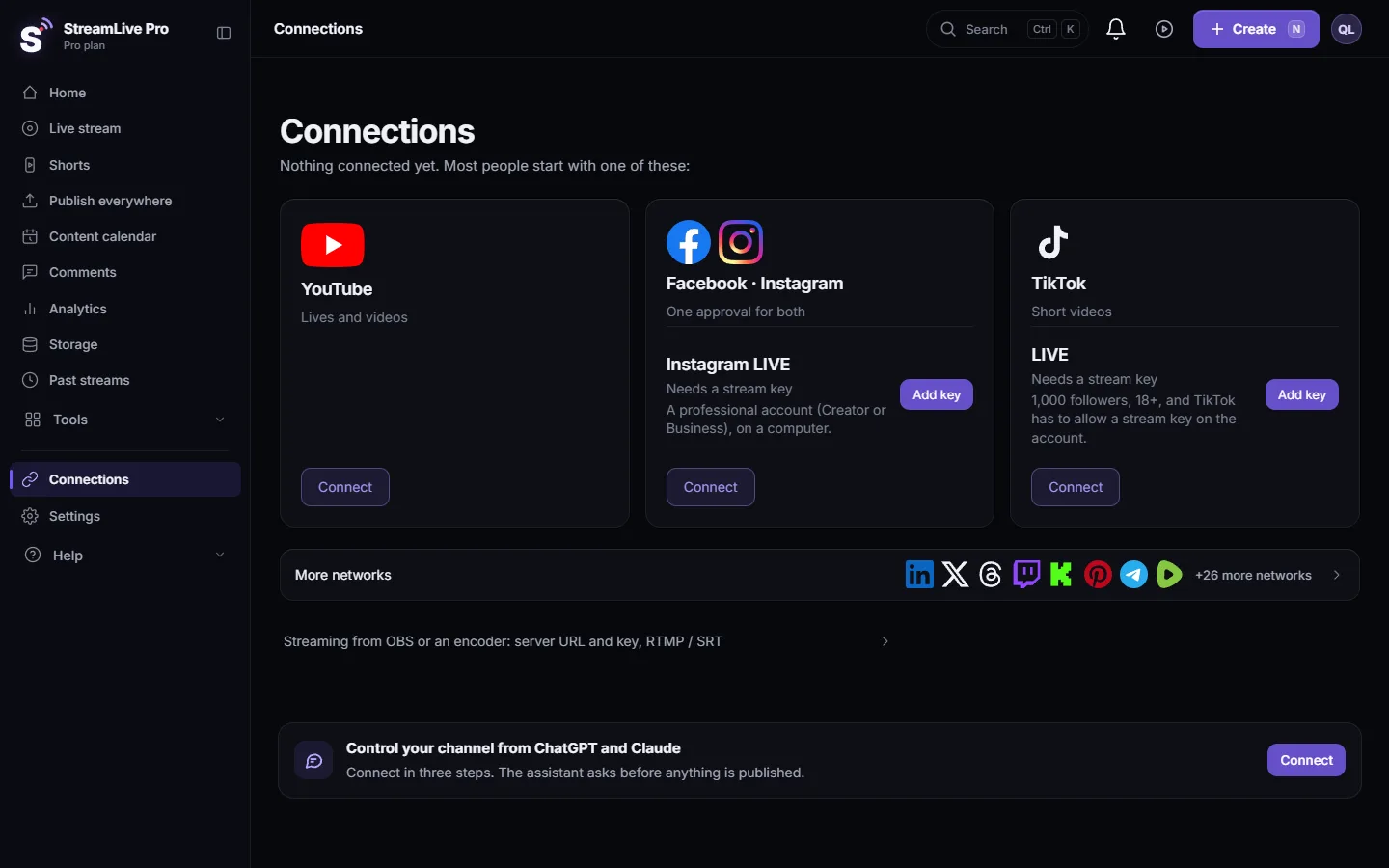
- Open the show. In Connections open the podcast card, choose your show, and under Episodes click New episode.
- Choose the source. Under Source from your library, search and pick the recording or upload.
- Title and short description. The title is required. Suggest title and notes with AI writes a first draft from the file's details and its transcript when there is one, in the show's language. Read it and correct it.
- Show notes. Plain text shown under the episode in apps. Links become clickable.
- Season, Episode number and Type. Full, Trailer or Bonus. Explicit is Same as show unless you change it.
- Audio. Voice - mono 128 kbps for talk, Music - stereo 192 kbps when music matters. Loudness is evened to -16 LUFS, the usual podcast level, so episodes play at the same volume.
- Transcript and chapters. Transcript is Automatic when the file already has AI captions in Translate and subtitles. With a transcript, Make chapters from transcript proposes chapter titles and start times; you can also add chapters by hand.
- Video, if you want it. Also make a video episode (MP4) creates a video version for Apple Podcasts' separate video feed. It uses more storage.
- Choose Publishing. Save as draft, Publish when ready, or Schedule with a date and time. Then click Create episode.
What happens next
The episode shows its status in the list: Waiting, Processing, then Ready. A published one says Published, a future one says Scheduled, and a draft says Draft. Apps such as Spotify and Apple Podcasts read the feed by themselves, usually within a few hours, so a new episode appears there without any other step. Only published episodes go into the feed; drafts never do.
You can also skip the manual steps for broadcasts: on the Automation and privacy card, "Every broadcast becomes an episode" turns each finished live into a draft or a published episode. See Record a podcast and go live at the same time.
Video on Spotify and Apple
- Apple Podcasts: submit the separate video feed as its own show.
- Spotify: the dashboard explains that Spotify does not read video from RSS feeds. Download the MP4 of the episode with Download MP4 and upload it in Spotify for Creators yourself; other apps keep the audio.
What can go wrong
| Problem | Fix |
|---|---|
| The episode says Failed | Click Retry. If it fails again, check that the source file still plays in Storage |
| You reached the monthly episode limit | Episodes renew at the start of next month, or choose a bigger plan |
| Not enough storage for this episode | Free up space in Storage, or skip the video version |
| Make chapters says it needs a transcript | Make AI captions for the file in Translate and subtitles first, then try again |
| The episode is not in Spotify yet | Apps read the feed every few hours. Check that the episode is Published, not Draft or Scheduled |
| You want to remove an episode | Delete it. Apps remove it from the feed on their next read |
Frequently asked questions
How do I add an episode to my podcast feed?
Open the podcast card in Connections, choose your show, click New episode, pick a file from your library, give it a title and choose Publish when ready.
Can I schedule a podcast episode?
Yes. Under Publishing choose Schedule and set the date and time. The episode enters the feed at that time.
Which audio setting should I choose?
Voice - mono 128 kbps for conversation. Music - stereo 192 kbps when the episode has music that should sound wide.
How long until the episode appears in Spotify and Apple Podcasts?
They read your feed by themselves, usually within a few hours. There is nothing to upload to them.
Does a draft appear in the feed?
No. Only published episodes are in the feed. Drafts and scheduled episodes wait until they are published.
Keep reading
What a podcast RSS feed is: one web address listing your show and every episode, which Spotify, Apple and other apps read by themselves. What is inside and who hosts it.
How many podcast shows and episodes your plan includesHow many podcast shows and episodes your plan includes: how the monthly episode count works, where to see it, what the trial allows and what to do at the limit.
Submit your podcast to Amazon Music and other podcast appsSubmit your podcast to Amazon Music, YouTube Music, Pocket Casts, Podcast Index, Castbox, iHeartRadio and Deezer with the same RSS feed you gave Spotify and Apple.
Verify your podcast owner email for the RSS feedVerify the podcast owner email so it is written into your RSS feed: the 6-digit code, how long it lasts, why apps cannot send you the claim code without it.
Want to try it? 7-day trial, no credit card.
Start free