 StreamLive Pro
Work with several video and audio tracks
Multitrack editing in the StreamLive Pro editor: layer video, images and logos on V tracks, music and voice on A tracks, add, reorder, lock and mute tracks.
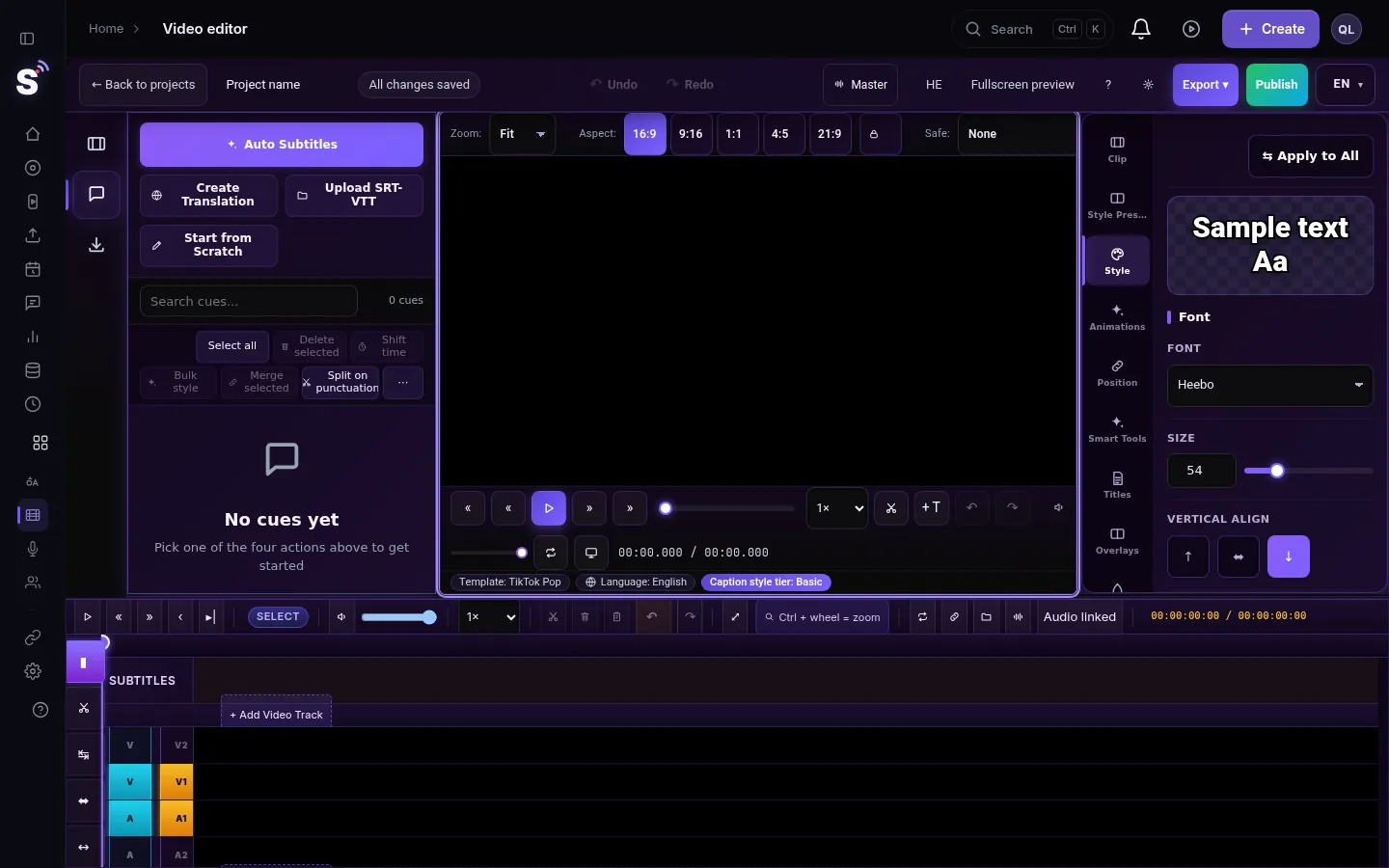
The StreamLive Pro editor is multitrack. A new project has two video tracks (V1, V2), two audio tracks (A1, A2) and a subtitles track. A clip on a higher video track covers the one below it, which is how you make picture in picture, a logo, or a cutaway over a speaker. Audio tracks are mixed together. Add more tracks with + Add Video Track and + Add Audio Track.
How the tracks stack
| Track | What goes there | Note |
|---|---|---|
| V2, V3 and up | Cutaways, picture in picture, logos, a green-screen clip | Shown on top of the tracks below |
| V1 | The main video | The base picture |
| A1 | The main video's own sound, the speech | Other tracks duck under it |
| A2 and down | Music, voice-over, sound | Ducks under speech by default |
| Subtitles | The caption lines | Burned in or exported as a file |
Video files go on V tracks and audio files on A tracks. Dropping a file on the wrong kind of track is refused with a message.
Before you start
- Open the project. In the menu choose Video editor.
- Bring the material in. Upload it to the Media library; files dragged from the computer land in the library, not on the timeline.
- The timeline runs left to right in every language.
Steps
- Put the main video on V1. Drag it from the Media library, or click it to add it.
- Add a layer on V2. Drag a second video or an image onto V2 at the moment it should appear. It now covers V1 for its length.
- Size and place the layer. Select the clip, then in the preview drag the corner handles to scale it, drag inside the box to move it, and use the top handle to rotate it. Shift with a corner handle stretches it without keeping the shape. This is how a picture in picture is made.
- Add a track when you need one. Press + Add Video Track; the new track goes above the others. + Add Audio Track adds one below the audio tracks.
- Reorder tracks. Drag a track header up or down. Video and audio tracks cannot be mixed.
- Use the track header buttons. Hide keeps a track but leaves it out of the preview and the export. Lock stops accidental edits. Mute silences an audio track. On audio tracks below A1, the duck button sets whether that track lowers under speech.
- Solo an audio track. Right-click the track, or use Solo in the Audio Mixer.
- Delete a track you do not need. The editor asks first, and warns again if the track has clips. The last track of a kind cannot be deleted.
- Export. Press Export. All visible tracks are combined into one file.
Common layouts
| Layout | V1 | V2 | Audio |
|---|---|---|---|
| Interview with cutaways | The interview | Short cutaway clips at chosen moments | A1 interview sound |
| Picture in picture | The screen recording | The speaker's camera, scaled small in a corner | A1 speaker |
| Speaker over a background | The background video or image | The green-screen clip, keyed (Green screen in the video editor) | A1 speaker |
| Logo throughout | The video | The logo image, full length, small in a corner | A1, A2 music |
Moving clips between tracks
Drag a clip up or down to another track of the same kind. A clip dropped on top of another one wins: the part underneath is cut away. A selection that would land on another clip in a way the editor cannot resolve does not move, and a message says so. A video clip linked to its own sound moves with it; a move that would break their sync is refused.
What can go wrong
- The layer does not show. The track is hidden, or the layer is on a track below the main video. Unhide it, or drag its track header above.
- I cannot edit a clip. Its track is locked. Unlock it in the header.
- The preview shows black for some clips. Many clips playing at the same moment can exceed what the browser decodes at once; the preview shows black for the extra ones. Play a quieter part to check, or export and watch the file.
- The music is too low. Ducking lowers every audio track below A1 under speech. Switch it off in that track's header if the music should stay up.
- "Wrong target" message. Video goes on V tracks and audio on A tracks.
Related pages
- Basic keys and the timeline: Video editor timeline basics
- Music on an audio track: Add music and adjust the sound
- Animating a layer: Keyframes and effects
- Captions on their own track: Edit captions on the timeline
Frequently asked questions
Can I put one video on top of another?
Yes. Put the main video on V1 and the second video on V2. Select it and use the handles in the preview to make it smaller and place it.
How many tracks can I have?
A project starts with two video and two audio tracks plus subtitles. Add more with the Add Video Track and Add Audio Track buttons.
Which video track is on top?
The higher one. V2 covers V1, V3 covers V2. Drag a track header to change the order.
Are hidden tracks exported?
No. A hidden track is left out of the exported file, picture and sound. Unhide it before you export if it should be in the video.
Keep reading
Remove a green screen from a recorded video in the StreamLive Pro editor: key one clip over a background, or the whole video over a colour, image or blur.
How to live stream a lecture or an online classLive stream or video call, slides and camera layout, lecture hall sound, student privacy, chat moderation, and captions and clips from the recording.
How to live stream a Torah class: setup and soundLive stream a Torah class: three setups by budget, why sound beats picture, camera placement, audience privacy and a simple weekly routine.
Live stream checklist: before, during and afterA printable live stream checklist: test broadcasts, stream keys, sound check, backup internet, what to do if the stream drops, and the work after it ends.
Want to try it? 7-day trial, no credit card.
Start free