 StreamLive Pro
Change a video's aspect ratio in the editor
Switch a video between 16:9, 9:16, 1:1 and 4:5 in the StreamLive Pro editor, choose which part of the picture stays, lock the frame, and export at the network's size.
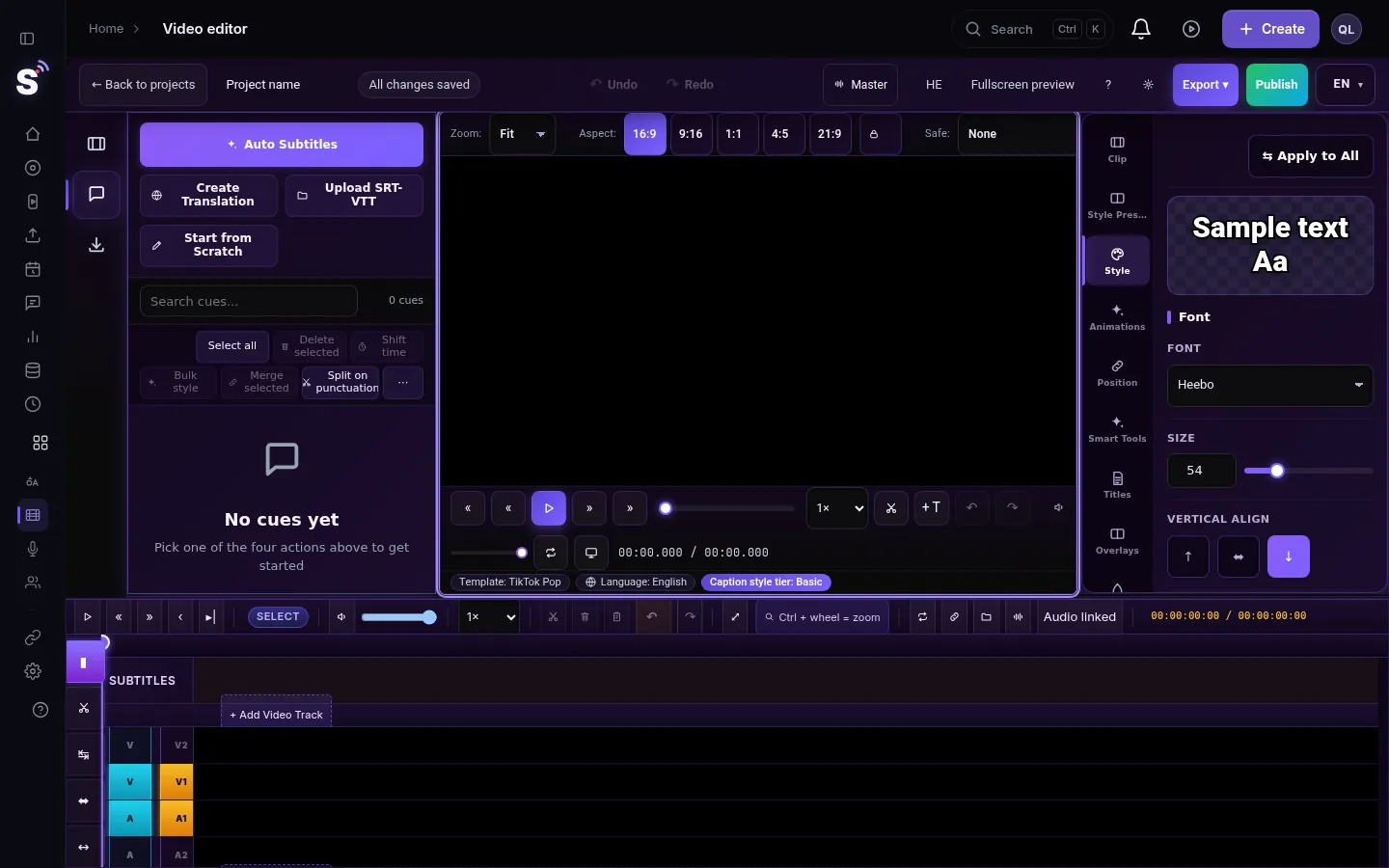
The aspect ratio buttons sit above the preview, next to Aspect: 16:9, 9:16, 1:1, 4:5 and 21:9. Click one and the preview frame changes shape at once. The editor fills the new frame by cropping the picture around the centre, and you can move or enlarge the clip to keep a different part. The choice is saved with the project and becomes the default Aspect Ratio in the export window, so the file comes out in the shape you edited.
Before you start
- Know where it will be posted. Each network shows some shapes better than others (table below).
- Changing the shape crops. A horizontal video in a 9:16 frame keeps only a vertical slice of the picture. The arithmetic of how much is lost is in Turn a horizontal video into a vertical 9:16 video.
- For Shorts that follow the speaker, the automatic Shorts reframe the picture for you. This page is about doing it by hand in the editor.
- Open the project. In the menu choose Video editor.
Steps
- Choose the shape. Above the preview, next to Aspect, click 9:16, 1:1, 4:5, 16:9 or 21:9. The frame changes at once.
- Turn on the network's safe zone. In the Safe list choose the network, for example TikTok or YouTube Shorts. The preview shows the area the network covers with its buttons and text.
- Choose what stays in the frame. Select the clip on the timeline and drag it in the preview to bring the important part (a face, a screen) into the frame. Drag a corner to enlarge it if needed. See Resize, move and rotate a clip (picture in picture).
- Check captions, titles and logos. Move them inside the safe zone. Anything near the edges of the old shape may now be outside the frame.
- Lock the frame. Press the lock button next to the shapes (Lock aspect ratio). While it is locked, clicking another shape does nothing, so the frame cannot change by accident.
- Export. Press Export. Under Aspect Ratio the shape you chose is already selected. Check it and render.
Which shape for which network
| Shape | In the export window | Typical use |
|---|---|---|
| 16:9 | 16:9 Widescreen (YouTube) | YouTube videos, websites, presentations |
| 9:16 | 9:16 Vertical (TikTok / Reels / Shorts) | Shorts, Reels, TikTok, stories |
| 1:1 | 1:1 Square (Instagram) | Feed posts on Instagram, Facebook and LinkedIn |
| 4:5 | 4:5 Portrait (Instagram) | Instagram feed, takes more of the screen than a square |
| 21:9 | Not offered; exports as Source | Preview only, for a cinematic look while editing |
| As the original | Source (no crop) | Keep the video exactly as it was filmed |
How the editor fills a new shape
- When the shapes are close, nothing is cut. If the frame and the video differ by about 5% or less, the whole picture is shown.
- When they differ, the picture is cropped. It is enlarged to fill the frame and the sides (or top and bottom) are cut, centred unless you move the clip.
- The export follows the preview. Moving and enlarging a clip in the preview is rendered into the file the same way.
- Size follows the network. A 9:16 export comes out at 1080 x 1920. Resolution is never raised above what the source has.
- Until you choose, the editor picks for you. When a video opens, the frame takes the shape closest to the video. Once you click a shape or lock it, that choice is kept.
What can go wrong
- The export came out in the original shape. The shape was 21:9, which has no export size, or Source was chosen in the export window. Choose the shape again under Aspect Ratio.
- Clicking a shape does nothing. The frame is locked. Press the lock button again.
- A face is cut in half in 9:16. The centre of a wide shot is not where the speaker sits. Select the clip and drag it so the face is in the frame.
- Captions sit under TikTok's buttons. Choose TikTok in the Safe list and move the captions up; see Caption safe zones for TikTok, Reels, Shorts and more.
- The picture is soft after enlarging. Enlarging a 1080p video for a tight crop loses sharpness. Crop less, or start from a higher-resolution source.
Related pages
- From horizontal to vertical, with the arithmetic: Turn a horizontal video into a vertical 9:16 video
- Safe frames: Safe-zone guides for vertical and square viewers
- Export settings: Exporting from the editor — formats and render settings
Frequently asked questions
How do I make a video vertical in the editor?
Click 9:16 above the preview, drag the clip so the speaker is in the frame, and export. The export window already has 9:16 selected.
Can I make a square video for Instagram?
Yes. Click 1:1, place the important part in the frame, and export with 1:1 Square selected.
Does changing the aspect ratio add black bars?
Not when the shapes differ: the picture is enlarged and cropped to fill the frame. To keep the whole picture, export as Source (no crop).
What does the lock button next to the shapes do?
It locks the current shape. While it is on, clicking another shape does not change the frame.
Keep reading
Add stickers to a video in the StreamLive Pro editor: arrows, highlight boxes, Subscribe and Like badges, reactions, with their place, size and timing.
Fade in, fade out and dissolves in the video editorAdd a fade in, fade out, dip to black or white, or a dissolve at a cut in the StreamLive Pro editor, and fade music with the handles on audio clips.
Keyframes and effects in the video editorAnimate a clip with keyframes in the StreamLive Pro editor, such as a slow zoom, a move or a fade of opacity, and add looks like black and white or a vignette.
Color correction in the video editorColor correction in the StreamLive Pro editor: fix a dark, yellow or flat video with exposure, contrast, temperature and tint, or start from a preset.
Want to try it? 7-day trial, no credit card.
Start free