 StreamLive Pro
Set weekly and monthly goals in Analytics
Set social media goals in Analytics: weekly and monthly rings for views, posts, engagement, lives and followers, automatic targets from your history and streaks.
Goals in Analytics are rings, one per thing you aim for: views, posts, engagement, lives and followers, each with a weekly and a monthly target. You do not have to set anything. Each ring starts with an automatic target taken from your own recent weeks or months plus 10 percent, and you can change any of them. The ring fills as the week or month goes on and tells you how much is left.
Before you start
- Accounts in Analytics. Goals count everything on every account switched on in Analytics, wherever the post came from. The account switcher does not narrow them: a goal is yours, not one Page's. See Read your social media analytics for every account.
- Networks that give numbers. Views and engagement come from Facebook Pages, Instagram, YouTube, Threads and Twitch. TikTok, LinkedIn, X, Pinterest and Kick give no numbers to Analytics today, so their posts do not move the rings.
- When the week starts. In Hebrew, or with an Israel time zone, the week starts on Sunday; otherwise on Monday.
Steps
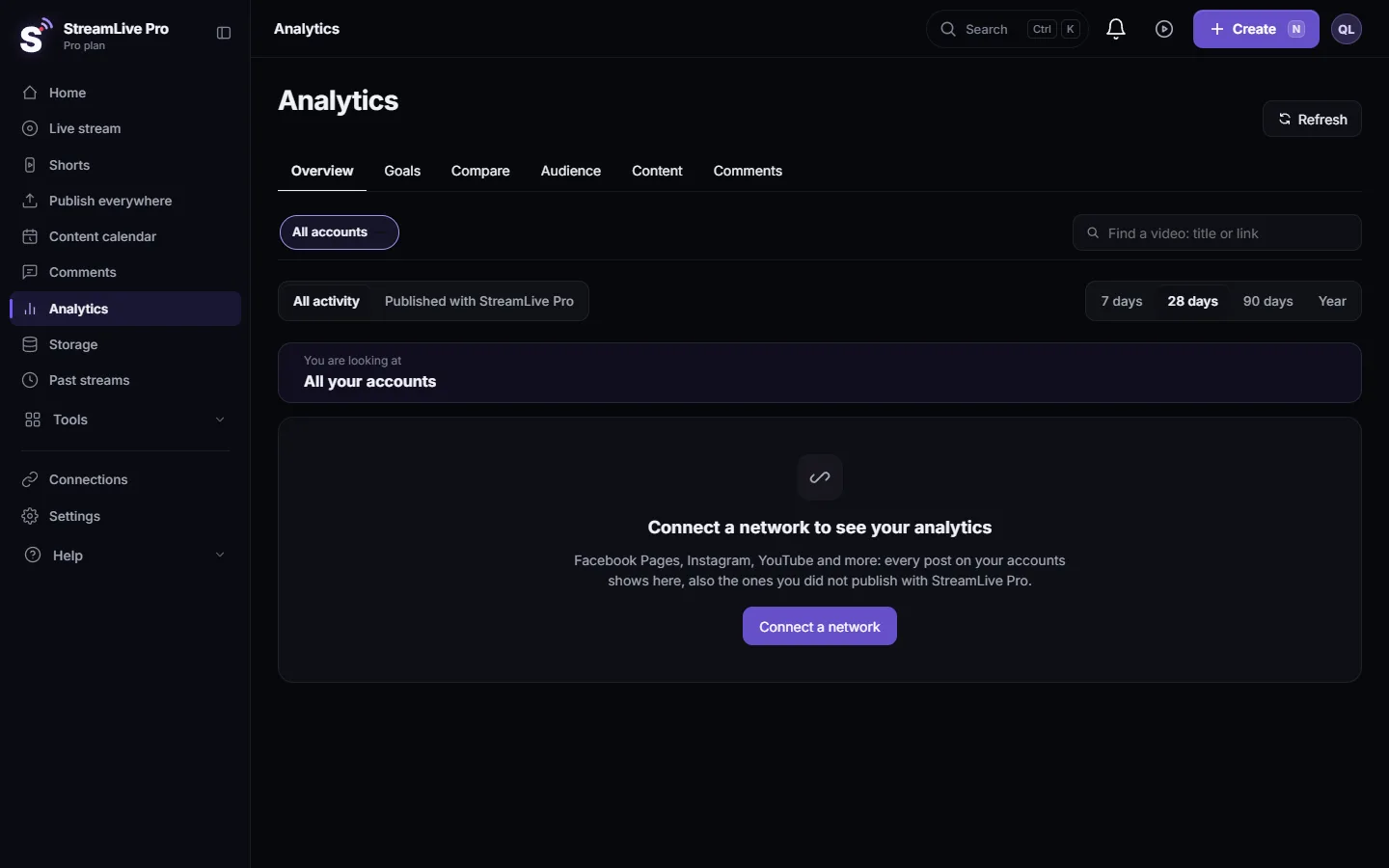
- Open Goals. Choose Analytics and the Goals tab.
- Read the weekly rings. Under "Your goals this week" each ring shows what you did, the target, the percentage, and a projected finish at your current pace.
- Switch to monthly. Monthly goals work the same way over the calendar month.
- Change a target. Click a ring and choose Change goal. Type the number you want and save; "Goal saved" confirms it.
- Go back to automatic. In the same place choose Automatic. The ring returns to your usual plus 10 percent.
- Hide a ring you do not need. Choose Hide this ring, for example the Lives ring if you do not broadcast.
- Look back. "Your last weeks" and past months show how close each period came to the target, and your best period.
- Use the tips. Cards such as "2 more posts close your Posts ring" or a streak that is about to break tell you the one action that matters this week.
The five rings
| Ring | What counts | Shows when |
|---|---|---|
| Views | Views on your posts and videos, where the network gives them | You have view numbers |
| Posts | Posts, videos, Reels and lives published in the period | Always |
| Engagement | Likes, comments and shares | Always |
| Lives | Live broadcasts in the period | You went live in the last few months, or set a target |
| Followers | Followers gained in the period | The network reports follower counts |
How automatic targets are set
The automatic target is the middle value of your last 8 full weeks (for weekly goals) or last 6 full months (for monthly goals), plus 10 percent and rounded. There is a small minimum, so a new account still gets a sensible ring. That way the target is always a little above your own normal, never a number copied from someone else.
Streaks and milestones
- Streaks: posting days in a row, weeks in a row with a live, and weeks in a row with the Posts ring closed, with your best ever next to each.
- Milestones: for example your first 1,000 views, a post with three times your usual views, or your best week ever. A new one is celebrated once. If your system asks for reduced motion, there is no animation.
- My month: a card of your month (views, posts, engagement, goals and top post) to share as an image, or the page as a PDF report.
What can go wrong
| Problem | Fix |
|---|---|
| "Connect a network to set goals" | No account is switched on in Analytics. Connect one in Connections and switch it on |
| The Views ring is missing | None of your accounts gives view numbers yet, for example a Facebook Page waiting for insights permission |
| The Lives ring is missing | You have not gone live recently. Set a target for it and it appears |
| A ring did not move after you posted on TikTok | TikTok gives Analytics no numbers today |
| The target looks too high | It follows your strongest recent weeks. Change it, or wait: it adapts as the weeks go by |
To act on the rings, schedule next week's posts at your strongest hours: Find your best time to post from your own results and Schedule social media posts to several networks at once.
Frequently asked questions
Do I have to set goals myself?
No. Every ring starts with an automatic target from your own history plus 10 percent. Change any target you want.
Can I set a goal for one Page only?
No. Goals count all the accounts switched on in Analytics together. Use the Compare tab to see one account against the others.
When does the weekly goal reset?
At the start of the week: Sunday in Hebrew or with an Israel time zone, Monday otherwise. Monthly goals reset on the first of the month.
Can I remove a goal I do not care about?
Yes. Choose Hide this ring on that ring.
Do posts that were not published with StreamLive Pro count?
Yes. Goals count everything on your accounts in Analytics, wherever it was published from.
Keep reading
Find your best time to post from your own posts: the heatmap by day and 3-hour block, how many posts it needs, and how scheduling and Publish all use it.
How to live stream a product launchHow to live stream a product launch: announce it ahead, live demo or a pre-recorded video at a set time, questions from the chat, and Shorts that keep selling after.
Team roles: what Viewer, Editor and Manager can doWhat each StreamLive Pro team role can do, what no team member can ever reach, and how to give one person view-only or no access to a single area.
Invite team members to your accountInvite team members to your StreamLive Pro account: send an email invite, choose Viewer, Editor or Manager, and let them work without sharing your password.
Want to try it? 7-day trial, no credit card.
Start free