 StreamLive Pro
How many podcast shows and episodes your plan includes
How many podcast shows and episodes your plan includes: how the monthly episode count works, where to see it, what the trial allows and what to do at the limit.
Podcast hosting has two counts. Shows: how many separate podcasts, each with its own feed, you can have at once. Episodes: how many new episodes you can create in a calendar month, across all your shows. Both grow with the plan, from Creator to Pro to Studio; the current numbers are on the /pricing?lang=en page. Your own usage is always visible at the bottom of the show list in the podcast manager.
What is counted
| Count | What adds to it | What frees it |
|---|---|---|
| Shows | Creating a show | Deleting a show (with all its episodes and audio) |
| Episodes this month | Every new episode created this month: by hand, or automatically from a broadcast, drafts included | A new month; or deleting an episode that was created this month |
| Storage | Episode audio, the video version if you make one, the cover | Deleting episodes or other files in Storage |
Three details to keep in mind:
- An episode counts when it is created, not when it is published. A draft or a scheduled episode already counts this month.
- Editing does not count. Changing the title, notes, chapters or publish time of an existing episode never adds to the count. Neither does Retry on a failed episode.
- The count is for the account, not per show. Two shows share the same monthly episode count.
Where to see your numbers
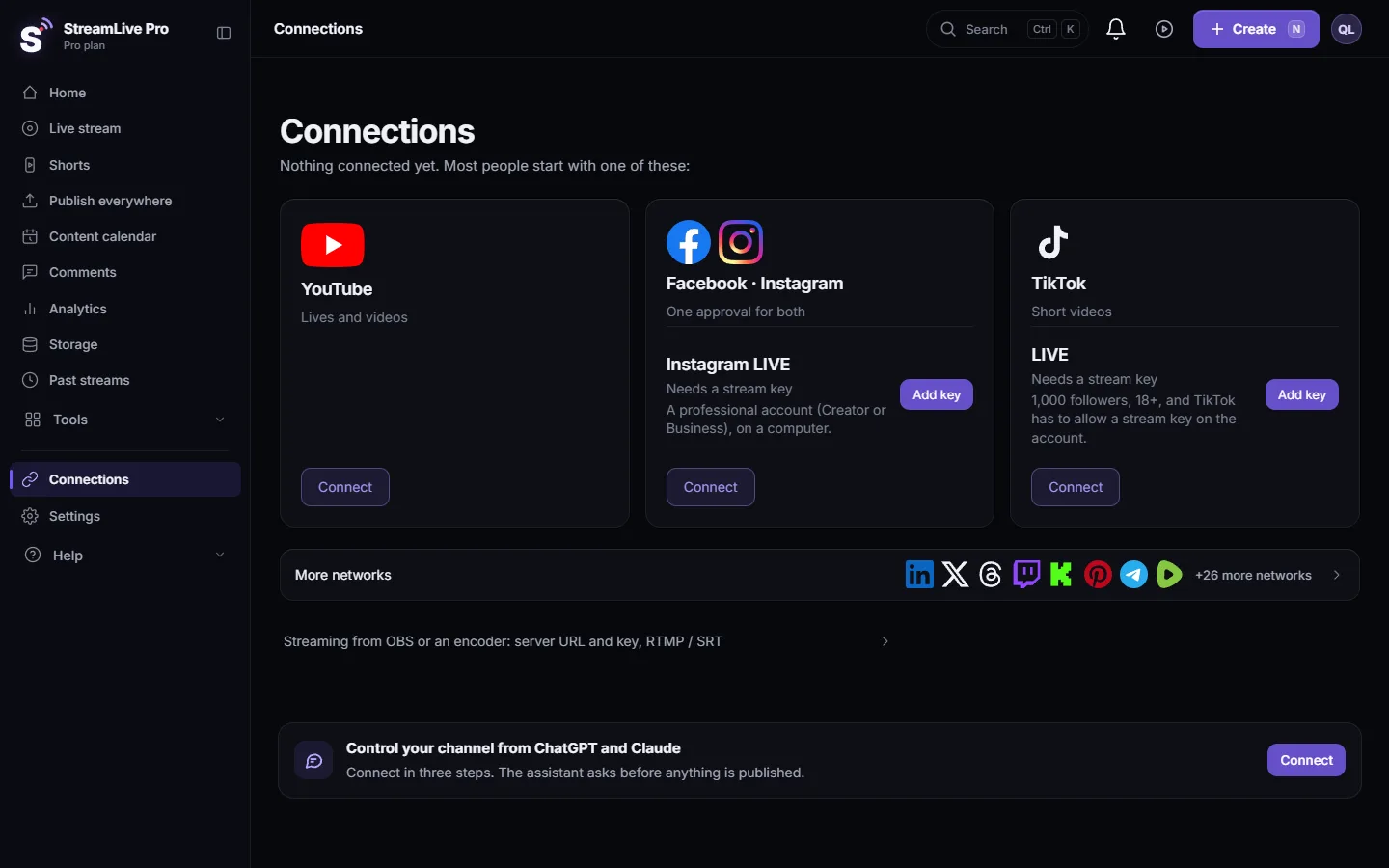
- Open the podcast manager. In Connections open the podcast card (Podcast hosting) and click Podcast settings, or Episodes.
- Look under the show list. A line shows, for example, "1 of N shows · 4 of N episodes this month", followed by the storage the podcast uses.
- Check the plan chip. At the top, a chip shows your plan name, or Private (trial) when the feed is not public.
Plans at a glance
| Plan | Shows and episodes | Public feed | Every broadcast becomes an episode | Video episode from a broadcast |
|---|---|---|---|---|
| Trial (7 days) | One show and a few episodes, to try | No | As a draft only | No |
| Creator | More, see /pricing?lang=en | Yes | Yes | No |
| Pro | More than Creator | Yes | Yes | Yes |
| Studio | The most | Yes | Yes | Yes |
If a paid plan ends and is not renewed, the feed stops being public, so podcast apps can no longer read it. The show and its episodes stay in your account. Why the feed may be private, and how to fix it: My podcast RSS feed is not public.
When you reach a limit
Shows. Creating another show is refused with a message that your plan's shows are all in use. Delete an old show you no longer need, or choose a bigger plan. Deleting a show removes its feed: listeners and apps lose it, so do this only for a show that was never submitted or that has ended.
Episodes. Creating an episode is refused with a message that this month's episodes are used up. Your options:
- Wait for the first of next month, when the count starts again.
- Delete an unneeded episode you created this month, for example a test or a duplicate draft.
- Choose a bigger plan on /pricing?lang=en.
If "Every broadcast becomes an episode" is on, a broadcast that ends after you reached the limit does not become an episode. You get a notification that the monthly limit was reached. When the new month starts, make that episode by hand from the recording: Add an episode to your podcast RSS feed. The recording must still exist, so press Record during the broadcast, or keep it from Past streams within about two hours.
Storage. An episode is refused up front if its audio, and the video version if you asked for one, would not fit in your storage. Free space in Storage or skip the video version. See My storage is full.
Planning a month of episodes
- Weekly show: four or five episodes a month, plus maybe a trailer.
- Daily show: around twenty or more. Check the /pricing?lang=en page against your real schedule.
- Several shows: add their episodes together, since the monthly count is shared.
- Automatic episodes: every finished broadcast counts once it becomes an episode, so a test broadcast with the automatic rule on uses one too. Set the rule to draft while you test, and delete drafts you do not need in the same month.
Frequently asked questions
Does a draft episode count toward the monthly limit?
Yes. An episode counts when it is created, whether it is a draft, scheduled or published.
When does the episode count reset?
At the start of each calendar month.
Does deleting an episode give me the slot back?
Yes, if the episode was created this month. Episodes from earlier months are not in this month's count.
Do two podcasts have separate episode limits?
No. The monthly episode count is for the whole account and is shared by all your shows.
Can I make podcast episodes on the trial?
Yes, a few, to try the full flow. The feed stays private until you choose a paid plan, so podcast apps cannot read it yet.
Keep reading
What a podcast RSS feed is: one web address listing your show and every episode, which Spotify, Apple and other apps read by themselves. What is inside and who hosts it.
Submit your podcast to Amazon Music and other podcast appsSubmit your podcast to Amazon Music, YouTube Music, Pocket Casts, Podcast Index, Castbox, iHeartRadio and Deezer with the same RSS feed you gave Spotify and Apple.
Add an episode to your podcast RSS feedAdd an episode to your podcast RSS feed from any recording or upload: title and notes, audio quality, chapters, transcript, draft or scheduled publishing.
Verify your podcast owner email for the RSS feedVerify the podcast owner email so it is written into your RSS feed: the 6-digit code, how long it lasts, why apps cannot send you the claim code without it.
Want to try it? 7-day trial, no credit card.
Start free