 StreamLive Pro
Download a Short as an MP4 file
Download a Short as an MP4 from StreamLive Pro: the Download button on its card, the size of the file, the edited version, and posting it by hand on any network.
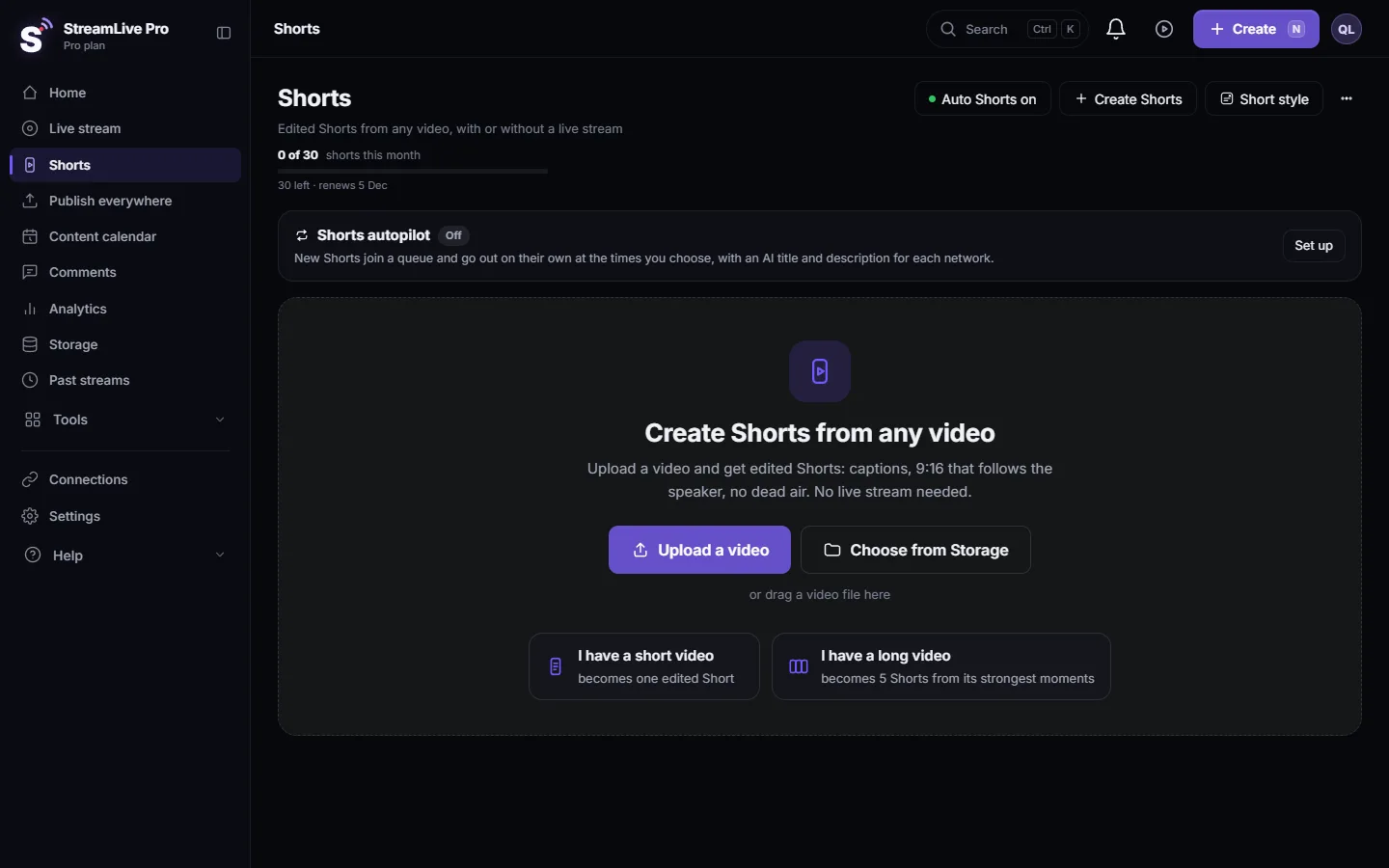
Every Short has a Download button on its card on the Shorts page. Press it and the MP4 is saved straight to your computer or phone under the Short's name, with the captions, crop and sound already burned in. A Short you changed in the full editor is a new export: download that one from the editor or from Storage.
Before you start
- Fix first, then download. If you corrected the captions, wait until Save & re-render has finished, then download. A file downloaded before that has the old words. See Edit a Short before you publish it.
- Trial watermark. In the 7-day trial every exported file, Shorts included, carries a small StreamLive Pro mark. Paid plans have none. TikTok refuses videos with another service's watermark: The trial watermark and TikTok.
- On a phone. The phone browser downloads the file like any other; where it lands depends on the phone (Files on iPhone, Downloads on Android).
Steps
- Open the Shorts page. Choose Shorts. Each broadcast or video has its own folder.
- Open the folder. Find the broadcast or the video the Shorts were made from.
- Watch the Short once. Check the first seconds and the captions before you keep the file.
- Press Download on the card. The file is saved immediately under the Short's name. It is usually tens of megabytes, so a slow connection takes a little longer.
- For an edited version, download the export. If you opened the Short with Edit and exported it, that export is a separate file. Download it at the end of the export, or later from Storage.
- Post it where you need it. Upload the file by hand to any network, or keep it as an archive copy.
What is in the file
| Aspect ratio chosen in Settings | Size of the MP4 | Good for |
|---|---|---|
| 9:16 (Reels / Shorts / TikTok), the default | 1080 x 1920 | YouTube Shorts, Instagram Reels, TikTok, Facebook Reels |
| 4:5 (Instagram feed) | 1080 x 1350 | An Instagram or Facebook feed post |
| 1:1 (Square) | 1080 x 1080 | A feed post where vertical is cropped |
| 16:9 (YouTube) | 1920 x 1080 | A regular YouTube video or a website |
The aspect ratio is set on the automatic Shorts card in Settings and applies to Shorts made after the change. Captions are burned into the picture, so the file needs no separate caption file. If you also want the captions as a file, export them from the editor: Export captions as SRT, VTT or ASS.
Why download instead of publishing from StreamLive Pro
- A network that is not connected. Upload the file there yourself.
- Your plan has no automatic upload to YouTube, or today's YouTube uploads are used. The download is not limited; upload it in YouTube Studio. YouTube treats vertical videos of up to 3 minutes as Shorts (YouTube Help: Get started creating YouTube Shorts, checked 5 November 2026). More: The daily limit on YouTube uploads.
- Editing elsewhere. Bring the file into another editor for music or graphics you cannot add here.
- An archive. Keep the Shorts of an important event even after you clear storage.
Publishing from StreamLive Pro does not need a download: Publish on the card, or the Publish all bar for a whole folder (Publish all your Shorts at once).
What can go wrong
- "That Short is no longer stored". The Short was deleted, or its folder was removed. Make it again from the source video if that still exists.
- The downloaded file has old captions. It was downloaded before the re-render finished. Download again.
- The file has a watermark. It was made in the trial. Shorts made after moving to a paid plan have none.
- The phone cannot find the file. Look in the browser's downloads list; on iPhone, in the Files app.
Frequently asked questions
Can I download all the Shorts of a video at once?
Each Short has its own Download button on its card. To send a whole folder to your networks without downloading, use the Publish all bar on the Shorts page.
What resolution is a downloaded Short?
With the default 9:16 aspect ratio it is 1080 by 1920 pixels. 4:5 gives 1080 by 1350, 1:1 gives 1080 by 1080 and 16:9 gives 1920 by 1080.
Are the captions inside the downloaded file?
Yes. They are burned into the picture, so they show on every network and player. For a separate caption file, export it from the editor.
Can I download a Short on my phone?
Yes. Open the Shorts page in the phone browser and press Download on the card. The file goes to the phone's downloads.
Does downloading a Short use anything from my plan?
No. Downloading does not count toward Shorts, YouTube uploads or translation minutes.
Keep reading
Send a video to your own WhatsApp group or Telegram channel and it is published to the networks you chose: linking, rules, scheduling and the activity log.
Make Shorts from a video on your phoneTurn a video on your phone into captioned vertical Shorts with the StreamLive Pro app: pick it from the gallery, choose how many, and publish them to your networks.
StreamLive Pro app for iPhone and Android: an overviewThe StreamLive Pro app takes your phone camera live to several networks at once, makes Shorts and posts everywhere. Android download today; iPhone uses Safari.
Find your best time to post from your own resultsFind your best time to post from your own posts: the heatmap by day and 3-hour block, how many posts it needs, and how scheduling and Publish all use it.
Want to try it? 7-day trial, no credit card.
Start free