 StreamLive Pro
Create and publish Shorts from Claude or ChatGPT
Ask Claude or ChatGPT to cut Shorts from a finished live, translate their captions and publish them to your channels, with a preview you approve before anything goes out.
With StreamLive Pro connected to Claude or ChatGPT, you can say "Cut Shorts from yesterday's live, with English captions too" and later "Post the second one to YouTube and Instagram tomorrow at 9". The assistant asks StreamLive Pro to cut Shorts from the recording of a finished live, with captions in the spoken language and up to three translations, then lists the ready Shorts. Publishing is always two steps: the assistant shows you a preview, and the Short goes out only after you approve it in the chat.
Before you start
- The assistant is connected. See Use StreamLive Pro from ChatGPT and Claude. It works on every plan and in the trial.
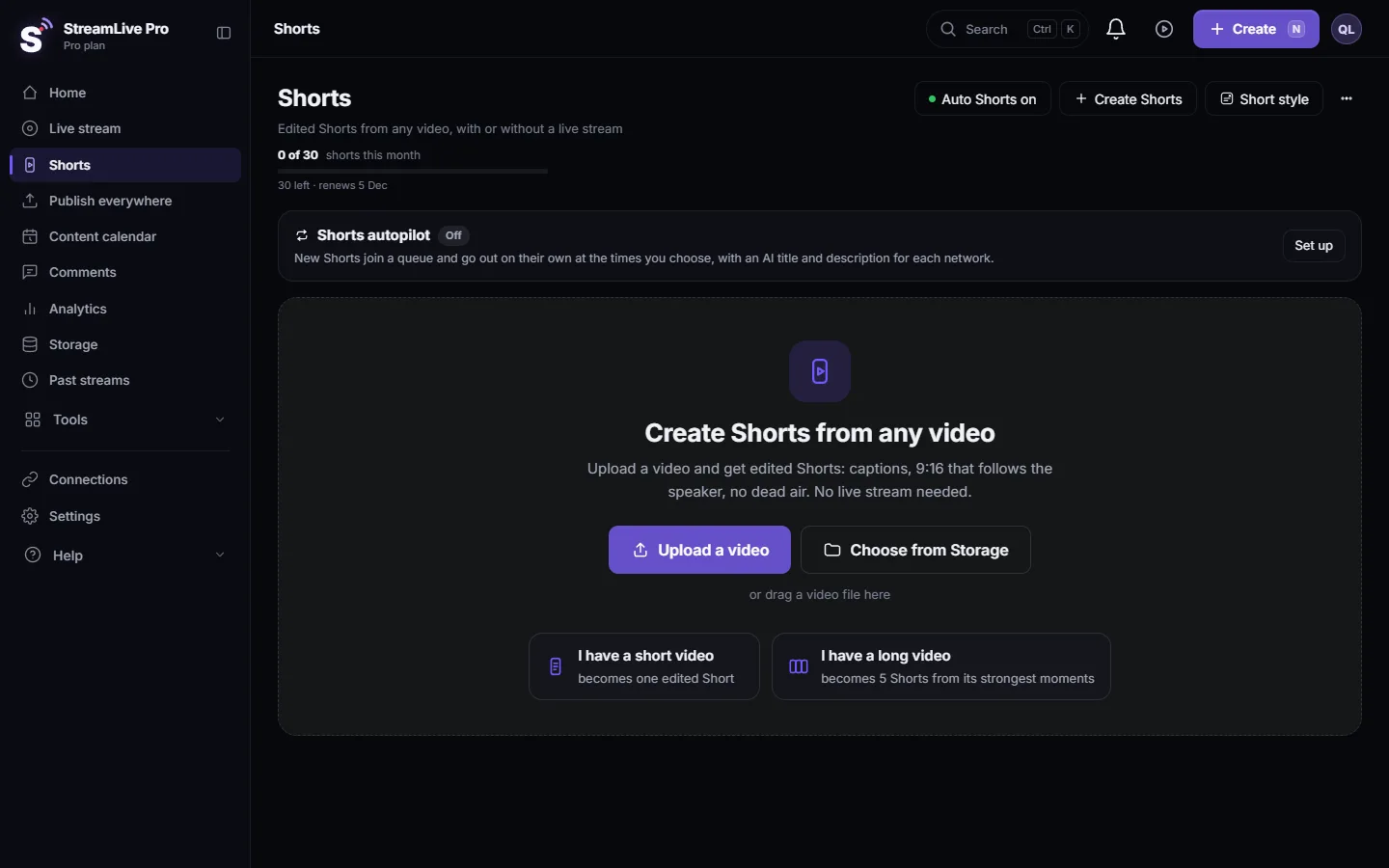
- A finished live with a recording. The assistant cuts Shorts from an ended live that still has its video. A live you did not keep is removed about two hours after it ends; see Where is my live stream recording?. Shorts from an uploaded video are made in Shorts in the dashboard, not through the assistant.
- Shorts left in your plan. Each request counts toward your Shorts allowance, up to 5 from one video. The numbers per plan are on the /pricing?lang=en page.
- Connected channels for publishing. Connect them in Connections first.
Steps
- Pick the live. Ask "What lives did I have this week?" The assistant lists your lives with their status, length and whether a recording exists.
- Ask for Shorts. "Cut Shorts from the Sunday live." To add caption translations, name up to three languages: "with English and Arabic captions too". The assistant starts the job and tells you it is running.
- Wait a few minutes. Shorts are usually ready within minutes, depending on the length of the recording. Ask "Are the Shorts ready?" to see them.
- Review them. The assistant lists the Shorts, best first, with their files, aspect and caption language. Open them in Shorts if you want to watch, fix a caption or change the frame before posting; see Edit a Short before you publish it.
- Ask to publish. "Post the second Short to YouTube and Instagram now, title How we started." For YouTube also say who can watch: public, unlisted or private. To schedule, give a time: "tomorrow at 9:00".
- Read the preview. The assistant shows the Short, the title and text, the channels, and when it goes out. Nothing is posted yet.
- Approve. Say yes in the chat. The assistant then publishes or schedules exactly what the preview showed. Ask "How did the post go?" a few minutes later to see the result on each network.
How the approval works
The preview comes with a one-time approval code that is valid for 10 minutes and tied to you and to exactly those details. If anything changes after the preview, such as another channel or a new title, the assistant must ask for a new preview. An approval cannot be used twice, so the same post is not sent again by mistake. This is built into StreamLive Pro, not left to the assistant's judgement.
Limits to know
- TikTok, Pinterest and WhatsApp are not posted from the assistant. Those posts are made from the publish screen in StreamLive Pro: Post a video to TikTok from your computer.
- Caption translations: up to three languages per request, from the list the tool accepts (for example Hebrew, English, Arabic, Russian, Spanish, French, German).
- Title length: up to 100 characters for a post.
- AI picks the moments. It can pick a weak one. Look before you publish.
- The trial adds a mark to every exported Short: The trial watermark and TikTok.
What can go wrong
| What happens | Likely cause | Fix |
|---|---|---|
| "Shorts can only be cut from a live that ended and has a recording" | The live is still on, or its video was removed | Wait for the end, or use a live you kept |
| YouTube needs a privacy choice | You did not say who can watch | Say public, unlisted or private |
| The approval expired | More than 10 minutes passed after the preview | Ask for the preview again and approve |
| The arguments differ from what was approved | Something changed after the preview | Ask for a new preview |
| No ready file in the chosen format | The Short is still rendering, or that caption language was not made | Wait, or ask for the language when cutting |
| The Shorts allowance is used up | The plan's monthly Shorts are spent | Wait for the next month or choose a bigger plan |
The full list of tools: StreamLive Pro MCP tools: full list for ChatGPT and Claude.
Frequently asked questions
Can Claude publish a Short without my approval?
No. Publishing always returns a preview first, and the Short goes out only after you approve it in the chat. The approval is valid for 10 minutes and for those exact details.
Can the assistant make Shorts from a video I uploaded?
Not today. Through the assistant, Shorts are cut from the recording of a finished live. For an uploaded video use Create Shorts in the Shorts page of the dashboard.
How many caption translations can I ask for?
Up to three languages in one request.
Why can the assistant not post to TikTok?
TikTok posts from StreamLive Pro are made only by a person on the publish screen. Requests from assistants are refused for TikTok, Pinterest and WhatsApp.
Do Shorts made through the assistant count toward my plan?
Yes. They count toward the same Shorts allowance as Shorts made in the dashboard.
Keep reading
Add stickers to a video in the StreamLive Pro editor: arrows, highlight boxes, Subscribe and Like badges, reactions, with their place, size and timing.
Change a video's aspect ratio in the editorSwitch a video between 16:9, 9:16, 1:1 and 4:5 in the StreamLive Pro editor, choose which part of the picture stays, lock the frame, and export at the network's size.
Fade in, fade out and dissolves in the video editorAdd a fade in, fade out, dip to black or white, or a dissolve at a cut in the StreamLive Pro editor, and fade music with the handles on audio clips.
Keyframes and effects in the video editorAnimate a clip with keyframes in the StreamLive Pro editor, such as a slow zoom, a move or a fade of opacity, and add looks like black and white or a vignette.
Want to try it? 7-day trial, no credit card.
Start free