 StreamLive Pro
Video podcasts, from the conversation to the Shorts
Record in the browser with remote guests, go live if you want, publish to Spotify, Apple Podcasts and YouTube, and get captioned Shorts from every episode.
A video podcast is three jobs: recording a conversation that looks and sounds right, getting the episode onto YouTube, Spotify and Apple Podcasts, and cutting the short clips that bring new listeners in. You can do them in three or four separate tools, or in one place. Below: how StreamLive Pro handles all three in the browser, what it does well, and where it stops. For gear and room setup at different budgets, see our guide video podcast setup by budget.
Recording: the podcast studio in the browser
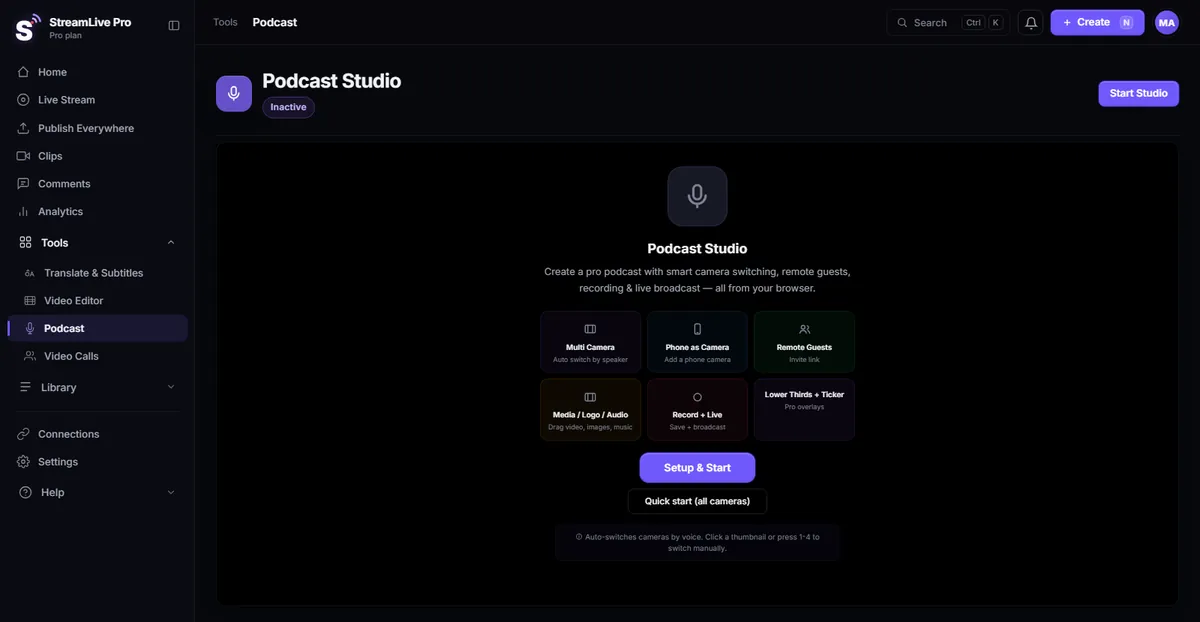
The podcast studio opens in a browser tab, with nothing to install. On the start screen you choose how you work: several cameras with automatic switching, a phone as a camera, remote guests, and whether to record only or record and go live at the same time.
Guests by link. You send an invite link; the guest opens it in a browser, sees their camera and microphone, and joins muted. You decide when they reach the screen, and you can switch on a waiting room. Their return audio is a mix without their own voice (mix-minus), so nobody hears themselves on a delay. Step by step: record a podcast with remote guests.
A phone as a camera. No second webcam? A phone can join as an extra angle, through a link that opens the phone browser. See phone as a camera.
The camera follows whoever speaks. Link each microphone to a camera, and the picture cuts to the person talking. You do not need someone at a switcher for an hour-long conversation. It works from the audio, so a host who says "mm-hm" constantly can trigger cuts; the help article explains the settings: automatic camera switching. Automatic switching is included in Pro and Studio; see the pricing page.
Branding on screen. Logo, media and audio clips, lower thirds with each speaker's name and a ticker are all in the same studio.
Separate files for each camera
If you edit the episode yourself afterwards, one mixed file is not enough. The studio can record each camera separately (ISO recording), so you can recut the conversation, fix a moment where the automatic switch chose the wrong angle, or use a reaction shot. This works for cameras connected to your computer; remote guests are part of the main recording, not separate files. How it works and what you get: record each camera separately.
A recording you started is saved to cloud storage. A broadcast without a recording is removed about two hours after it ends. On Pro and Studio, recording is available in 4K.
Going live while you record
Some shows are recorded quietly and released later; others go out live and become the episode. Both work. Record and live at the same time, to 3, 6 or 20 destinations depending on the plan: YouTube, Facebook, Instagram, TikTok, X, LinkedIn, Twitch, Kick, or any RTMP or SRT server. Your computer uploads one stream and the copies are made on our servers, which matters when the same connection is also carrying your guests. YouTube and Facebook comments arrive in one panel, and you can reply to both; comments from other networks do not appear there.
If you prefer to produce in OBS or vMix, you can send its output to a StreamLive Pro address and key over RTMP, RTMPS or SRT on a paid plan. See using OBS or vMix.
Publishing the episode
Audio platforms. On a paid plan, the podcast can be published to Spotify and Apple Podcasts through an RSS feed we host. You submit it once in each app, and you need a 3000x3000 cover, a verified owner email and at least one published episode. The setup is explained in publish your podcast to Spotify and Apple Podcasts.
Video platforms. Upload the finished episode once, adjust the title and text per network, and publish now or at a scheduled time to the accounts you connected (publishing to social networks).
Quick fixes before publishing. The recording opens in a multi-track editor with colour correction, chroma key, keyframes, transitions and templates. It is not a replacement for a full desktop editor on a heavily produced show, but trimming an intro, adding an outro card or fixing the colour of one camera does not need a second program.
Shorts from every episode
An episode of an hour gives you plenty of one-minute moments, and finding them is the slow part. When the session ends, StreamLive Pro cuts vertical 9:16 Shorts automatically, reframed to follow whoever is speaking, with captions and a thumbnail. You can also upload an older episode and get Shorts from it; it does not need to have been live. The number per month depends on the plan: 10, 30 or 300.
The AI picks the moments, and it is wrong sometimes: a funny line that needs the previous two minutes of context, or a clip that ends mid-thought. Review the list, drop what does not work, and then publish the rest together (publish all Shorts at once).

Captions and translation
Every word in the transcript carries its own timestamp, so captions stay in sync and the current word can be highlighted. Hebrew runs right to left properly, with punctuation and numbers on the correct side. There are more than 80 caption designs; burn them in, or export SRT or VTT for YouTube. Captions can be translated into 120+ languages, a whole sentence at a time, within 120, 500 or 1,500 minutes a month by plan. A Hebrew podcast can put English subtitles on its YouTube episode, or the other way round.
What it does not do: there are no captions or translation for viewers during a live broadcast yet (in development), and no dubbing or voice cloning. The translated version is text on screen, not a new voice.
Is it the right tool for your podcast?
It fits well if you record in the browser with remote guests, publish video as well as audio, and want clips and captions without another subscription. It fits less well if you record audio only and never publish video, or if your workflow is built around a local multitrack audio recorder and a desktop editor you already like. In that case our tools would duplicate what you have.
Pricing: there is no free plan. The 7-day trial needs no credit card and does not turn into a paid plan by itself; it covers the browser studio, up to 2 destinations, 2 lives of up to 60 minutes, and 10 Shorts with a small watermark. It does not include automatic camera switching or a public RSS feed. Plans start at $29 a month.
No credit card. The trial never turns into a paid plan by itself.
Start a 7-day trialMore: the video podcast page, turning a live stream into Shorts, and AI Shorts.
Frequently asked questions
Do guests need to install anything?
No. A guest opens the invite link in a browser, picks a camera and microphone, and joins muted until you bring them on screen.
Can I get a separate file for each camera?
Yes, for each camera connected to your computer (ISO), so you can recut the conversation in your own editor. Remote guests are part of the main recording, not separate files.
Can I publish to Spotify and Apple Podcasts?
Yes, on a paid plan, through an RSS feed. The setup is in the help article on publishing your podcast to Spotify and Apple Podcasts.
Are the Shorts ready to publish?
They come with captions and a thumbnail, but the choice of moments is automatic and can be wrong. Review them before publishing.
Can the episode be dubbed into another language?
No. Captions can be translated into 120+ languages, but there is no dubbing and no voice cloning.