 StreamLive Pro
YouTube in StreamLive Pro - sign in or paste a stream key?
YouTube sign-in or stream key in StreamLive Pro: what each gives you (title, privacy, chat, viewers, scheduling), when to use the key, and the backup key.
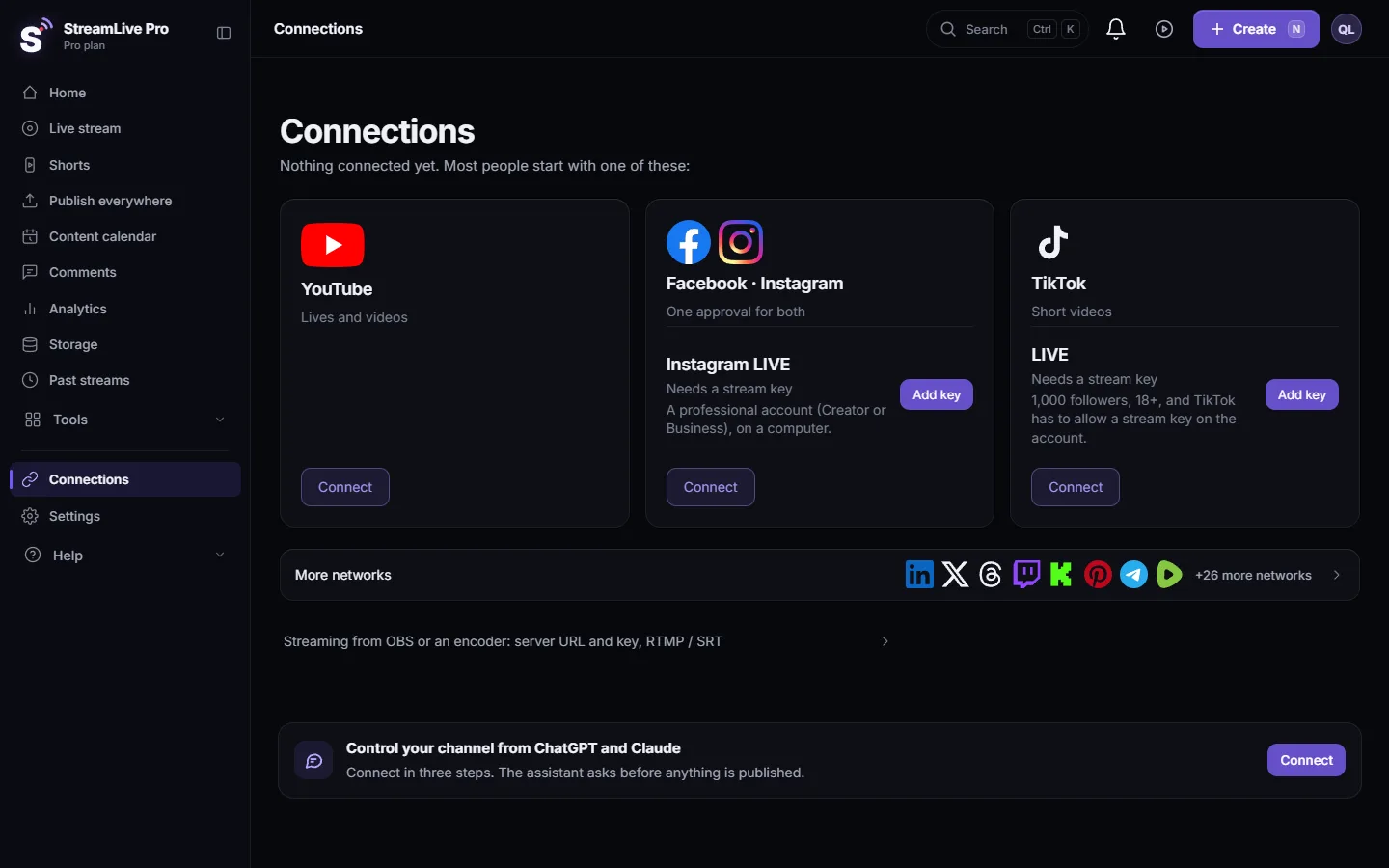
For most channels, connect YouTube with a Google sign-in. StreamLive Pro then creates each broadcast on your channel with its own title, description, thumbnail and privacy, shows the YouTube chat and viewer count, and can announce scheduled broadcasts in advance. The YouTube Live (stream key) card is for a channel you cannot or do not want to connect with a Google sign-in. A third option sits on top of the sign-in: a backup stream key, used only when YouTube's own system cannot create the broadcast.
The three ways, side by side
| Feature | Google sign-in (YouTube card) | YouTube Live (stream key) card | Backup key on a signed-in channel |
|---|---|---|---|
| Where | Connections, YouTube | Connections, Manual section | On the connected YouTube channel |
| Title, description, thumbnail per broadcast | Yes, set in StreamLive Pro | No, from your YouTube Studio settings | Only when the fallback is used: from YouTube Studio |
| Public, unlisted or private per broadcast | Yes | No, from YouTube Studio | From YouTube Studio when used |
| YouTube chat next to the player, with replies | Yes | No | Chat follows the sign-in |
| Live viewer count | Yes | No | Follows the sign-in |
| Pre-announce a scheduled broadcast | Yes | No | Not applicable |
| Paste anything | No | URL and key, once | Key, once (optional) |
| Main use | Everyday streaming | A channel you cannot sign in to | Insurance on busy days |
When to use the sign-in
Use it whenever you can sign in with the Google account that owns or manages the channel. You approve on Google's own screen; StreamLive Pro never sees your password. If the account has more than one channel, click Manage pages on the YouTube card and tick the right one. The step-by-step is in How to go live on YouTube from your computer.
When the stream key card is the right choice
- The channel belongs to a client or partner who will give you a stream key but not a Google sign-in.
- You want a broadcast to reach the channel exactly as set in YouTube Studio, with its default title and settings.
The card asks for a channel with live streaming enabled; it notes phone verification and that the first activation can take up to 24 hours, which matches YouTube's own help (YouTube Help: Create a live stream with an encoder).
Steps
To add the YouTube Live (stream key) card:
- Open YouTube Studio. Click Create, then Go live.
- Pick the persistent key. On the Stream tab choose the Default stream key, a key that stays the same between broadcasts, and turn on Enable auto-start so the broadcast starts when the picture arrives.
- Copy the two values. Copy the Stream URL and the Stream key.
- Paste them into StreamLive Pro. Open Connections, go to the Manual section and choose YouTube Live (stream key). The server field holds rtmps://a.rtmps.youtube.com/live2. Paste the key and save.
- Go live. On Live stream tick the channel in the Channels list and press Start stream.
The backup key, and why it exists
With the sign-in, StreamLive Pro creates each broadcast through YouTube's system for apps, which can refuse requests when its daily limit is reached or when it fails. In that situation a signed-in channel can still go live: StreamLive Pro sends the broadcast to the channel's own stream key instead and tells you so. In that case the title and privacy come from your channel's YouTube settings, not from StreamLive Pro.
StreamLive Pro tries to read the channel's default stream key from YouTube in the background for this purpose. To be sure, save it yourself: open the backup stream key option on your connected YouTube channel (it opens a window titled YouTube, backup stream key), follow the same YouTube Studio steps as above, paste the key and click Save the key to this channel. It is saved encrypted against that channel, not as a second destination.
What can go wrong
| What you see | Likely cause | Fix |
|---|---|---|
| "YouTube session expired, please reconnect" | The Google permission ended | Reconnect the YouTube card. With a backup key saved, YouTube can still go live meanwhile |
| A notice that YouTube went out through the stream key | The daily limit was used up or YouTube's system failed | Nothing to do now. Title and privacy came from YouTube Studio this time |
| The stream key card goes live with the wrong title | The card uses YouTube Studio's settings | Change the title in YouTube Studio, or use the sign-in |
| The stream reaches YouTube but does not start | Enable auto-start is off for the key | Turn it on in YouTube Studio, or start the broadcast there |
More: My live stream does not start on YouTube and Reconnect a channel whose connection expired.
Frequently asked questions
Should I connect YouTube with a sign-in or a stream key?
With a sign-in, if you can. It gives you a title and privacy per broadcast, the YouTube chat, the viewer count and announced scheduled broadcasts. Use the stream key card only for a channel you cannot sign in to.
What is the YouTube backup stream key for?
It lets a signed-in channel still go live when YouTube's system for apps refuses to create the broadcast, for example when its daily limit is reached. The broadcast then goes to your own key, with title and privacy from YouTube Studio.
Does the YouTube stream key change?
The Default stream key in YouTube Studio stays the same between broadcasts until you reset it. If you reset it, paste the new key.
Can I see YouTube chat when I use the stream key card?
No. Reading and answering YouTube chat needs the Google sign-in connection.
Can I use both the sign-in and the key for the same channel?
Yes, as sign-in plus backup key on the same channel. Avoid adding the same channel a second time as a separate stream key destination.
Keep reading
Stream to YouTube and Rumble at the same time: YouTube connects with a sign-in, Rumble takes the key from its streamer configuration, and one upload reaches both.
How to stream to YouTube and Telegram at the same timeStream to YouTube and a Telegram channel or group at once: YouTube connects with a sign-in, Telegram gives its admin a URL and key, one upload feeds both.
Stream a Microsoft Teams meeting to YouTube and FacebookSend a Microsoft Teams meeting to StreamLive Pro with the Custom Streaming app (RTMP-Out), then on to YouTube, a Facebook Page and more: admin setting and steps.
Stream a Webex meeting to YouTube and Facebook togetherSend a Webex meeting or webinar to StreamLive Pro with Webex's "Other streaming services" option, and from there to YouTube, a Facebook Page and more: fields and fixes.
Want to try it? 7-day trial, no credit card.
Start free