 StreamLive Pro
How to go live on X (Twitter) from your computer
Go live on X from a computer: create a source in X Media Studio Producer, paste its RTMP URL and key into StreamLive Pro, start, then go live on X.
To go live on X from a computer, you need a stream source from X's Media Studio Producer. Producer gives the source an RTMP URL and a stream key. You paste both into the X (Twitter) Live card in StreamLive Pro once, start your broadcast from the browser studio, and then go live on the broadcast in Producer. X does not let outside services sign in and start a live for you, so the key is the only way in.
This page goes deep on X alone. For X together with YouTube, Facebook and the rest in one broadcast, see How to multistream to X (Twitter) and other networks at the same time.
Before you start
- Access to Media Studio Producer. X decides which accounts can stream from software. X's own guide to Producer explains sources, regions and broadcasts (X Help: Media Studio Producer). The X card in StreamLive Pro names X Premium or a verified organisation as the requirement. If Producer does not open for your account, there is no stream key, and nothing outside X can change that.
- A source. In Producer a source must exist before you can send video or create a broadcast (same X page).
- A StreamLive Pro account. The browser studio works on the 7-day trial. OBS or vMix as the source needs a paid plan (see the /pricing?lang=en page).
Steps
- Create a source on X. Open Media Studio, then Producer. Under Sources click Create source and pick the region nearest to you. X lists the regions on its help page.
- Copy the URL and key. The source shows an RTMP URL and a stream key. Copy both. If X also shows an RTMPS address for the same source, you can use it with the same key.
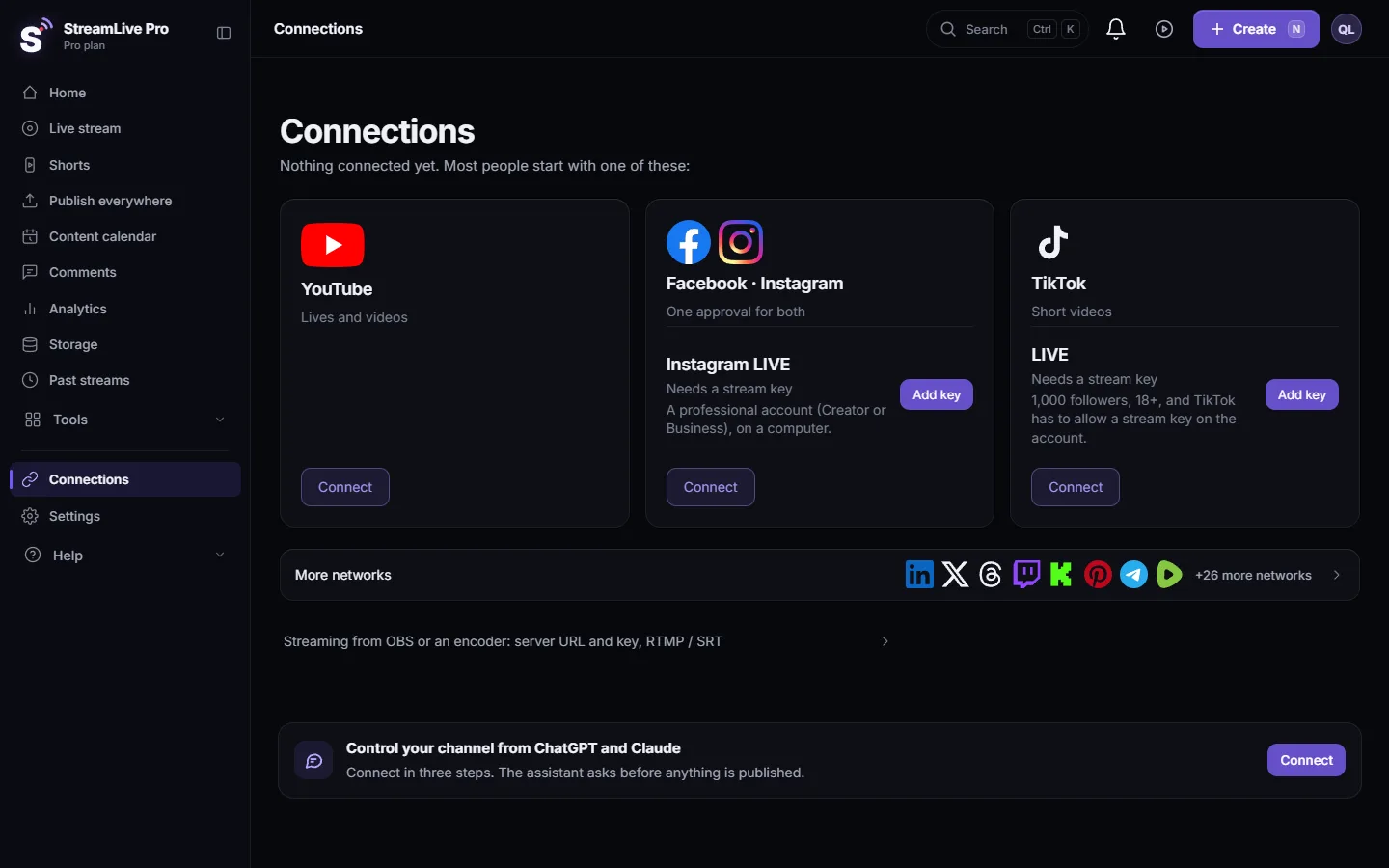
- Add the X card. Open Connections, go to the Manual section (live with a stream key) and choose X (Twitter) Live. Paste the URL and the key and save.
- Open the studio. Go to Live stream and choose Browser Studio, or Stream from software like OBS (RTMP / SRT) if you produce in OBS or vMix.
- Tick X and start. Tick X in the Channels list, plus any other networks, and press Start stream. StreamLive Pro starts sending to the source.
- Go live in Producer. For each broadcast, create a Broadcast on that source in Producer. When the picture arrives in the preview, click Go live there.
- End. End the broadcast in Producer, then press Stop stream. Press Record during the broadcast if you want StreamLive Pro to keep the full recording; otherwise our temporary copy is removed about two hours after.
Does the X key change?
The steps on the X card in StreamLive Pro say that a source in Producer keeps the same URL and key, so you normally paste them once. The go-live step is set up for that: when you go live, the key step shows Keep the same key already chosen, and an I have a new key button if you created a new source or X gave you a different key. Paste the new one there and the broadcast starts toward the right key.
What StreamLive Pro checks
- The address belongs to X. The card accepts addresses on X's live hosts (pscp.tv, periscope.tv, x.com, twitter.com). If you paste a YouTube or Twitch address by mistake, the message names that network. For a service that is not on the list, use the Custom RTMP card.
- The key is only a key. A URL, or text with spaces, pasted into the key field is refused.
- The address is public. Private addresses such as 192.168.x.x are refused.
What can go wrong
| What you see | Likely cause | Fix |
|---|---|---|
| No Producer, or no way to create a source | X has not given your account streaming from software | Check your X account. Only X can change this |
| "That is not a X (Twitter) Live stream address" | A URL from another source or network was pasted | Copy the RTMP URL again from the source in Producer |
| StreamLive Pro is live, X shows nothing to viewers | No Broadcast was created and started in Producer | Create a Broadcast on the source and click Go live when the preview shows |
| X stopped receiving after you changed something in Producer | A new source with a new key | Paste the new key with I have a new key, or edit the card |
| The stream key field refuses the paste | The whole URL or a space was pasted | Paste only the key |
More: Troubleshooting the problems that come up most.
Limits to know
- X live comments and viewer numbers are not shown in StreamLive Pro. Live chat covers YouTube and Facebook (with replies) and Twitch and Kick (read only); keep X open in another tab.
- Live on X by key is open to every StreamLive Pro account. Posting finished videos to X is a separate connection and is not open to every account today.
Going further
All networks and what each asks: Going live on each network: what it needs. What a stream key is and how to keep it safe: RTMP and stream keys: where to find them, what breaks. Other key-based networks: How to go live on LinkedIn with a custom stream and How to live stream to a Telegram channel or group.
Frequently asked questions
Can I go live on X from a computer without the X app?
Yes, if X gives your account Media Studio Producer. You create a source there, paste its URL and key into StreamLive Pro, and go live in Producer once the picture arrives.
Why is there no stream key in my X account?
X decides which accounts can stream from software through Producer. Without a source in Producer there is no key, and no outside service can create one.
Do I need a new X key for every live?
Usually not. A Producer source keeps its URL and key, according to the X card in StreamLive Pro. If you make a new source, paste its key when StreamLive Pro asks before going live.
Can I stream to X and YouTube at the same time?
Yes. Tick X and YouTube in the same broadcast. You upload one stream and StreamLive Pro sends it to both, within the number of destinations your plan allows.
Does StreamLive Pro press Go live on X for me?
No. The broadcast on X is started in Producer. StreamLive Pro sends the picture and sound to your source.
Keep reading
A live streaming glossary in plain words: stream key, RTMP, SRT, bitrate, multistream, Preview and Program, ISO, captions, reframe. Where each shows up in StreamLive Pro.
How to stream on Bilibili Live with a stream keyStream on Bilibili Live from your browser: start a live in your Bilibili room, copy the server and fresh key into the Bilibili Live card, then go live.
How to go live on Dailymotion with a stream keyGo live on Dailymotion: get live enabled on your account, create a live stream in Dailymotion Studio, and paste its stream URL and key into StreamLive Pro.
How to stream on DLive with your stream keyStream on DLive from your browser: copy the key from your DLive dashboard, paste it into the DLive card in StreamLive Pro, and go live alone or with other networks.
Want to try it? 7-day trial, no credit card.
Start free