 StreamLive Pro
How to live stream to a Telegram channel or group
Live stream to a Telegram channel or group with a stream key: start a live stream with another app in Telegram, copy the server URL and key, go live.
Telegram lets an admin of a channel or group stream into it from other software. In Telegram you start a live stream and choose to stream with another app, Telegram shows a server URL and a stream key, and you paste both into the Telegram Live card in StreamLive Pro. Then you start the broadcast in StreamLive Pro and press start in Telegram. The same broadcast can go to YouTube, Facebook and other networks at the same time.
Before you start
- Admin rights in the channel or group. Telegram live streams and video chats are started by admins of the community, from its profile page (Telegram blog: Live Streams).
- Streaming from other apps. Telegram added live streaming with tools such as OBS: you start a Video Chat in a group or a Live Stream in a channel and use the button that starts it with another app (Telegram blog: Live Streaming With Other Apps). Depending on the app version, the button is called Start With or Stream With.
- Viewers on a recent app. Telegram notes that viewers need an up-to-date app to watch such a stream (same post).
- A StreamLive Pro account. The browser studio works on the 7-day trial. OBS or vMix as the source needs a paid plan (see the /pricing?lang=en page).
Steps
- Open the live stream in Telegram. Open the channel or group, tap its name at the top, and choose Live stream (in a channel) or Video chat (in a group).
- Choose to stream with another app. Tap Start With or Stream With. Telegram shows a Server URL and a Stream key.
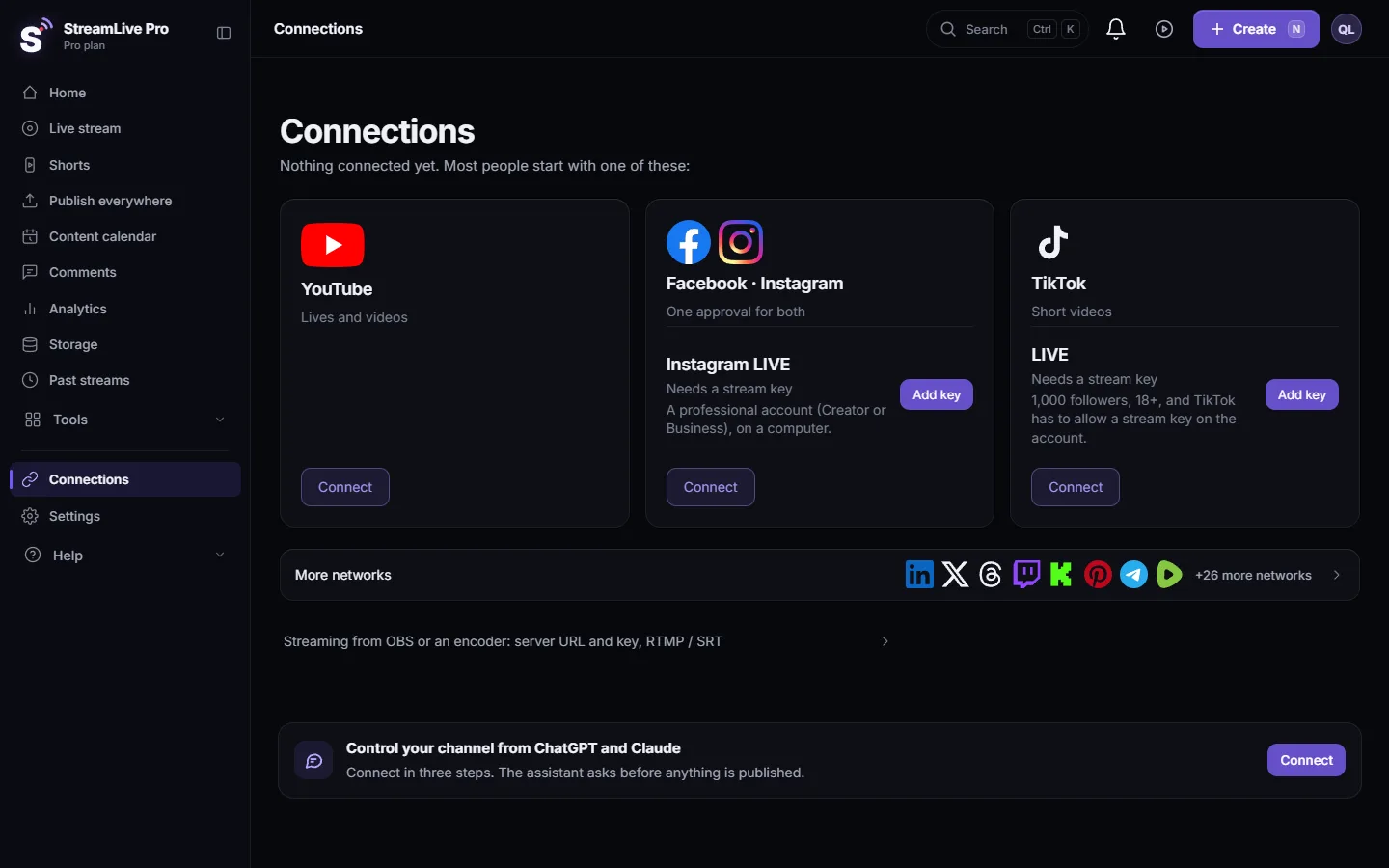
- Paste them into StreamLive Pro. On Connections add Telegram Live and paste the Server URL and the Stream key. Copy them from Telegram exactly; the card accepts only a Telegram address.
- Tick Telegram and start. On Live stream, tick Telegram in the Channels list next to any other networks, and press Start stream.
- Start streaming in Telegram. Back in Telegram, once the picture arrives, tap Start streaming. Members of the channel or group can now watch.
- End. Press Stop stream and end the live stream in Telegram.
Keep the same key, or replace it
The Telegram key stays valid until you revoke it in Telegram, so the card works for the next live stream in the same channel too. Telegram lets you revoke the key and create a new one (Telegram API: getGroupCallStreamRtmpUrl). If you do, paste the new key on the Telegram Live card. For a second channel or group, add another Telegram Live card with that channel's key.
Live stream and posts are two different things
- Live goes through the Telegram Live card with a stream key, as on this page.
- Posting finished videos and text to a Telegram channel is part of Publish everywhere and uses a different Telegram connection: see Post to Threads, Bluesky and Telegram at the same time.
- Publishing from a Telegram group (you send a video to your own group and it goes out to your networks) is a third feature, on Pro and Studio and in the trial: see Post to every network from a WhatsApp or Telegram group.
What can go wrong
| What you see | Likely cause | Fix |
|---|---|---|
| No live stream or video chat option | You are not an admin of the channel or group | Ask an owner to give you admin rights |
| No Start With or Stream With button | An older Telegram app | Update Telegram, or use another Telegram app (desktop or phone) |
| Telegram says it does not see any stream | Wrong URL or key, or StreamLive Pro is not live yet | Check the values on the card, press Start stream, then start in Telegram |
| A message that the address is not a Telegram address | A URL from another network was pasted | Copy the Server URL again from Telegram |
| It worked last week, now it fails | The key was revoked in Telegram | Paste the new key on the Telegram Live card |
| Members cannot play the stream | Their Telegram app is old | Ask them to update the app |
Limits to know
- StreamLive Pro does not read Telegram comments or viewer numbers. Live chat covers YouTube and Facebook (with replies) and Twitch and Kick (read only).
- Each Telegram Live card is one channel or group; it counts as one destination of the broadcast.
Going further
Other networks that work with a key: How to multistream to X (Twitter) and other networks at the same time. Any RTMP or SRT server: Stream to a custom RTMP or SRT server. All networks: Going live on each network: what it needs. Background: RTMP and stream keys: where to find them, what breaks.
Frequently asked questions
Can I live stream to Telegram from a computer?
Yes. In Telegram start a live stream with another app, copy the server URL and key into StreamLive Pro, start the broadcast, then tap Start streaming in Telegram.
Who can start a live stream in a Telegram channel?
An admin of the channel or group. Without admin rights Telegram does not show the option.
Do I need a new Telegram key every time?
No. The key works until you revoke it in Telegram. If you revoke it, paste the new key on the Telegram Live card.
Can I stream to Telegram and YouTube at the same time?
Yes. Tick both in the same broadcast. You upload one stream and StreamLive Pro sends it to each.
Is this the same as posting to my Telegram channel?
No. Live uses the Telegram Live card with a stream key. Posting finished videos and text uses a separate Telegram connection on the publishing side.
Does StreamLive Pro show Telegram comments?
No. Live chat in StreamLive Pro reads YouTube, Facebook, Twitch and Kick. Telegram reactions and comments stay in Telegram.
Keep reading
A live streaming glossary in plain words: stream key, RTMP, SRT, bitrate, multistream, Preview and Program, ISO, captions, reframe. Where each shows up in StreamLive Pro.
How to stream on Bilibili Live with a stream keyStream on Bilibili Live from your browser: start a live in your Bilibili room, copy the server and fresh key into the Bilibili Live card, then go live.
How to go live on Dailymotion with a stream keyGo live on Dailymotion: get live enabled on your account, create a live stream in Dailymotion Studio, and paste its stream URL and key into StreamLive Pro.
How to stream on DLive with your stream keyStream on DLive from your browser: copy the key from your DLive dashboard, paste it into the DLive card in StreamLive Pro, and go live alone or with other networks.
Want to try it? 7-day trial, no credit card.
Start free