 StreamLive Pro
How to go live on VK Video from your computer
Go live on VK Video from a browser: create a broadcast for streaming software in VK, choose a one-time or persistent key, and paste the URL and key into StreamLive Pro.
To go live on VK Video from your computer, create a broadcast in VK for streaming software, copy its stream URL and key, and paste them into the VK Video Live card in StreamLive Pro. Then tick VK in the studio and start, alone or together with YouTube, Facebook and other networks. VK offers two kinds of key, one-time and persistent, and the choice decides whether you paste once or before every broadcast.
Before you start
- A VK profile or a community you manage. VK says you can go live from a personal profile or on behalf of a community where you are an admin (VK for authors: How to broadcast on VK from a computer, in Russian).
- Know the two key modes. VK's same page says broadcasts run with a one-time or a persistent stream key. A one-time key lets you run several broadcasts in parallel. A persistent key suits regular broadcasts, but the broadcast then gets a standard name ("LIVE:" and the community name) and its name and settings cannot be changed.
- Keep the key private. VK warns never to give anyone the stream URL and key, because whoever has them can broadcast in your name (same page).
- A StreamLive Pro account. The browser studio works on the 7-day trial. OBS or vMix as the source needs a paid plan (see the /pricing?lang=en page).
Steps
- Create the broadcast in VK. Open the Video section of your profile or community and click Create broadcast in the upper right corner, as VK describes it. In VK Video this can also appear as Studio, then Live.
- Choose streaming software. Pick streaming with streaming software (OBS) and the key mode you want.
- Copy URL and key. Expand the streaming software setup section and copy the stream URL and the key.
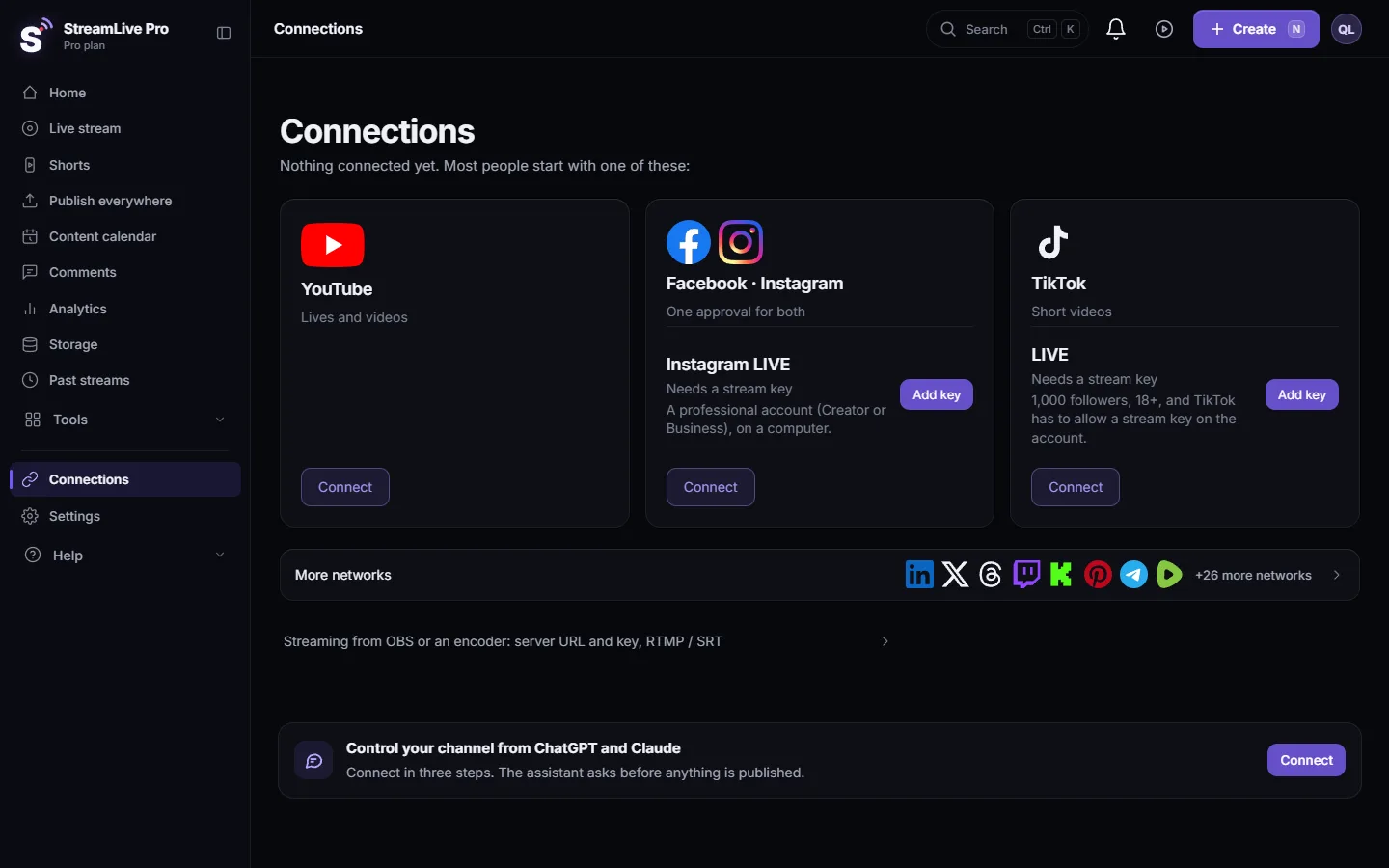
- Add the VK Video Live card. Open Connections, go to the Manual section (live with a stream key) and choose VK Video Live. Paste the URL and the key and save.
- Open the studio. Go to Live stream and choose Browser Studio, or Stream from software like OBS (RTMP / SRT) if you produce in OBS or vMix.
- Tick VK and go live. Tick VK in the Channels list with any other networks and press Start stream. The broadcast appears on VK once the picture arrives.
- End. Press Stop stream. Press Record during the broadcast if you want StreamLive Pro to keep the full recording; otherwise our temporary copy is removed about two hours after.
One-time or persistent: which to pick
| Feature | One-time key | Persistent key |
|---|---|---|
| Paste into StreamLive Pro | Before every broadcast | Once |
| Broadcast title | Your own, per broadcast | Standard name set by VK |
| Change name and settings later | Yes | No (per VK) |
| Several broadcasts in parallel | Yes (per VK) | Not described by VK |
For a weekly class or show with the same title, the persistent key saves a step. For broadcasts that each need their own title, use one-time keys and paste the new key before each one: open the VK Video Live card on Connections and replace the key.
What StreamLive Pro checks
- The address belongs to VK. The card accepts VK's live hosts (mycdn.me, okcdn.ru, vkuser.net, vk.com, vk.ru, vkvideo.ru). If an address from another network is pasted, the message names that network. For other services, use the Custom RTMP card.
- Only the key goes into the key field. A URL or text with spaces there is refused.
What can go wrong
| What you see | Likely cause | Fix |
|---|---|---|
| "That is not a VK Video Live stream address" | A URL from another network was pasted | Copy the URL again from the VK broadcast settings |
| StreamLive Pro is live, VK shows nothing | A one-time key from an earlier broadcast | Create a new broadcast in VK and paste its key |
| The VK broadcast has the wrong title | A persistent key always uses VK's standard name | Use a one-time key when you need your own title |
| Someone else streamed to your VK | The URL and key were shared or shown on screen | Create a new key in VK and paste it here |
More: Troubleshooting the problems that come up most.
Limits to know
- VK comments and viewer numbers are not shown in StreamLive Pro. Live chat covers YouTube and Facebook (with replies) and Twitch and Kick (read only).
- VK publishes its own recommended encoder settings on the page above. With the browser studio, StreamLive Pro sets the encoding; with OBS, see OBS settings for multistreaming to several networks.
Going further
Several networks in one broadcast: How to live stream to several platforms at once. All networks: Going live on each network: what it needs. Telegram also works with a key: How to live stream to a Telegram channel or group.
Frequently asked questions
Can I stream to VK without OBS?
Yes. The browser studio sends your camera, microphone and screen, and StreamLive Pro forwards the broadcast to VK with the URL and key you pasted.
Should I use a one-time or a persistent VK key?
A persistent key means pasting once, but VK then uses a standard broadcast name you cannot change. A one-time key lets you set a title each time and must be pasted before every broadcast.
Can I stream to a VK community?
Yes, if you are an admin of the community. VK lets admins go live on behalf of the community.
Can I stream to VK and YouTube at the same time?
Yes. Tick both in the same broadcast. You upload one stream and StreamLive Pro sends it to each, within the number of destinations your plan allows.
Where are VK comments during the live?
On VK. StreamLive Pro's live chat reads YouTube, Facebook, Twitch and Kick only.
Keep reading
A live streaming glossary in plain words: stream key, RTMP, SRT, bitrate, multistream, Preview and Program, ISO, captions, reframe. Where each shows up in StreamLive Pro.
How to stream on Bilibili Live with a stream keyStream on Bilibili Live from your browser: start a live in your Bilibili room, copy the server and fresh key into the Bilibili Live card, then go live.
How to go live on Dailymotion with a stream keyGo live on Dailymotion: get live enabled on your account, create a live stream in Dailymotion Studio, and paste its stream URL and key into StreamLive Pro.
How to stream on DLive with your stream keyStream on DLive from your browser: copy the key from your DLive dashboard, paste it into the DLive card in StreamLive Pro, and go live alone or with other networks.
Want to try it? 7-day trial, no credit card.
Start free