 StreamLive Pro
How to embed a live stream on your website
Embed a live stream on your website: switch on the public web player for a broadcast, copy the iframe code or watch link, and viewers watch without a social account.
To embed a live stream on your website, open the broadcast's details in StreamLive Pro, switch on Public web player / embed, and copy the embed code (an iframe) into your site. The same switch gives you a watch link that opens a full page with a chat. Viewers need no YouTube or Facebook account. The player shows the broadcast while it is live, says when it has not started yet, and starts by itself when you go live.
Before you start
- A broadcast in StreamLive Pro. The switch belongs to one broadcast: a scheduled one, the one you are on now, or one you already ran. Each broadcast has its own link and code.
- A place on your site that accepts HTML. Most site builders have an HTML or embed block. The player page allows being framed by any site.
- Know what the plan changes. On every plan you can switch the player on. On paid plans the small StreamLive Pro link in the player is hidden, and you can add your logo and an accent colour. The number of people who can watch at the same time depends on the plan (see the /pricing?lang=en page).
Steps
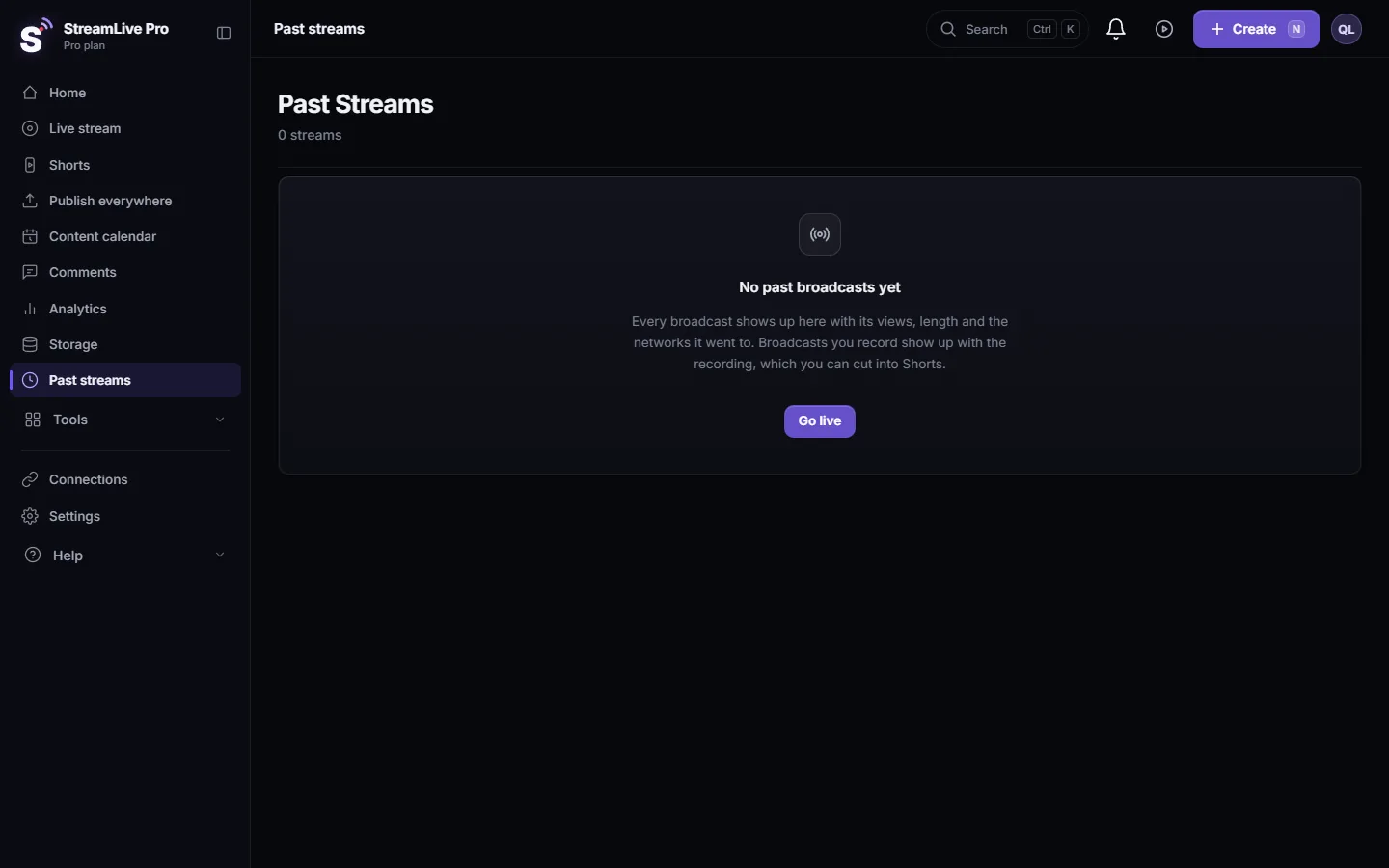
- Find the broadcast. On Home (scheduled and recent broadcasts) or on Past streams, open the broadcast's menu (the three dots) and choose Analytics. The broadcast's details window opens. On Past streams, clicking a broadcast without a saved recording opens the same window.
- Switch on the public player. At the bottom of the window, turn on Public web player / embed ("Allow viewing via a link and embedding on your site"). The message Public player enabled confirms it.
- Copy the embed code. Under Embed code, click the copy button next to the iframe. It looks like this, with your broadcast's id:
<iframe src="https://streamlivepro.io/embed/BROADCAST-ID" width="640" height="360" frameborder="0" allow="autoplay; fullscreen" allowfullscreen></iframe>
- Paste it into your site. Put the code in an HTML or embed block on the page and publish the page.
- Or share the watch link. Under Watch link, copy the address that ends in /watch/ and the broadcast's id. It opens a full page with the player and a chat; send it by email, WhatsApp or a newsletter.
- Brand the player (paid plans). Under Player branding, paste a logo address that starts with https:// and pick an accent colour, then click Save branding.
- Go live as usual. Start the broadcast from the studio or your encoder. The player on your site switches from waiting to live on its own within about 20 seconds.
What viewers see
| Moment | In the embedded player | On the watch link |
|---|---|---|
| Before the live | Offline, and it checks again every 20 seconds | Stream is offline, check back when the broadcast starts |
| During the live | The picture with a LIVE badge and the number watching, sound muted until the viewer turns it on | The same, plus a chat |
| The host's connection drops | The host is reconnecting | The same, with a note that the broadcast continues when the host is back |
| After the live | Stream ended | Stream ended |
| Too many viewers | At capacity | Stream at capacity, try again shortly |
| The switch is off | Stream unavailable | Stream not found: the link may be wrong or the stream is not public |
The player follows the viewer's browser language for its messages (Hebrew or English); add ?lang=he or ?lang=en to the embed address to fix one.
Chat on the watch link
On the watch page viewers type a name and a message. Their messages appear in your live chat next to the player in StreamLive Pro, together with YouTube and Facebook comments (Live chat from YouTube and Facebook in one panel). The embedded iframe shows the player only, without the chat.
Make the player fit the page
The code comes at 640x360. You can change width and height in the code; keep the 16:9 ratio. For a player that follows the page width, wrap it like this:
<div style="position:relative;width:100%;aspect-ratio:16/9">
  <iframe src="https://streamlivepro.io/embed/BROADCAST-ID" style="position:absolute;inset:0;width:100%;height:100%;border:0" allow="autoplay; fullscreen" allowfullscreen></iframe>
</div>
What can go wrong
| What you see | Likely cause | Fix |
|---|---|---|
| The player says Stream unavailable, or the watch link says Stream not found | Public web player / embed is off for this broadcast, or the code belongs to another broadcast | Open the broadcast's details and switch it on; copy the code of this broadcast |
| The player stays on Offline during the live | The code points to a different broadcast, for example last week's | Each broadcast has its own id. Copy the code from the broadcast that is live now |
| Viewers hear nothing | The player starts muted, as browsers require for autoplay | Viewers press the speaker in the player |
| Some viewers see a capacity message | The plan's limit of viewers at the same time was reached | Move to a plan with more viewers, or send those viewers to YouTube or Facebook |
| Your logo does not show | The plan is not a paid plan, or the logo address does not start with https:// | Use a paid plan and an https:// image address, then Save branding |
| Your site refuses the code | The site builder strips iframes | Use the builder's embed or custom HTML block |
Limits to know
- The player shows the live broadcast only. After the broadcast it says Stream ended; it does not play the recording. To put the recording on your site, press Record during the live and publish it, for example to YouTube.
- Each broadcast has its own link and code. A page that shows a weekly broadcast needs the new code each week.
- The watch link and the embed do not ask viewers to sign in. Anyone with the link can watch while the switch is on; switch it off to close it.
Going further
Multistream to social networks and your site at the same time: How to live stream to several platforms at once. Viewer numbers: See live viewers from YouTube and Facebook together. Scheduling ahead so you can embed early: Schedule a live broadcast in advance.
Frequently asked questions
Can I embed my live stream on my website without YouTube?
Yes. Switch on Public web player / embed for the broadcast and paste the iframe code into your site. Viewers watch on your page without any social network account.
Does the embed code change for every broadcast?
Yes. The code contains the broadcast's id, so each broadcast has its own. Copy the code from the broadcast you are about to run.
Can I put the player on my site before the broadcast starts?
Yes. Switch the player on for a scheduled broadcast and paste the code. Until you go live the player shows Offline, and it switches to the live picture by itself.
Why does the player start without sound?
Browsers let videos start on their own only when muted. Viewers turn the sound on with the speaker button in the player.
Can I remove the StreamLive Pro link from the player?
On paid plans the link is hidden, and you can add your own logo and accent colour under Player branding. In the trial the small link stays.
Do viewers on my site count in YouTube views?
No. The web player streams from StreamLive Pro, not from YouTube, so people watching on your site are not counted on YouTube or Facebook. The player shows how many are watching it.
Keep reading
What VOD means: video on demand, the recording people watch after a live ends. Where replays live on each network and in StreamLive Pro, and how to keep yours.
Live streaming glossary: the terms you will meetA live streaming glossary in plain words: stream key, RTMP, SRT, bitrate, multistream, Preview and Program, ISO, captions, reframe. Where each shows up in StreamLive Pro.
Stream to TikTok and YouTube at the same timeStream to TikTok and YouTube at the same time from one computer: who gets a TikTok stream key, YouTube's live requirements, vertical or landscape, and fixes.
Go live on Facebook and Instagram at the same timeGo live on a Facebook Page and Instagram at the same time from one computer: what each network requires, the Instagram key per live, and the fixes.
Want to try it? 7-day trial, no credit card.
Start free