 StreamLive Pro
Go live on YouTube from your phone
Go live on YouTube from a phone with StreamLive Pro in Safari, Chrome or the Android app: switch live on, connect the channel, tick YouTube and start.
You can go live on YouTube from your phone with StreamLive Pro, in Safari or Chrome or in the StreamLive Pro app on Android. StreamLive Pro creates the YouTube broadcast through YouTube's live API and sends your phone's camera to it as an RTMP stream, the way streaming software on a computer does, so the YouTube app's rule of at least 50 subscribers for mobile live does not apply. Your channel does need live streaming switched on, and the first time YouTube can take up to 24 hours.
The StreamLive Pro app is not in the App Store or Google Play yet. On Android you can download it from /app?lang=en; on iPhone, use the site in Safari, which goes live the same way.
Before you start
- Live streaming switched on for the channel. YouTube asks you to verify the channel and to have no live streaming restrictions in the past 90 days (YouTube Help: Get started with live streaming, checked 5 November 2026). YouTube also says you may need to wait 24 hours before your first live stream (YouTube Help: Live stream on mobile, checked 5 November 2026). Do it a day before you need it.
- Why the 50 subscribers do not matter here. YouTube's mobile page lists "At least 50 subscribers" for live streaming in the YouTube app. StreamLive Pro does not use the YouTube app. It creates a YouTube broadcast and an RTMP stream for it through YouTube's live API, which is how encoders reach YouTube, and YouTube's general live streaming page lists verification and no restrictions, not a subscriber count.
- A StreamLive Pro account with your YouTube channel connected. You can connect it from the computer once; the phone uses the same account.
- Wi-Fi or a steady mobile signal, and a charger for anything longer than a few minutes.
Steps
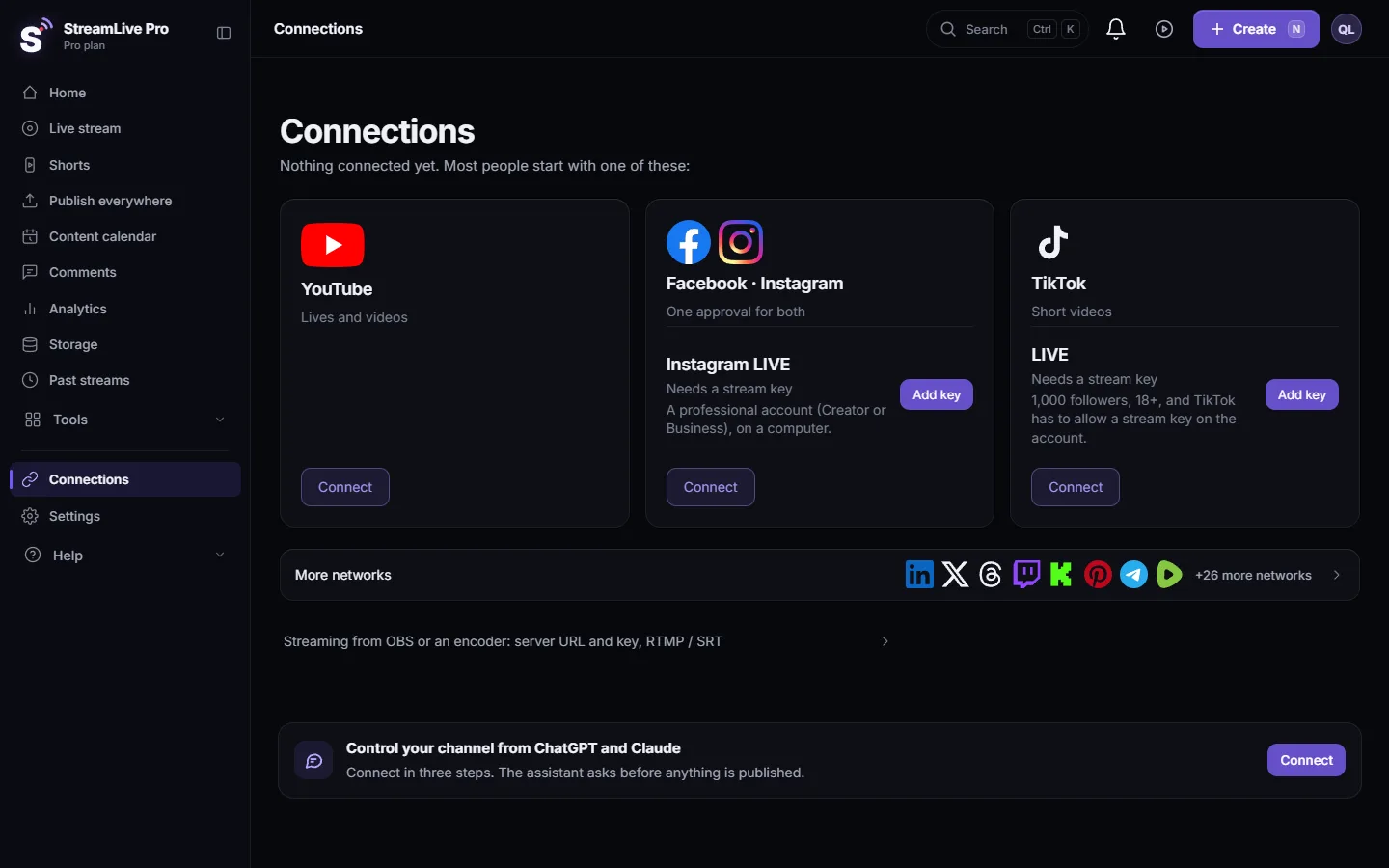
- Switch live on in YouTube. On Connections the YouTube card tells you if live is not on yet, with a Turn on button that opens YouTube. While YouTube works on it, the card says it can take up to 24 hours and has a Check button.
- Connect the channel. On the YouTube card tap Connect and sign in with the Google account that owns the channel. You approve on Google's own screen. If that account has several channels, tap Manage pages and tick the one you want. In the Android app the same step is in the app's connections screen: Connect YouTube, Facebook and more from the phone app.
- Open the live screen on the phone. In Safari or Chrome go to streamlivepro.io, sign in and open Live stream. In the Android app, open the Live tab and start a new broadcast.
- Write the title. This is the title YouTube shows.
- Tick YouTube. Tick your YouTube channel. You can tick other connected networks too: the phone still sends one stream, and our servers send it to each network.
- Allow the camera and microphone. The first time, the phone asks. If you refused before, allow them in the phone's settings.
- Hold the phone the way you want the broadcast. Before you start, the phone turns freely. Once you are on air, the app keeps the orientation you started in. See Go live in portrait or landscape from your phone.
- Go live. StreamLive Pro creates the broadcast on your channel and starts sending. YouTube needs a few seconds before viewers see the picture.
- End. Tap End and confirm. The broadcast ends on YouTube too.
Keep the phone on the broadcast
In the app, switching to another app pauses the camera. Come back within 3 minutes and the app reconnects by itself; after 3 minutes in the background the broadcast ends. In the phone browser, keep the screen on and the browser in front. Turn on Do Not Disturb so a call does not take the camera. If the signal drops, the app says it is reconnecting and keeps trying. More: My live from the phone keeps disconnecting.
What can go wrong
| What you see | Likely cause | Fix |
|---|---|---|
| The YouTube card says live is not on | YouTube has not finished switching live on (up to 24 hours the first time) | Wait, then tap Check on the card |
| YouTube does not allow live on this channel | The channel is not verified, or YouTube restricted live in the past 90 days | Fix it in YouTube Studio; StreamLive Pro cannot lift a YouTube restriction |
| The live went to another channel | The Google account has several channels | Tap Manage pages on the YouTube card and tick the right one |
| Viewers see a black screen | The site was opened inside Facebook, Instagram or TikTok | Open it in Safari or Chrome and go live again |
| The broadcast ended by itself | The app was in the background for more than 3 minutes | Keep the app in front until you tap End |
| The YouTube session expired | The permission given to Google ended | Tap Reconnect on the YouTube card |
If YouTube still does not start, see My live stream does not start on YouTube.
Related
From a computer instead: How to go live on YouTube from your computer. Who can watch (public, unlisted or private): YouTube live visibility: public, unlisted or private. The same live on YouTube and Facebook from the phone: Go live on YouTube and Facebook at once from your phone. Phone apps side by side: Phone live streaming apps compared (2026).
Frequently asked questions
Do I need 50 subscribers to go live on YouTube from my phone?
Only in the YouTube app. StreamLive Pro reaches YouTube through YouTube's live API with an RTMP stream, like computer streaming software, so the channel needs live switched on, verification and no live restrictions in the past 90 days.
Why can I not go live on YouTube right away?
YouTube has to switch live streaming on for the channel. The first time it can take up to 24 hours, so do it a day before your broadcast.
Is there a StreamLive Pro app for iPhone?
Not in the App Store yet. On iPhone, open streamlivepro.io in Safari: going live to YouTube works there the same way.
Can I go live on YouTube and Facebook at the same time from the phone?
Yes, if both are connected. Tick both before you start; the phone sends one stream and our servers send it to each network.
Can I go live in portrait on YouTube from the phone?
In the app, the broadcast keeps the orientation you start in. Hold the phone upright before you go live for a portrait broadcast, or sideways for landscape.
Does my phone need to stay on the live screen?
Yes. In the app you have 3 minutes to come back after switching away, then the broadcast ends. In the browser keep the screen on and the browser in front.
Keep reading
Live stream a youth or amateur sports game with one or two phones: where to stand, sound, the score on screen, the venue's internet, privacy and highlights afterwards.
How to live stream a bar mitzvah or a family eventLive stream a bar mitzvah, a brit or another family event for relatives who cannot come: privacy, cameras, sound, the hall's internet and a plan for the day.
Live streaming software for beginners: start simpleLive streaming software for beginners: why a browser studio is the easiest start, a first live in eight steps, the camera check, and the mistakes to avoid.
Go live on YouTube and Facebook at once from your phoneGo live on YouTube and a Facebook Page at the same time from your phone with StreamLive Pro: connect both once, tick both, go live. One upload from the phone.
Want to try it? 7-day trial, no credit card.
Start free