 StreamLive Pro
How to livestream on Odysee from your browser
Livestream on Odysee: create a livestream for your channel, copy the stream server and the long stream key from RTMP Setup, and paste them into the Odysee card.
To livestream on Odysee from StreamLive Pro, create a livestream for your Odysee channel, copy the stream key from its RTMP Setup tab, and paste it into the Odysee card on Connections. The Odysee server address is already filled in on the card. Odysee says the server and key carry over to your next streams, so you set this up once. Then you tick Odysee in the studio and go live, alone or with YouTube, Rumble and other networks.
Before you start
- An Odysee channel that may livestream. Odysee shows its livestream requirements on the Livestream page of your account (odysee.com/$/livestream). If the page says your channel does not qualify yet, there is nothing to paste.
- The stream key from RTMP Setup. Odysee's help says that after your livestream has been created, you switch to the RTMP Setup tab, where the stream server and stream key are (Odysee Help: Setting a stream destination).
- A StreamLive Pro account. The browser studio works on the 7-day trial. OBS or vMix as the source needs a paid plan (see the /pricing?lang=en page).
Steps
- Open the Livestream page. Go to odysee.com/$/livestream and pick your channel. The Odysee card in StreamLive Pro has an Open Odysee button that takes you there.
- Create the livestream. Create a new stream, or schedule one, with its title and details.
- Copy server and key. Switch to RTMP Setup. Copy the Stream server and the Stream key. The Odysee key is long and includes ?d= with more characters after it: copy all of it.
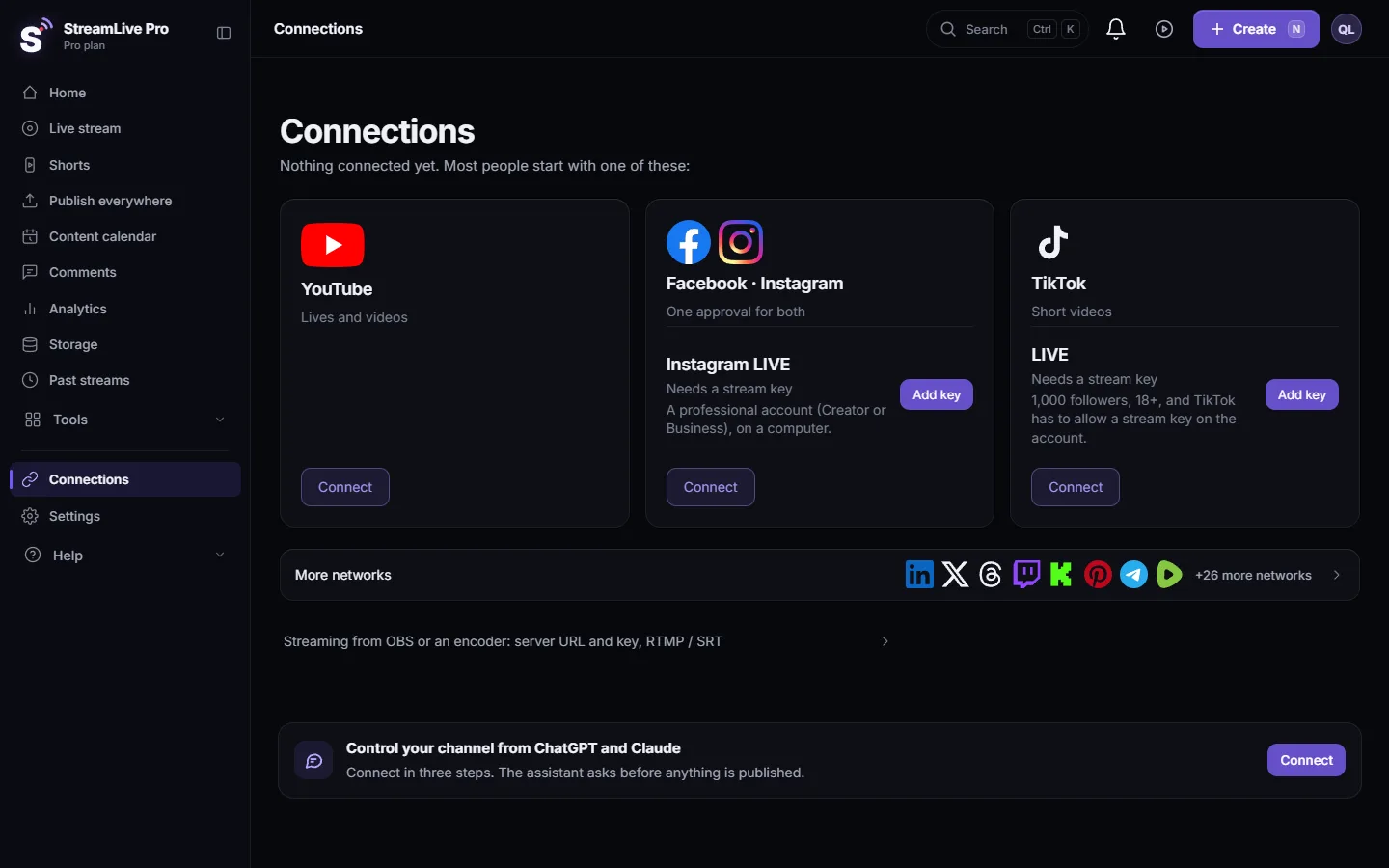
- Add the Odysee card. Open Connections, go to the Manual section (live with a stream key) and choose Odysee. The server field holds rtmp://stream.odysee.com/live. If Odysee shows a different server, paste Odysee's. Paste the whole key and save.
- Open the studio. Go to Live stream and choose Browser Studio, or Stream from software like OBS (RTMP / SRT) if you produce in OBS or vMix.
- Tick Odysee and go live. Tick Odysee in the Channels list, plus any other networks, and press Start stream. Check your Odysee livestream page to see the picture arrive.
- End. Press Stop stream. Press Record during the broadcast if you want StreamLive Pro to keep the full recording; otherwise our temporary copy is removed about two hours after.
The next Odysee stream
Odysee's help says that when you have streamed before, you choose Create or Schedule a New Stream and your stream server and stream key carry over, so you do not need to update your streaming software (Odysee Help: Reusing the stream server and key). In StreamLive Pro that means the Odysee card keeps working: create the new stream on Odysee, then tick Odysee and start.
What StreamLive Pro checks
- The address belongs to Odysee. The card accepts addresses on odysee.com. If an address from a known network is pasted, the message names it. For other services, use the Custom RTMP card.
- The key is pasted alone. A URL, or text with spaces, in the key field is refused. The ?d= part of the Odysee key is fine: it is part of the key.
What can go wrong
| What you see | Likely cause | Fix |
|---|---|---|
| Odysee says the channel cannot livestream yet | The channel does not meet Odysee's requirements | Check the requirements on Odysee's Livestream page |
| Odysee stays offline while StreamLive Pro is live | The key was cut before or after ?d= | Copy the whole Stream key again from RTMP Setup |
| "A URL or text with spaces was pasted into the stream key field" | The server and key were pasted together | Paste the server into the server field and only the key into the key field |
| The stream reaches the wrong channel | The key was copied while another channel was picked | Pick the right channel on the Livestream page and copy its key |
More: Troubleshooting the problems that come up most.
Encoder settings
Odysee recommends using the OBS output settings it suggests on its own pages (same Odysee help page). In the browser studio StreamLive Pro sends one stream for all networks; if you produce in OBS, see OBS settings for multistreaming to several networks.
Limits to know
- Odysee chat and viewer numbers are not shown in StreamLive Pro. Live chat covers YouTube and Facebook (with replies) and Twitch and Kick (read only).
- Odysee is a live destination only in StreamLive Pro. Uploading finished videos to Odysee is not supported.
Going further
Rumble also works with a key: How to go live on Rumble with a stream key. Several networks in one broadcast: How to live stream to several platforms at once. All networks: Going live on each network: what it needs.
Frequently asked questions
Where is my Odysee stream key?
On the Livestream page, after you create a stream, in the RTMP Setup tab. Copy the whole key, including the part from ?d= on.
Do I need a new Odysee key for every stream?
No. Odysee says the server and key carry over when you create or schedule a new stream. The key saved in StreamLive Pro keeps working.
Can I stream to Odysee and YouTube at the same time?
Yes. Tick both in the same broadcast. You upload one stream and StreamLive Pro sends it to each, within the number of destinations your plan allows.
Why can I not livestream on Odysee yet?
Odysee decides which channels can livestream and shows its requirements on the Livestream page. StreamLive Pro cannot change that.
Do I need OBS to stream to Odysee?
No. The browser studio sends your camera, microphone and screen, and StreamLive Pro forwards it to Odysee.
Keep reading
A live streaming glossary in plain words: stream key, RTMP, SRT, bitrate, multistream, Preview and Program, ISO, captions, reframe. Where each shows up in StreamLive Pro.
How to stream on Bilibili Live with a stream keyStream on Bilibili Live from your browser: start a live in your Bilibili room, copy the server and fresh key into the Bilibili Live card, then go live.
How to go live on Dailymotion with a stream keyGo live on Dailymotion: get live enabled on your account, create a live stream in Dailymotion Studio, and paste its stream URL and key into StreamLive Pro.
How to stream on DLive with your stream keyStream on DLive from your browser: copy the key from your DLive dashboard, paste it into the DLive card in StreamLive Pro, and go live alone or with other networks.
Want to try it? 7-day trial, no credit card.
Start free